EducationSoftwareStrategy.com
StrategyCommunity

Knowledge Base

Product

Community

Knowledge Base

TopicsBrowse ArticlesDeveloper Zone

Product

Download SoftwareProduct DocumentationSecurity Hub

Education

Tutorial VideosSolution GalleryEducation courses

Community

GuidelinesGrandmastersEvents
x_social-icon_white.svglinkedin_social-icon_white.svg
Strategy logoCommunity

© Strategy Inc. All Rights Reserved.

LegalTerms of UsePrivacy Policy
  1. Home
  2. Topics

KB234963: When RScript function is validated in the stand alone metric editor, the full RScript metric expression is truncated into simple metric expression


Community Admin

• Strategy


This issue will hinder users from viewing the full syntax and expressions that are related to RScript packages, as validating the metric syntax in stand alone metric editor will hide all of the R package related parameters. This will make it impossible to determine how and where R Syntax is pulling its relative R functions from.

SUMMARY:
This issue will hinder users from viewing the full syntax and expressions that are related to RScript packages, as validating the metric syntax in stand alone metric editor will hide all of the R package related parameters. This will make it impossible to determine how and where R Syntax is pulling its relative R functions from.
 
SYMPTOM:
 
When a user validates the RScript syntax in the stand alone metric editor, the full expression gets truncated.  Below is an example of how the expression will be truncated:
 
RScript Stand Alone metric Syntax:


RScript<[_RScriptFile]=”C:/Program Files (x86)\RScripts\SeasonalForecasting.R”,[_InputNames]=”Target,Trend,Season”>([Cash In],[Month Index],[Month Of Year])

 
After Metric Validation:

RScript([Cash In], [Month Index], [Month Of Year])
 
CAUSE:
 
This is due to the default behavior of the stand alone metric editor to hide function parameters, which is a feature that the derived metric editor in Developer does not have.
 
WORKAROUND:
 
If a user wants to keep going back and seeing the full formula while in the report, they can create derived metrics and put in the full formula there.  When going back to this editor, the expression will not be truncated. 
 
ACTION:
 
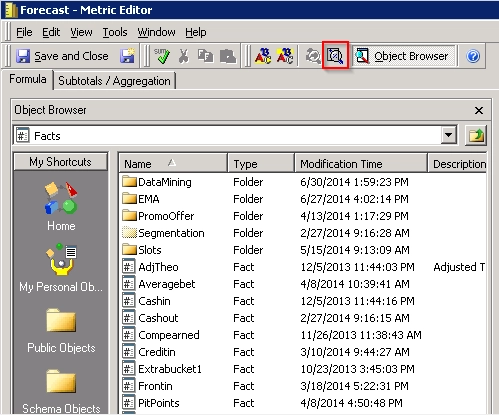
When in the Metric Editor, click the button 'show function parameters' as highlighted below, as that will show all the parameters associated with RScript function.

ka04W000000OeUZQA0_0EM440000002C8O.jpeg


Comment

0 comments

Details

Knowledge Article

Published:

June 9, 2017

Last Updated:

June 9, 2017