EducationSoftwareStrategy.com
StrategyCommunity

Knowledge Base

Product

Community

Knowledge Base

TopicsBrowse ArticlesDeveloper Zone

Product

Download SoftwareProduct DocumentationSecurity Hub

Education

Tutorial VideosSolution GalleryEducation courses

Community

GuidelinesGrandmastersEvents
x_social-icon_white.svglinkedin_social-icon_white.svg
Strategy logoCommunity

© Strategy Inc. All Rights Reserved.

LegalTerms of UsePrivacy Policy
  1. Home
  2. Topics

KB235137: How to avoid RunningSum nulls caused by cross tab nulls in MicroStrategy Analytics Enterprise?


Community Admin

• Strategy


This article describes how to deal with crosstab nulls with a runningsum

Question

How to avoid null values in a RunningSum metric? 
Example:
In the following report, metric 'M0' is defined as: Sum(Revenue) {~+} ; The 'RunningSum' metric is defined as RunningSum<SortBy= (Year, [Customer City], Customer) >([M0]) .
The RunningSum metric does not display any value where the metric 'M0' has cross tab nulls as shown below. 
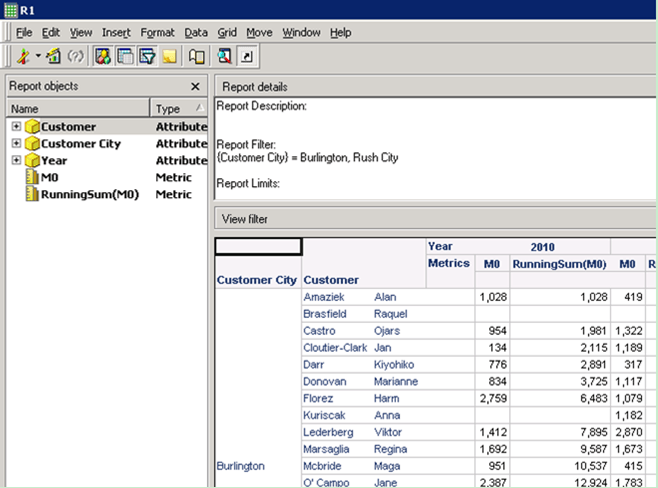
ka04W000000OfCWQA0_0EM440000002C7s.jpeg


Answer

The RunningSum function can only calculate on the results returned by SQL execution. Cross tab nulls are generated due to the way data is displayed. If there is no data returned for a row/column combination, the RunningSum function cannot pick up any value for this combination.
To display a RunningSum value for every row/column combination, users can follow the key points provided below:

  • Metric 'M0' needs to be redefined to eliminate NULL values.
  • RuningSum metric to include NullToZero function.
  • Create the report so that the report SQL is generated with the proper outer joins to cover all these combinations along with the option to let Analytical Engine calculate the RunningSum function so that NullToZero conversion can be applied.

 
Detailed steps have been below:
 

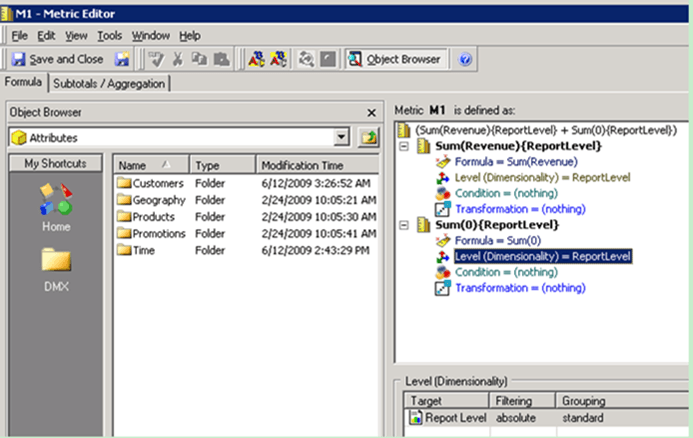
  • Modify the metric 'M0' to the formula: (Sum(Revenue) {~+}  + Sum(0) {~*} );Set metric formula  join type to outer: Set Filtering for Sum(0) to absolute as below:
ka04W000000OfCWQA0_0EM440000002C7v.jpeg
  • Change the metric 'RunningSum' to the formula: RunningSum<SortBy= (Year, [Customer City], Customer) >(NullToZero([M1]);Make sure that Smart metric is enabled;Leave the default Total Subtotal function and Dynamic Aggregation function.(If the metric values need to start over every Year, Year can be added into Breakby)
     
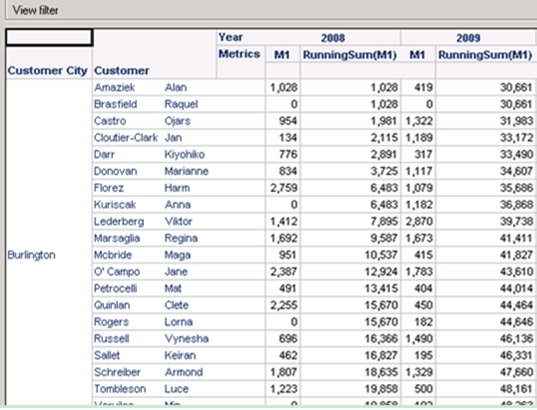
  • Set the metric join type to outer. When running the report, the RunningSum metric can display properly as shown below:


ka04W000000OfCWQA0_0EM440000002C7Z.jpeg


Comment

0 comments

Details

Knowledge Article

Published:

May 11, 2017

Last Updated:

May 11, 2017