There is a small Strategy icon which appears next to the URL in the browser when using Strategy Web 9.4.1. This image is called a favicon and it is a browser feature which is associated with a particular website or web page.
Before Customization:
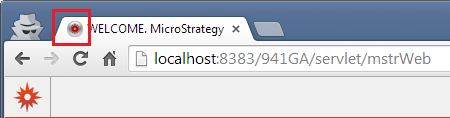
Users may decide that they may not want to see this image or want to change the image. Note that when the image reference is removed, underlying favicon.ico images may be displayed in its place if another application specifies one.
After Customization:
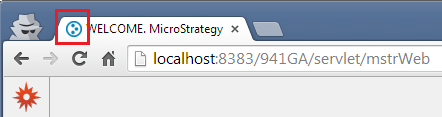
Developers can follow the steps below to modify the favicon image using the Web Customization Editor in 9.4.1:
<!--  favicon -->
<!--<link rel="shortcut icon" href="../style/mstr/images/favicon.ico" type="image/x-icon" />-->
<!--  end favicon -->
<!-- favicon -->
<link rel="shortcut icon" href="../plugins/customplugin/style/images/customfavicon.ico" type="image/x-icon" />
<!-- end favicon -->
For removing the favicon when running a Report Services Document in Express Mode, perform the following steps:
Comment/change this line:
<link rel="shortcut icon" href="../style/mstr/images/favicon.ico" type="image/x-icon" />
Change this:
<jsp:include page='/jsp/Mojo_Section.jsp' flush="true" />
<jsp:include page='/plugins/ customplugin /jsp/Mojo_Section.jsp' flush="true" />
For removing the favicon for the Error Page, perform the following steps:
Comment/change this line:
<link rel="shortcut icon" href="../style/mstr/images/favicon.ico" type="image/x-icon" />
Change this:
<jsp:include page='/jsp/Mojo_Section.jsp' flush="true" />
<jsp:include page='/plugins/customplugin /jsp/Error_FullContent.jsp' flush="true" />
The example provided in this document is provided “as-is” to the user and assumes that the user:
PREREQUISITES:
For the sample to work, the Strategy Web JAR files must be accessible by the Java Runtime Environment. The Strategy Web JAR files can be found under:
Note: More elaborate programs will require additional library files and are out of the scope of this document.
ADDITIONAL INFORMATION:
The Strategy SDK allows you to customize the standard Strategy Web interface, and extend and integrate the Strategy business intelligence functionality into other applications. However, before changing the way Strategy Web products look or behave, it is helpful to understand how the application is built. For more information regarding the Strategy Web architecture or the process of customizing Strategy Web, please refer to Strategy Developer Zone (https://developer.microstrategy.com).
To access the Strategy Developer Zone, you must have access to the Strategy Knowledge Base, you must have purchased the Strategy SDK, and you must be current on your Strategy maintenance agreement. If you are a US-based business and believe that you satisfy all three of these conditions but you do not have access to the Strategy Developer Zone, please contact Strategy Technical Support at support@microstrategy.com or at (703) 848-8700. If you are an international business, please contact Strategy Technical Support at the appropriate email address or phone number found at https://www.microstrategy.com/en/support/contact-support.
CUSTOMIZATION WARNING:
This customization is provided as a convenience to Strategy users and is only directly applicable to the version stated. While this code may apply to other releases directly, Strategy Technical Support makes no guarantees that the code provided will apply to any future or previous builds. In the event of a code change in future builds, Strategy Technical Support makes no guarantee that an updated version of this particular customization will be provided. In the event of a code change in future builds, Strategy may not be able to provide additional code on this matter even though this customization is provided at this time for this specific build. For enhancements to this customization or to incorporate similar functionality into other versions, contact your Account Executive to inquire about Strategy Consulting assistance.
