SUMMARY
When a report with Advanced Sorting and an attribute element prompt is executed and re-prompted in Strategy Developer and Strategy Web, Strategy Web does not display the Advanced Sorting previously set. Even though this is observed, the report is still follows the criteria from the Advanced Sorting set previously.
SYMPTOM
In Strategy 9.4.1 and higher, when creating a report with an element prompt and defining an advanced sorting on the selected element in the prompt as the criteria. Once the report is re-executed and the element prompt answer is changed, the previously defined advanced sorting is still displayed in Strategy Developer but shows as blank in Strategy Web. The sorting is still respected in both Strategy Developer and Strategy Web.
STEPS TO REPRODUCE
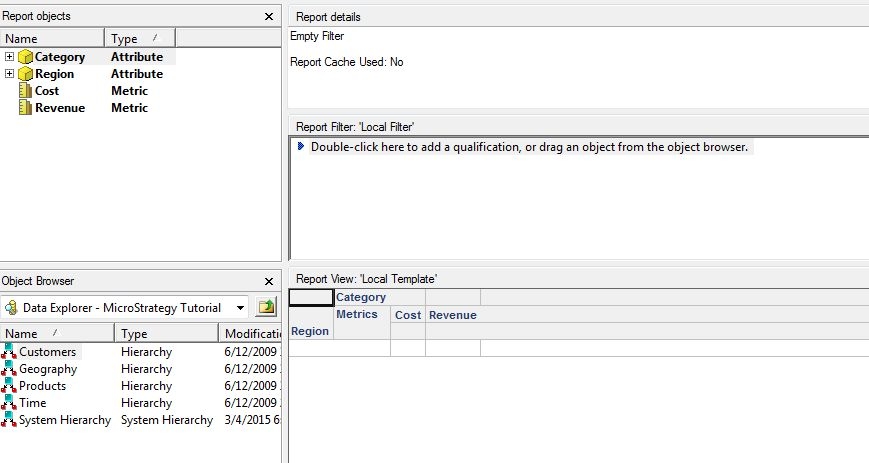
1) Using Strategy Tutorial Project, create the a report with the following structure:
- Rows: Region (attribute)
- Columns: Category (attribute), Cost (metric), Revenue (metric).
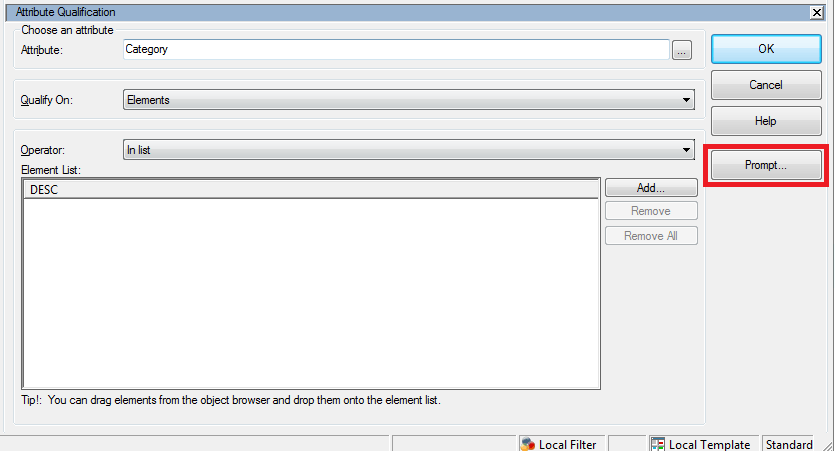
2) Add a Report Filter using an Attribute qualification. Specify the attribute as "Category" and then click "Prompt..."
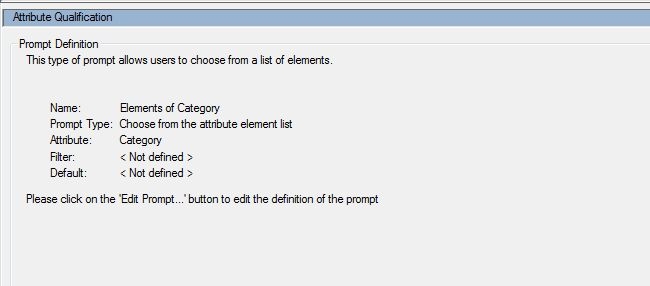
3) In the "Prompt Generation Wizard", click "Next >" on the first window. In the second window, leave "List all elements (no restriction) radio button, and click "Next >". Then in the next window, click the "Prompt answer required" check box, then click "Finish". The prompt will look as follows:
4) Run the report. When prompted, choose "Books" as the only prompt answer. Then click "Finish".
5) Once the report has been executed, click the "Data" option in the toolbar, and then click "Advanced Sorting".
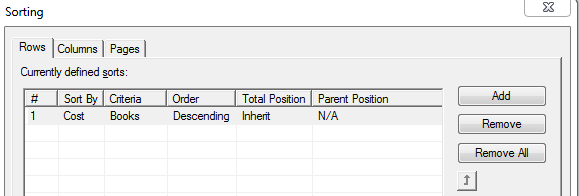
6) Within the Sorting window, click "Add" and define the sorting as follows:
7) The output of the report should look as follows:
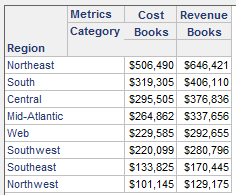
Notice how the Regions have been sorted descendingly by the Cost metric.
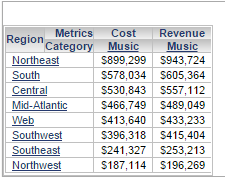
8) Re-prompt the report, and choose "Music" as the only prompt answer and click "Finish". The report will look like the following:
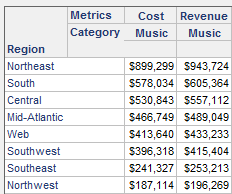
It can be noticed that the sorting still applies even when the criteria "books" is not part of the report this time. This is the expected behavior. Whenever the criteria attribute element is not found in the report, the analytical engine will search for any other attribute elements reporting at the same level and will choose the first element found to perform the sorting. So, for example, if Movies and Music were selected sa the prompt answers, then the sorting would be performed by Movies.
9) Open the Advanced Sorting again and notice that the previously defined sorting for the Books criteria is still shown even when the Music attribute element was selected in the prompt.
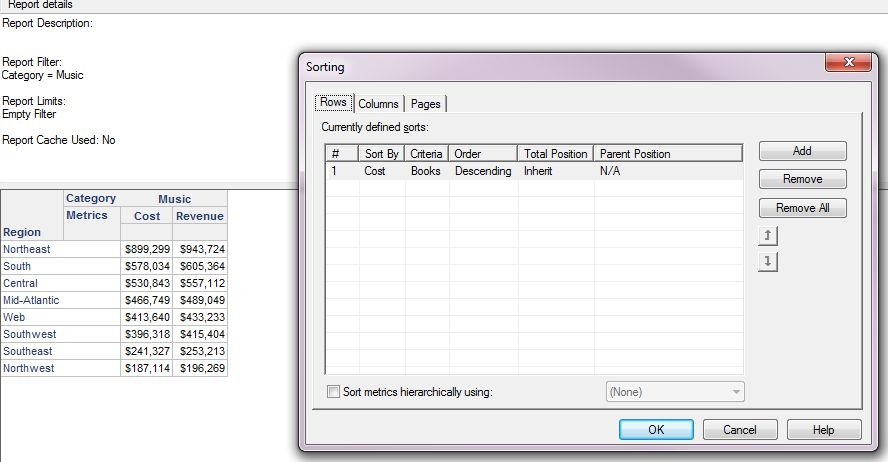
10) Close the report and save it. In the prompt options, click "Prompted", "Only filter will be prompted". Uncheck "Set the current prompt answers to be the default prompt answers.", then click "OK".
11) Open the same Report in Strategy Web and choose "Books" as the prompt answer. Click "Data" on the toolbar and the click "Sort...". The sorting will be displayed as in Strategy Developer.
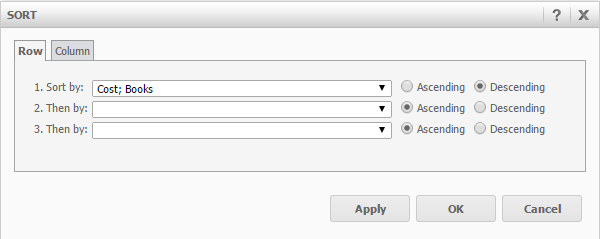
12) Re-prompt the report, remove "Books" as the prompt answer and choose "Music" as the unique prompt answer. Then click "Run Report". When opening the sorting again, it can be observed that the defined "Sort by" is blank.
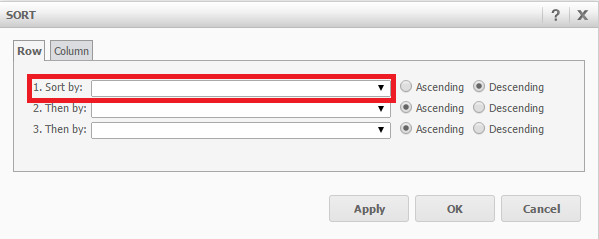
It can be observed that the selection button still shows as "descending" and the sorting stil applies correctly.
CAUSE
This is a known issue with the sorting display of Strategy Web 9.4.1.
ACTION
The sorting will still be applied even when the sorting screen shows as blank. Therefore it is safe to ignore the missing display.
Contact Strategy Technical Support for an update on this issue.
