SUMMARY
This technical note answers the question if it is possible to export to Microsoft Excel from Strategy Web 9.x and 10.x based on the number of rows in a report or document, and addresses how this functionality can be achieved using a metric and a custom group.
QUESTION
Is it possible to export to Microsoft Excel from a report or document based on the number of rows in Strategy Web?
ANSWER
This functionality is currently not available in Strategy Web 9.x and 10.x. If desired as an enhancement request, visit the Community Ideas Exchange forum here.
WORKAROUND
This functionality can be achieved depending on the set up of the report and or document, as well as adding a metric and a custom group. The following explains the process on how to do this using a custom report made in Strategy Tutorial Project in Strategy Developer:
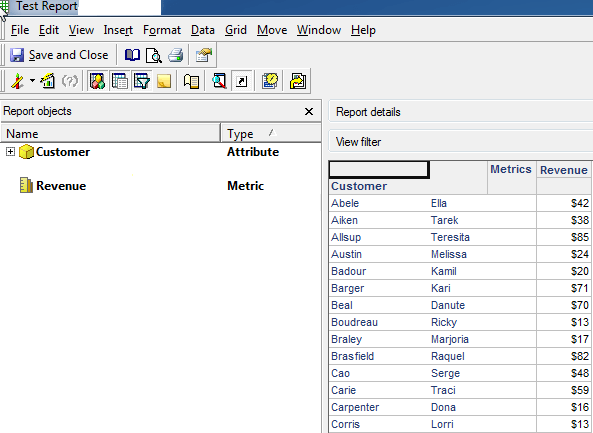
1) Create a report using the customer attribute and the Revenue metric:
2) Create a custom metric using the Revenue metric "NTileSize(Revenue, 25.0)"
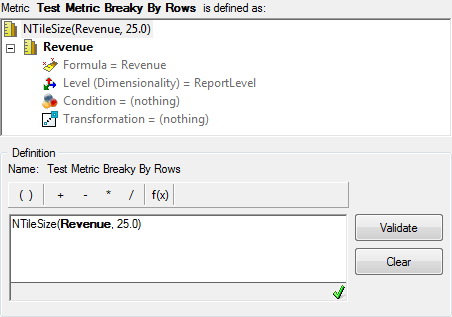
This NTileSize function creates a metric that breaks the Revenue metric into “buckets” each with the size of 25 rows. Here, it is called “Test Metric Break By Rows” to distinguish this metric as the qualifier for how the report is broken down when exported.
3) Create a custom group and create custom group elements (in this situation, 3 were made and named segment 1, 2, and 3 respectively). Qualify each of the custom group elements with the following set qualification. Refer to the screenshot below:
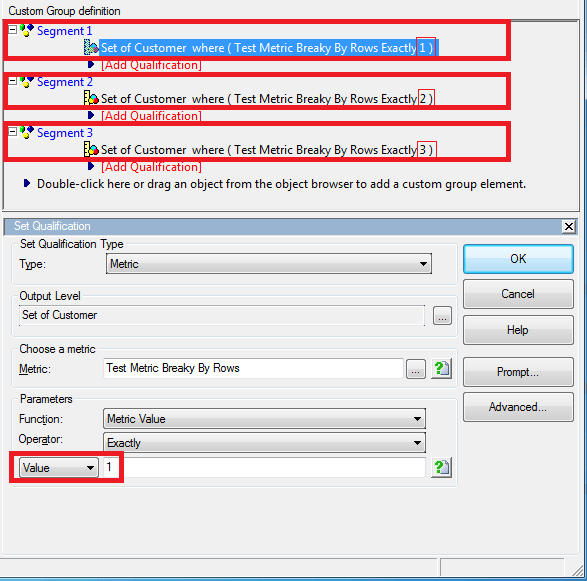
4) Repeat step 3 exactly, except the “Value” portion will change to 2 and 3 respectively. These values are used because the NTileSize function creates buckets with numeric labels and in this case creates 3, incrementing from 1. That is why the numeric values of 1, 2 and 3 are used. Refer to the screenshot in step 3.
5) Once the other two remaining custom group elements are finished, go back to the report created in step 1, and add the test metric made in step 2 and the custom group made in step 3.
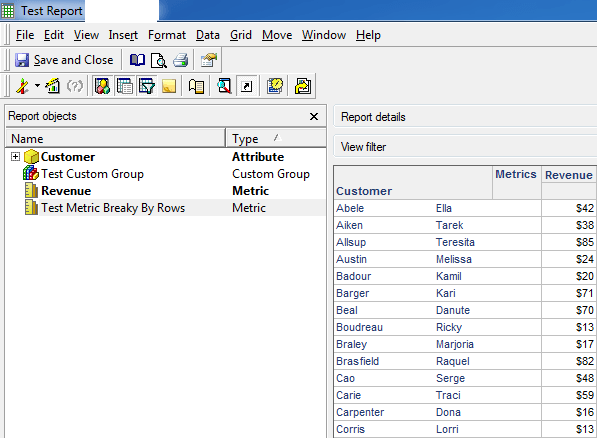
6) In the report editor, add the custom group made to the “page by” section of the report
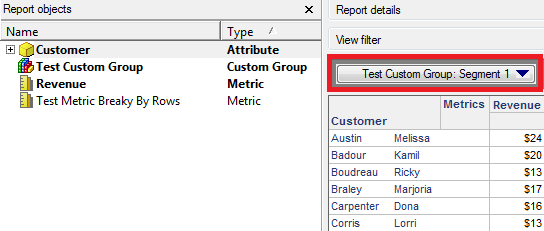
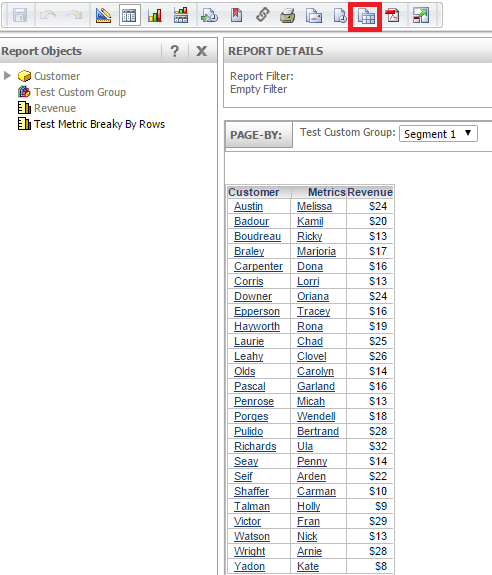
7) Once this is done, log into Strategy Web and open the report made. Then click export as shown in the screenshot below.
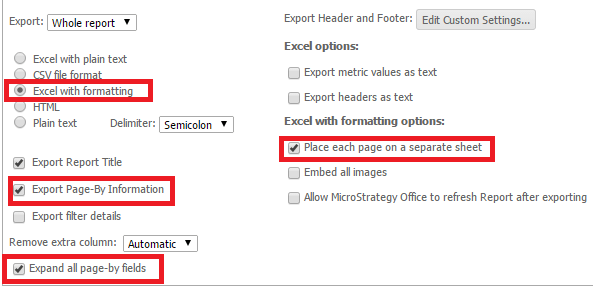
8) When the export window comes up, make sure the following options are checked as shown in the screenshot:
9) Open the excel report that is saved and it should look like this screenshot below:
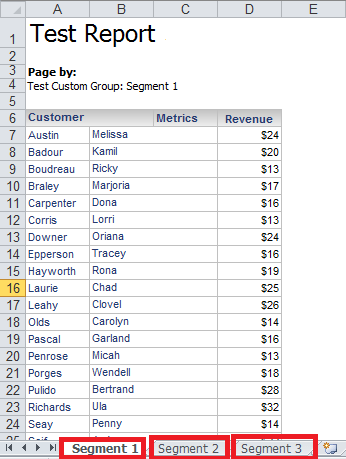
In here, one should see the report containing 25 rows of data, then in the sheets section below, it can be seen that the name of each group by elements becomes the name of each sheet, that also have 25 rows each.
This functionality only works with creating multiple sheets each of size 25 rows, and does not create pages with 25 rows, on the same sheet.
