EducationSoftwareStrategy.com
StrategyCommunity

Knowledge Base

Product

Community

Knowledge Base

TopicsBrowse ArticlesDeveloper Zone

Product

Download SoftwareProduct DocumentationSecurity Hub

Education

Tutorial VideosSolution GalleryEducation courses

Community

GuidelinesGrandmastersEvents
x_social-icon_white.svglinkedin_social-icon_white.svg
Strategy logoCommunity

© Strategy Inc. All Rights Reserved.

LegalTerms of UsePrivacy Policy
  1. Home
  2. Topics

KB237119: How are MicroStrategy Intelligence Servers listed and maintained for the MicroStrategy Web Administrator page?


Community Admin

• Strategy


It is sometimes necessary for administrators to back up the MicroStrategy Web 9.x information regarding the connected servers or to make changes manually to the connection properties of a MicroStrategy Intelligence Servers without using the MicroStrategy Web 9.x or 10.x interface.

SYMPTOM:
It is sometimes necessary for administrators to back up the Strategy Web 9.x information regarding the connected servers or to make changes manually to the connection properties of a Strategy Intelligence Servers without using the Strategy Web 9.x or 10.x interface.
 
ACTION:
This tech note explains:
  1. File Relationships.
  2. How to Remove a Server listing.
  3. How to Manually Add Parameters to a Sever.


  • File Relationships:

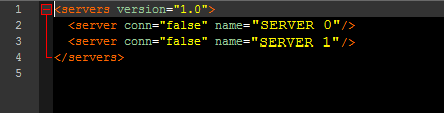
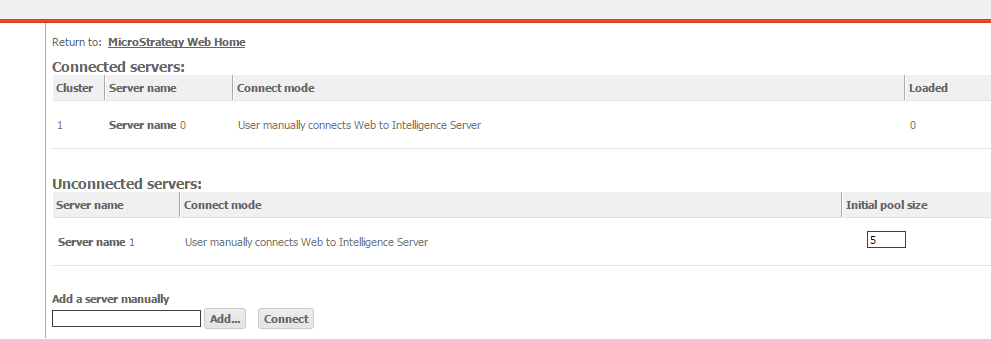
    All servers that appear in the Web Administrator page under Connected or Unconnected servers are listed in the AdminServer.xml file, as shown below:
ka04W000000OdgzQAC_0EM4400000025dj.jpeg
ka04W000000OdgzQAC_0EM4400000025dk.jpeg
  • This file is located in:
    
    [WEB SERVER HOME]\WEB-INF\xml

     
    Each server also has an individual entry with the format sys_defaults_[ISERVER_NAME]. These files contain the individual settings that relate to each Strategy Intelligence Server, such as whether to show the login page before or after the project listing.

ka04W000000OdgzQAC_0EM4400000025di.jpeg
  • These are the files that would have to be backed up to keep the connection informaiton to any Strategy Intelligence server.
  • HOW TO MANUALLY REMOVE A SERVER LISTING:

    To fully remove an Intelligence Server listing from the Strategy Web server, edit the AdminServer.xml file and remove the listing for the corresponding IServer. Then delete the sys_defaults_[SERVER_NAME].properties file that corresponds to the server that is to be removed. Restart the web server for the changes to take effect.
  • HOW TO MANUALLY ADD PARAMETERS TO A SERVER:

    Each individual sys_defaults_[SERVER_NAME] properties file contains all the settings that are changed for that individual server. It is possible to manually change the following on a server by server basis:
    
    load_balance_factor - Corresponds to the Load Balance Factor setting
    showLoginPageAfterLogout - Corresponds to the option of whether to display a login page once a user has logged out
    connectmode=manual - Corresponds to whether the server is automatically or manually connected 
    max_pool - Corresponds to the maximum pool size setting
    keep_alive - Corresponds to the setting "Keep the connection alive"

    Note that these settings will only display in the sys_defaults_[SERVER_NAME] file if the setting is different than a setting in the Default Properties section of the Strategy Web admin page.

    An example is: if the default property for connect mode is to have servers automatically connect, there would only be a connectmode parameter in the sys_defaults_[SERVER_NAME] file if that server was set to manually connect.


Comment

0 comments

Details

Knowledge Article

Published:

April 6, 2017

Last Updated:

April 6, 2017