EducationSoftwareStrategy.com
StrategyCommunity

Knowledge Base

Product

Community

Knowledge Base

TopicsBrowse ArticlesDeveloper Zone

Product

Download SoftwareProduct DocumentationSecurity Hub

Education

Tutorial VideosSolution GalleryEducation courses

Community

GuidelinesGrandmastersEvents
x_social-icon_white.svglinkedin_social-icon_white.svg
Strategy logoCommunity

© Strategy Inc. All Rights Reserved.

LegalTerms of UsePrivacy Policy
  1. Home
  2. Topics

KB237145: A Visual Insight Dashboard using a Custom Group as a filter for a Visualization opens as a blank white page in MicroStrategy Web 9.3.1.


Community Admin

• Strategy


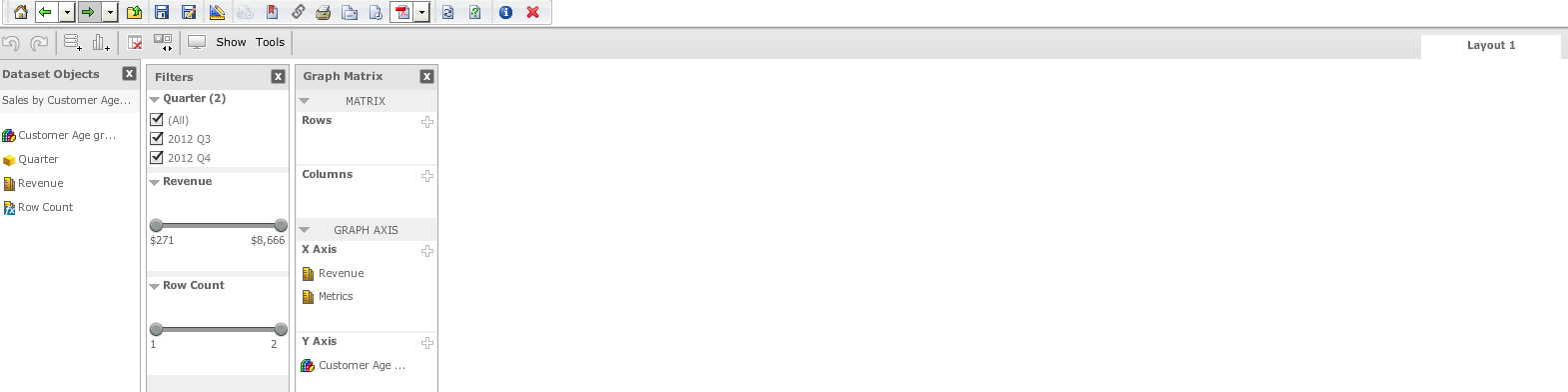
A visualization can be set to filter other visualizations on a Visual Insight dashboard in MicroStrategy Web 9.3.1. If the visualization is set to filter targets when selecting elements of a Custom Group, the dashboard will render as a blank white screen after execution. This can be seen in the screenshot below.
SYMPTOM
A visualization can be set to filter other visualizations on a Visual Insight dashboard in Strategy Web 9.3.1.  If the visualization is set to filter targets when selecting elements of a Custom Group, the dashboard will render as a blank white screen after execution.  This can be seen in the screenshot below.
 

ka04W000000OgjGQAS_0EM4400000025dm.jpeg

 
STEPS TO REPRODUCE

  1. Create a Custom Group and add it to a report. 
  2. Add 1 additional attribute and 2 metrics to the report.
  3. Create a Visual Insight dashboard using the report from step 1 as a dataset.
  4. Create a bar graph visualization with the Custom Group and a single metric.
  5. Insert a second grid visualization that contains the additional attribute and metric.
  6. Go to the Filtering Options on the bar graph visualization.
  7. Apply filtering to the grid visualization, allow user to clear all selections, and filter targets when selecting elements of the Custom Group.
  8. Save and exit the dashboard.
  9. Navigate through the folders to the location you saved the dashboard and execute it.  Notice that the toolbar appears at the top of the dashboard, but the rest displays as all white.

 
CAUSE
This is a known issue in Strategy Web 9.3.1.
 
ACTION
Currently this issue is still being reviewed for feasibility by our Technology team and it is not scoped for any upcoming scheduled Strategy release.
 
This issue has been logged with Strategy internal reference number 1014714.


Comment

0 comments

Details

Knowledge Article

Published:

June 12, 2017

Last Updated:

June 12, 2017