SYMPTOM:
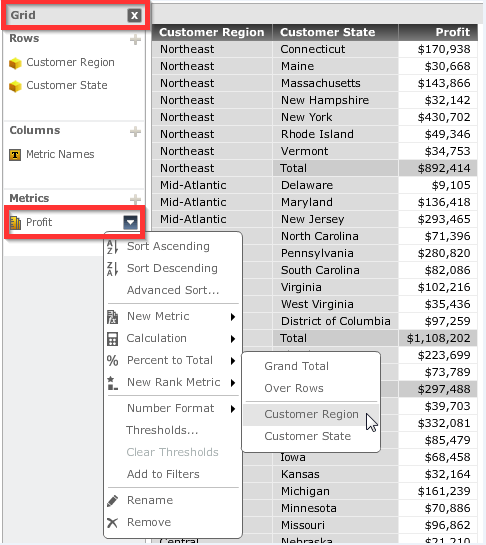
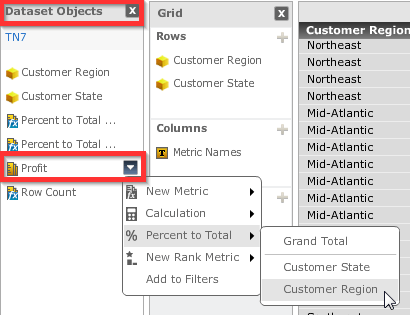
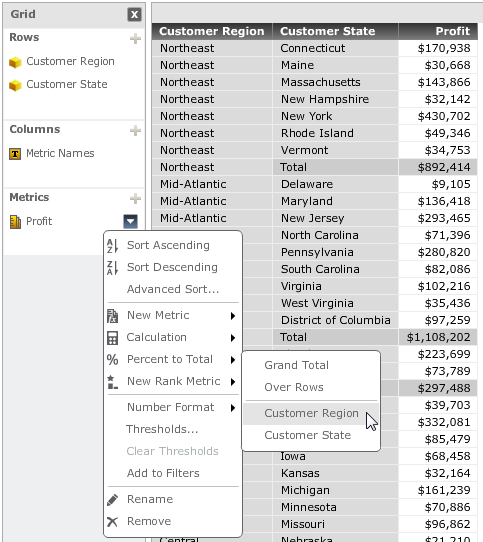
When using a Grid visualization in Visual Insight in Strategy Web 9.4.1, derived metrics can be created by clicking on the down arrow next to the metric name in the Dataset Objects pane or Grid pane. More specifically, a “Percent to Total” metric can be created by clicking on the down arrow next to the metric name, and selecting “Percent to Total”.
The picture below shows how to create a “Percent to Total” metric in the Grid pane:
The picture below shows how to create a “Percent to Total” metric in the Dataset Objects pane:
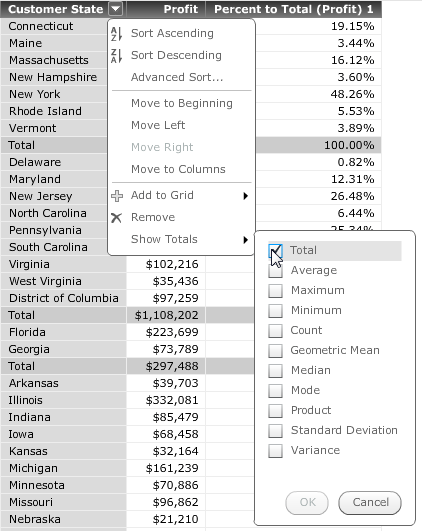
As seen from the pictures above, there are two ways to create a “Percent to Total” metric on the “Profit” metric. However if both metrics are added to a grid, they provide different results, as shown below.
Metric created from Grid Pane:
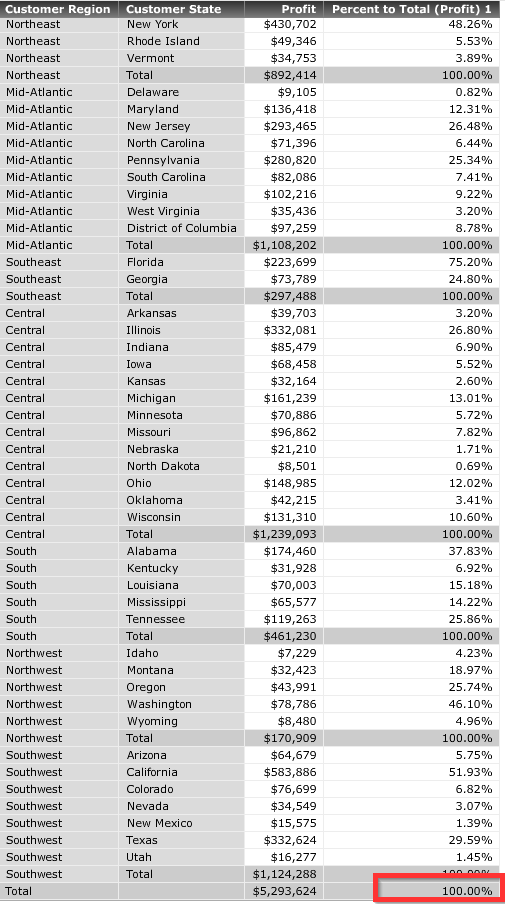
Notice how the value of the metric in the image above, adds up correctly to 100%.
Metric created from Dataset Objects pane:
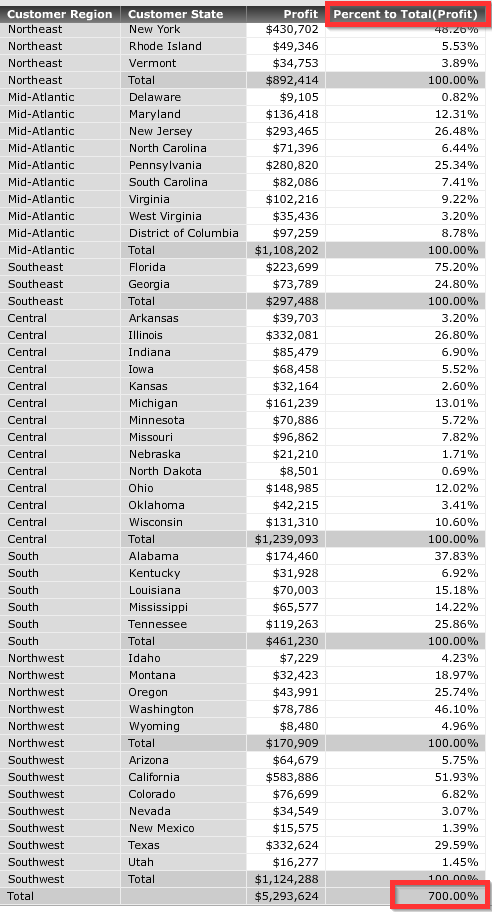
Notice how the value of the metric in the image above, does not add up correctly to 100%, but gives a value of 700%.
STEPS TO REPRODUCE:
CAUSE:
This is working as designed in Strategy Web 9.4.1. When creating a derived metric from the "Grid" pane, the metric automatically becomes a "smart metric" and does not add up all the subtotals, giving a correct overall percentage that adds up to 100%. When the metric is created from the "Dataset Objects" pane, the metric is not created as a "smart metric" by default, thus the result is the regular addition of all the values adding up to 700%. The problem arises from not being able to identify which location creates what kind of metric. A request has been logged to address this issue.
Note: Refer to tech note KB8472 for more information on smart metrics.
ACTION:
Currently this issue is still being reviewed for feasibility by our Technology team and it is not scoped for any upcoming scheduled Strategy release.
WORKAROUND:
If a smart metric is required, create the derived metric from the "Grid" pane. If a normal metric is required, create it from the "Dataset Objects" pane.
The Strategy Internal Reference Number for the issue discussed in the technical note is 1014534.
