Summary: Usher server and the SAML enabled application depend on valid certificate on each of their end to authenticate the login request. These certificates do come to end of life from time to time and have to be updated. This technical note explains the related messages and the settings to troubleshoot SAML certificate issues.
Note- Not all application use certificates. They may be using Metadata or fingerprint. The Usher admin should know the difference and be able to take appropriate action.
Here are the things to look for:
1. When the expiration of the certificate on the application side is about to expire, it displays a message like shown below. If there are more than one application listed in Network Manager, it displays a little icon to the left (this icon is displayed only for custom SAML applications, it is not displayed for Google, Salesforce or ADFS applications) that indicates the app that needs attention.
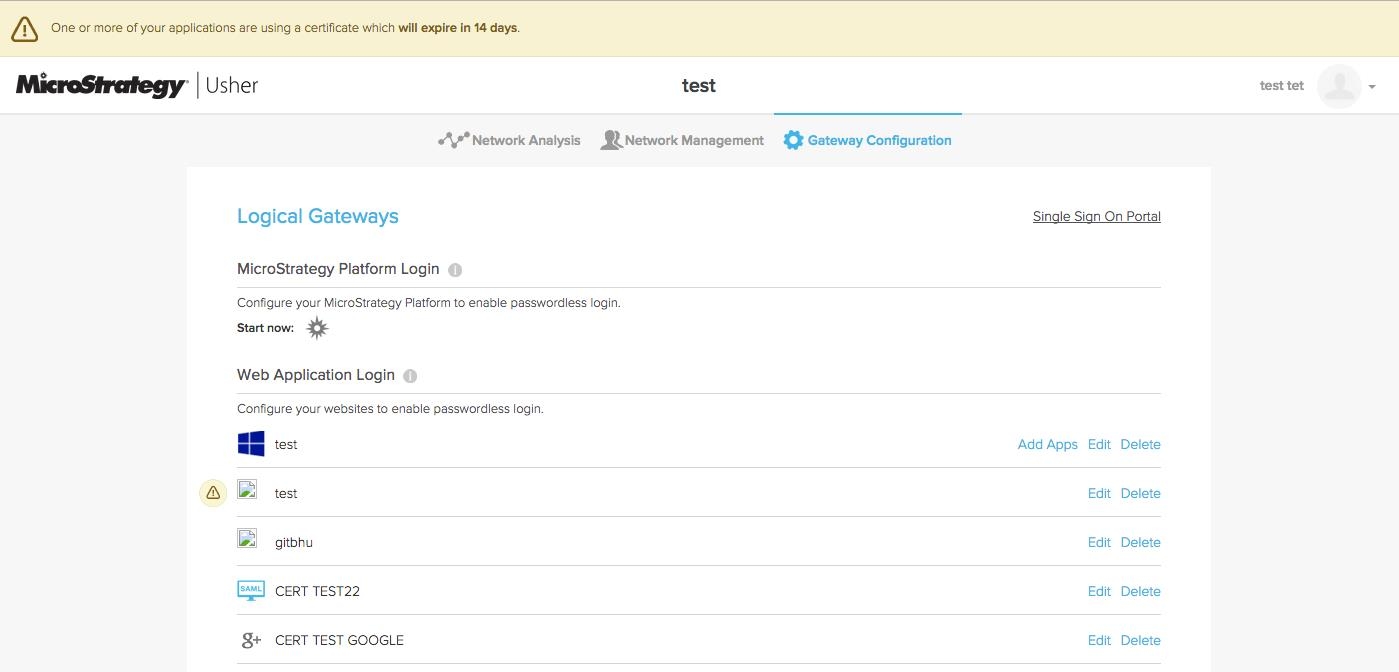
2. Usher admin should click on the icon and it will display the instruction as shown below.
Note- Usher will not know if the certificate on the App side has been updated. Therefore, Usher admin should take appropriate action (see the section below) to upload the renewed certificate (or metadata/fingerprint) and only then should check the box "I have updated my SAML configuration" and save.

Here is a guideline for updating certificates. Please note that the options may be slightly different by the Application types. The steps below should server as a general guide.
To update the Usher security certificate that is uploaded to an Apps, do the following:
saml2.crt). Note the location on your computer where the certificate is saved.
