EducationSoftwareStrategy.com
StrategyCommunity

Knowledge Base

Product

Community

Knowledge Base

TopicsBrowse ArticlesDeveloper Zone

Product

Download SoftwareProduct DocumentationSecurity Hub

Education

Tutorial VideosSolution GalleryEducation courses

Community

GuidelinesGrandmastersEvents
x_social-icon_white.svglinkedin_social-icon_white.svg
Strategy logoCommunity

© Strategy Inc. All Rights Reserved.

LegalTerms of UsePrivacy Policy
  1. Home
  2. Topics

KB246483: "Object variable or With block variable not set" received when trying to view devices in MicroStrategy Developer


Stefan Zepeda

Salesforce Solutions Architect • Strategy


This article discusses an error seen when trying to view the "Devices" folder within the "Administration" of a project source in MicroStrategy

SYMPTOM
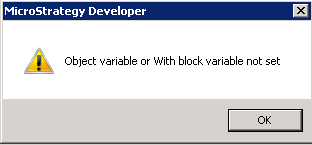
When opening the “Devices” folder within “Administration” in Strategy Developer the error below is received and the devices are not displayed.  
ka0PW0000000sy5YAA_0EM440000002C5i.jpeg


Object variable or with block variable not set
 NOTE: The most common device leading to this issue is "TemporaryDeviceForVerification"
CAUSE
This is caused due to a device not having a transmitter set for it.  By design all devices should have a transmitter set.
In order to track down the cause of this behavior, customers encountering this issue should make note of Object Migrations, or error messages prior to experiencing the problem.  Change Journal, if it has been enabled, can help in preserving this information.
 
ACTION
Delete the device which does not have a transmitter set.  The most common device leading to this issue is "TemporaryDeviceForVerification".   Because this involves a delete operation, ensure that before carrying out these steps a backup of your Strategy Metadata has been carried out.  
 
To identify the problematic device, please follow the steps below:
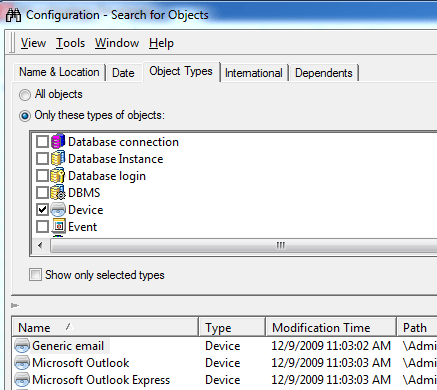
1. Perform a search within Strategy Developer:

ka0PW0000000sy5YAA_0EM440000002C5e.jpeg

2.Set the search to only include the object type “Device” and select “Find Now.
ka0PW0000000sy5YAA_0EM440000002C5Z.jpeg

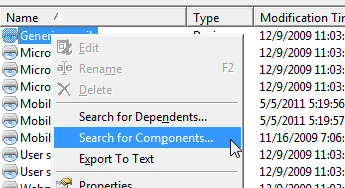
3. Within the list of returned devices, right click a device and select “Search for Components…”
4. If the component search returns a Transmitter object, proceed to the next Device and search for its components.
5. Repeat steps 3-4 until a device is found which has no components.
6. Once identified, launch Object Manager, connect to the environment, and select Tools -> "Create Configuration Package".
7. Within here add in the problematic device by performing the same search from Step 2 and dragging it into the package.
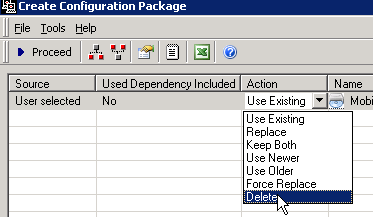
8. Change the "Action" to be "Delete" and select Proceed. (This will create a Delete package which can be imported into the environment to remove the object)
ka0PW0000000sy5YAA_0EM440000002C5c.jpeg

9. Once created, go to Tools -> "Import Configuration Package". and import the newly created package.  
This will delete the problematic Device object.


Comment

0 comments

Details

Knowledge Article

Published:

April 5, 2017

Last Updated:

February 27, 2024