EducationSoftwareStrategy.com
StrategyCommunity

Knowledge Base

Product

Community

Knowledge Base

TopicsBrowse ArticlesDeveloper Zone

Product

Download SoftwareProduct DocumentationSecurity Hub

Education

Tutorial VideosSolution GalleryEducation courses

Community

GuidelinesGrandmastersEvents
x_social-icon_white.svglinkedin_social-icon_white.svg
Strategy logoCommunity

© Strategy Inc. All Rights Reserved.

LegalTerms of UsePrivacy Policy
  1. Home
  2. Topics

KB247588: In MicroStrategy 10.0.0, error message “Database error <5>: Catalog Get Columns failed" is seen when performing data import from an Impala database table containing a varchar datatype column


Community Admin

• Strategy


SYMPTOM
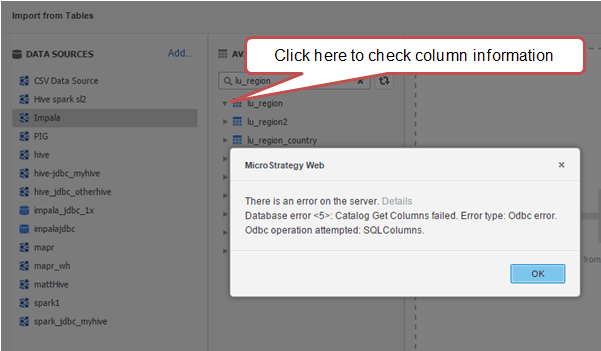
In Strategy 10.0.0, when performing a data import against an Impala database, the following error is encountered:
 

ka04W000000OexHQAS_0EM4400000025eC.jpeg


Database error <5>: Catalog Get Columns failed. Error type: Odbc error. Odbc operation attempted: SQLColumns’ 
 
STEPS TO REPRODUCE

  1. On Strategy Web 10.0.0, click “Add External data”, then click “Hadoop”
  1. Click  “Build a Query” or “Type a Query” or ”Pick Tables” in the “Select Import Options” dialog.
  1. Click “Add new data source”, in DSN-less mode, choose database: Impala, Version: Impala 2.x or Impala 1.x, import Server Name, Port Number, user name, password. Then click OK.
  1. Click the new created data source, click the triangle icon in front of table(which contains a column with data type “varchar”) to see the column information or drag the table to the right panel. The error information dump out, as below:
ka04W000000OexHQAS_0EM4400000025eA.jpeg


CAUSE
This is a known issue with the Strategy ODBC Driver for Impala Wire Protocol, when doing a Data Import from a table containing columns of varchar datatype.
 
WORKAROUND
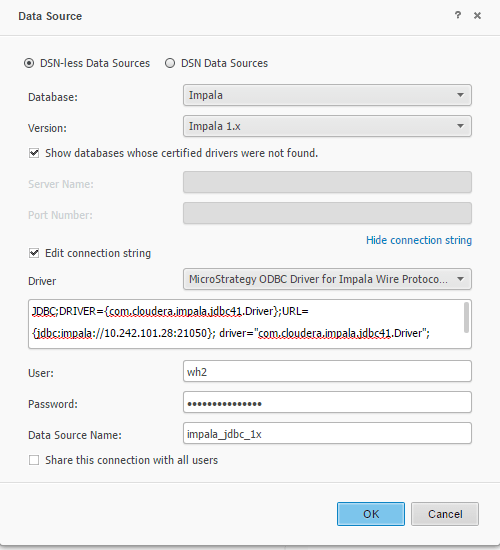
To workaround this issue the JDBC driver can be used to retrieve the table information. Steps to use the JDBC driver have been outlined below:
 

  1. Download the Impala JDBC driver with version 2.5.22.1040 or higher and put the driver under the location “c:\driver”
  2. On Strategy Web 10.0.0, click “Add External data”, then click “Hadoop”, then click any one of “Build a Query/Type a Query/Pick Tables”.
  3. Click “Add new data source”, choose Database:Impala, Version: Impala 1.x, Impala 2.x and Choose ”Edit connection string”, and input the connection string given below:


JDBC;DRIVER={com.cloudera.impala.jdbc41.Driver};URL={jdbc:impala://hostname:port}; driver="com.cloudera.impala.jdbc41.Driver"; MSTR_JDBC_JAR_FOLDER=C:\driver; driverFile="ImpalaJDBC41.jar";


ka04W000000OexHQAS_0EM4400000025e2.jpeg
  1. After this, it is possible to import data from tables which contain varchar columns successfully.

 
ACTION
Contact Strategy Technical Support for an update on the status of this issue.
 
The Strategy internal reference number for the issue discussed in this document is: DE13480


Comment

0 comments

Details

Knowledge Article

Published:

June 7, 2017

Last Updated:

June 7, 2017