EducationSoftwareStrategy.com
StrategyCommunity

Knowledge Base

Product

Community

Knowledge Base

TopicsBrowse ArticlesDeveloper Zone

Product

Download SoftwareProduct DocumentationSecurity Hub

Education

Tutorial VideosSolution GalleryEducation courses

Community

GuidelinesGrandmastersEvents
x_social-icon_white.svglinkedin_social-icon_white.svg
Strategy logoCommunity

© Strategy Inc. All Rights Reserved.

LegalTerms of UsePrivacy Policy
  1. Home
  2. Topics

Not able to clear Oauth Parameters after filled out in MicroStrategy Analytics Enterprise Web


Community Admin

• Strategy


Within MicroStrategy Web 10, some of our users have been experiencing the inability to clear Oauth Parameters after filling them out. In MicroStrategy Web 10, a series of Oauth connectors were introduced in the Data Import function. When a user fills out the Oauth parameter for a certain connector, it appears that the user is not able to clear the parameters to a blank status.  Having this problem? Check out this article for updates and next steps!

Troubleshooting
Not able to clear Oauth Parameters after filled out in Strategy Analytics Enterprise Web 10
 
Within Strategy Web 10, some of our users have been experiencing the inability to clear Oauth Parameters after filling them out. In Strategy Web 10, a series of Oauth connectors were introduced in the Data Import function. When a user fills out the Oauth parameter for a certain connector, it appears the user is unable to clear the parameters to a blank status. 
 
Steps to reproduce
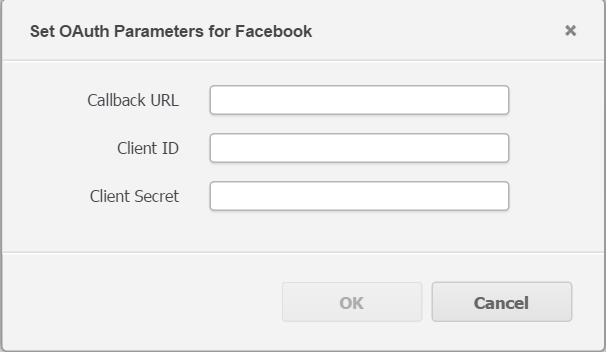
 

  1. Access Strategy Web.
  2. Choose Access External Data.
  3. Hover a Oauth connector, such as Facebook, Twitter, Dropbox and Google Drive, etc.
  4. Click Set Oauth Parameters.
  5. In the Set Oauth Parameters window, type content.
  6. Click OK to save.
  7. Repeat the process and click Set Oauth Parameters again,
  8. Note there is not re-set button.
  9. Clear all content.
  • Note: The OK button is grayed out, user are unable to save it with blank content.


ka04W00000148pmQAA_0EM4400000025cx.jpeg

 
Why is this happening?
From the Strategy development side, this is currently working as expected.
Status
ACKNOWLEDGED   IN-PROGRESS   SOLVED   (Version: Strategy Web 10, TBD for new updates)
Next Steps
Administrators can click Set Oauth parameters once again for modification.
Parameters may be changed. 
 

  1. Access Strategy Web.
  2. Choose Access External Data.
  3. Hover a Oauth connector, such as Facebook, Twitter, Dropbox and Google Drive, etc.
  4. Click Set Oauth Parameters.
  5. In the Set Oauth Parameters window, type the new content.


Have other questions? Feel free to start a discussion or reach out to your Support liaison to open a case!
 
Want to upgrade to Strategy 2019? Visit the Strategy website!


Comment

0 comments

Details

Knowledge Article

Published:

June 12, 2017

Last Updated:

February 22, 2018