EducationSoftwareStrategy.com
StrategyCommunity

Knowledge Base

Product

Community

Knowledge Base

TopicsBrowse ArticlesDeveloper Zone

Product

Download SoftwareProduct DocumentationSecurity Hub

Education

Tutorial VideosSolution GalleryEducation courses

Community

GuidelinesGrandmastersEvents
x_social-icon_white.svglinkedin_social-icon_white.svg
Strategy logoCommunity

© Strategy Inc. All Rights Reserved.

LegalTerms of UsePrivacy Policy
  1. Home
  2. Topics

KB249194: How to disable drilling on Row and Column Header in MicroStrategy Web


Community Admin

• Strategy


Summary

An administrator may want to disable drilling on Row and Column header programmatically. This can be done using Strategy Web SDK.
Before customization:

ka04W000000OdTpQAK_0EM440000002GP2.jpeg

After customization:

ka04W000000OdTpQAK_0EM440000002GOr.jpeg

Follow these steps to achieve this customization:

  • In the Web Customization Editor (WCE), create a new java class that extends the ReportCellDrill class and called it NoRowHeaderDrillReportCellDrill
  • Add a default constructor and override the method getComposedContextMenuBuilder as shown below:
    
     public NoRowHeaderDrillReportCellDrill(Shortcut definition) {
            super(definition);
            // TODO Auto-generated constructor stub
        }
    
        @Override
        protected ComposedContextMenuBuilder getComposedContextMenuBuilder(
                TransformContext context) {
            Object obj = null; 
            if((getCell(context) instanceof ReportGridCellRowTitle) || (getCell(context) instanceof ReportGridCellColTitle)) 
            { 
                obj = new InvalidDrillContextMenuBuilder((com.Strategy.web.app.transforms.ReportGridDisplayCell.Context)context);
                return ((ComposedContextMenuBuilder) (obj)); 
            } 
            else 
                return ((ComposedContextMenuBuilder) (super.getComposedContextMenuBuilder(context)));
        }
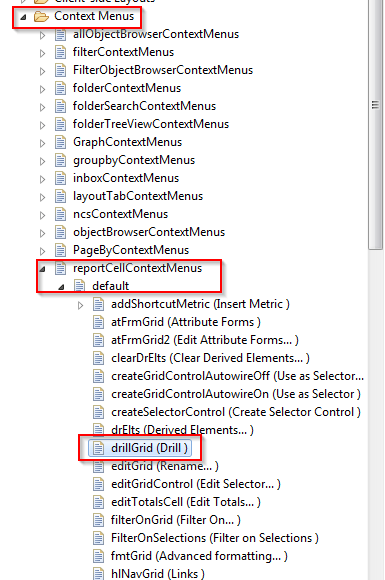
  • In the WCE, go to Strategy Web Configuration > Context Menus > reportCellContextMenus > default and double-click drillGrid(Drill) to open it in the editor as shown below:
ka04W000000OdTpQAK_0EM440000002GP1.jpeg
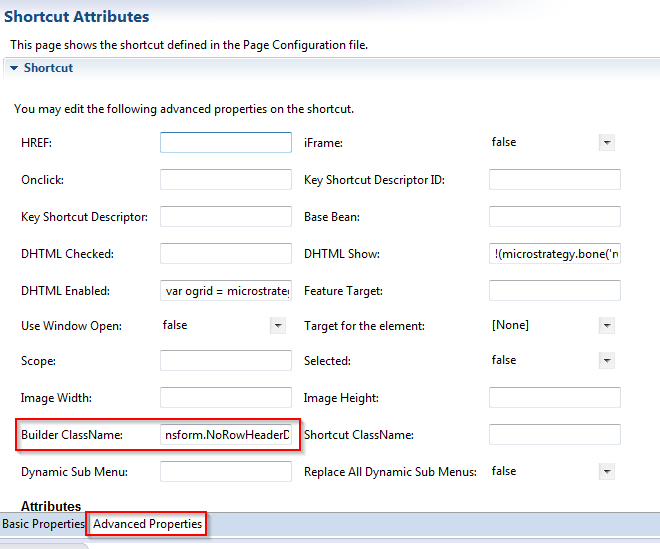
  • Go to Advance Properties > Builder ClassName and put in the path to the class created from (1) e.g. com.Strategy.transform.NoRowHeaderDrillReportCellDrill as shown below:
ka04W000000OdTpQAK_0EM440000002GOq.jpeg
  • Restart the application server


Comment

0 comments

Details

Knowledge Article

Published:

June 21, 2017

Last Updated:

June 21, 2017