EducationSoftwareStrategy.com
StrategyCommunity

Knowledge Base

Product

Community

Knowledge Base

TopicsBrowse ArticlesDeveloper Zone

Product

Download SoftwareProduct DocumentationSecurity Hub

Education

Tutorial VideosSolution GalleryEducation courses

Community

GuidelinesGrandmastersEvents
x_social-icon_white.svglinkedin_social-icon_white.svg
Strategy logoCommunity

© Strategy Inc. All Rights Reserved.

LegalTerms of UsePrivacy Policy
  1. Home
  2. Topics

KB249473: How to create a Salesforce ODBC connection through a proxy server in MicroStrategy 10


Community Admin

• Strategy


INTRODUCTION
In Strategy 10, users can manipulate data using Web Services with Salesforce’s native SOQL language through an ODBC connection.
To import data from Salesforce, an ODBC connection must be created through a Data Source Name (DSN). In some environments, this connection must be established through the use of a proxy.
 
PREREQUISITES

  1. A reporting environment in Salesforce.com
  2. Login credentials to Salesforce with a security token
  3. Proxy Server host name, port, and username/password (for authenticated proxy servers)

 
STEPS TO CONNECT TO SALESFORCE

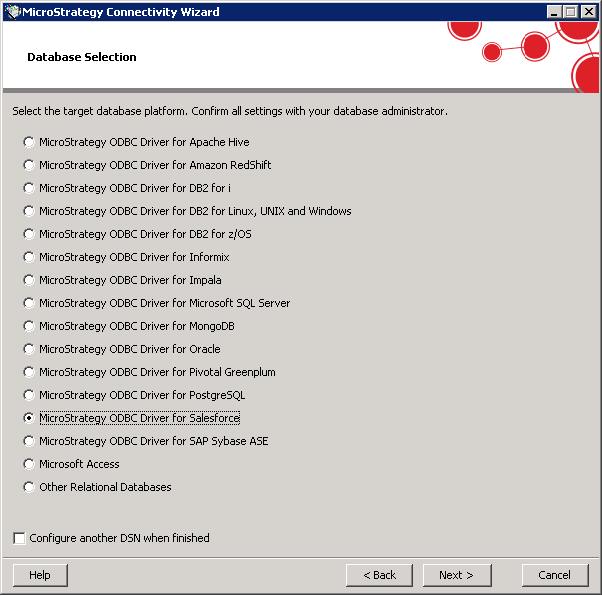
  • Create a DSN to Salesforce through Connectivity Wizard using the out of the box ‘Strategy ODBC Driver for Salesforce’, like shown below:
ka04W000000OaZDQA0_0EM440000002C5A.jpeg
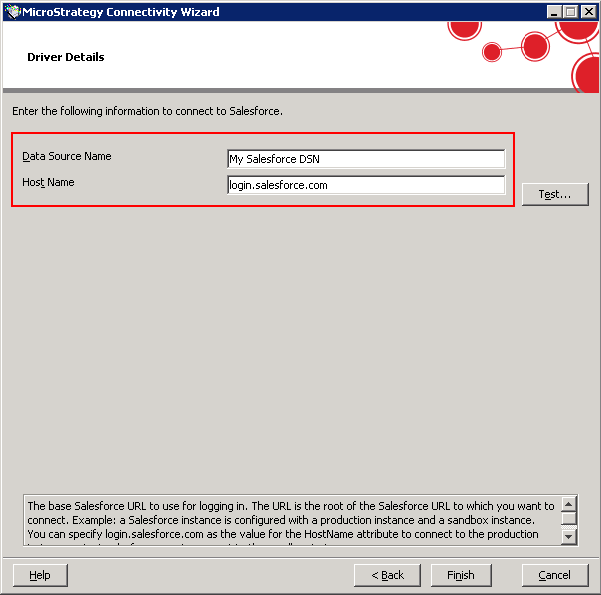
  • Input a DSN name and the Host name for Salesforce, like shown below:
ka04W000000OaZDQA0_0EM440000002C4x.jpeg
  • Note: The Host Name is the base Salesforce URL for logging in. The default value is login.salesforce.com. However, this URL will vary depending on the Host Name specified by the user's organization.
     
  • Once the DSN is created, open the ODBC Data Source Administrator.
  • Configure the Salesforce DSN created in step 1.
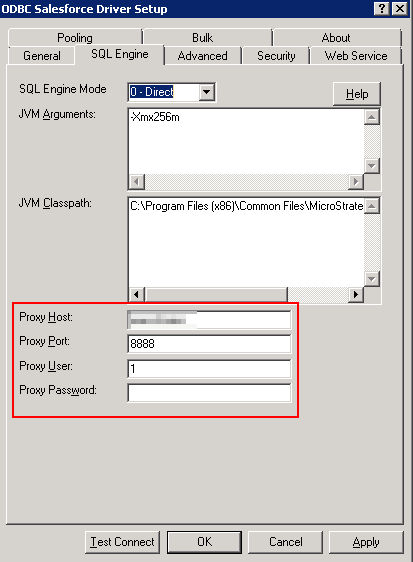
  • In the ODBC Salesforce Driver Setup window, select the SQL Engine tab to open the proxy server settings, like shown below:
ka04W000000OaZDQA0_0EM440000002C5B.jpeg
  • In the SQL Engine tab, fill in the appropriate values for the host, port, user, and password.

    Note: The password syntax is passwordsecuritytoken, where Password is the password for the user account and SecurityToken is the additional security token required to access Salesforce.com. Do not use any spaces or other characters to separate the password and security token.

 
Third Party Software Installation Warning:
The third-party product(s) discussed in this technical note is manufactured by vendors independent of Strategy. Strategy makes no warranty, express, implied or otherwise, regarding this product, including its performance or reliability.
KB249473


Comment

0 comments

Details

Knowledge Article

Published:

April 4, 2017

Last Updated:

December 31, 2018