EducationSoftwareStrategy.com
StrategyCommunity

Knowledge Base

Product

Community

Knowledge Base

TopicsBrowse ArticlesDeveloper Zone

Product

Download SoftwareProduct DocumentationSecurity Hub

Education

Tutorial VideosSolution GalleryEducation courses

Community

GuidelinesGrandmastersEvents
x_social-icon_white.svglinkedin_social-icon_white.svg
Strategy logoCommunity

© Strategy Inc. All Rights Reserved.

LegalTerms of UsePrivacy Policy
  1. Home
  2. Topics

KB249736: How to publish a cube from Hadoop using the MicroStrategy Hadoop Gateway (Big Data Engine) in MicroStrategy Web 10.x?


Community Admin

• Strategy


This technical document gives a brief explanation on how to configure the creation of a simple cube from Hadoop by using the MicroStrategy Hadoop Gateway (Big Data Engine).

SUMMARY
This technical document gives a brief explanation on how to configure the creation of a simple cube from Hadoop by using the Strategy Hadoop Gateway (Big Data Engine).
 
In order to publish a cube from Hadoop by using the Strategy Hadoop Gateway, the following steps must be followed:
  • Log in to Strategy Web.
  • On the left menu, select "Create" > "Add External Data"  > "Hadoop", and then click on "Browse Hadoop Files". 
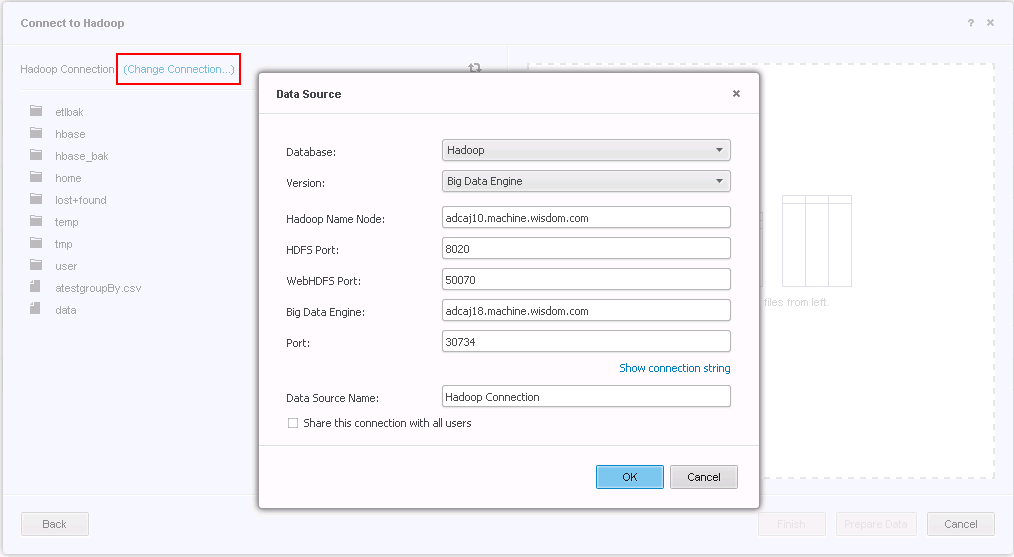
  • The "Connect to Hadoop" window will open and a second window to configure the Data Source will open on top. This window can be open anytime by clicking on the "Change Connection" link.
ka04W00000147pSQAQ_0EM4400000025cv.jpeg
  • The following parameters should be filled according to the parameters configured for the existing Hadoop cluster:
     
    • Hadoop Name Node
    • HDFS Port
    • WebHDFSPort
  • The remaining parameters should be filled as follows:
    • Big Data Engine: Host name of the edge node that hosts the Big Data Query Engine (BDQE). All the requests will be sent to the BDQE.
    • Port: Port used by the BDQE to receive request.
    • Data Source Name: Any desired name.
       
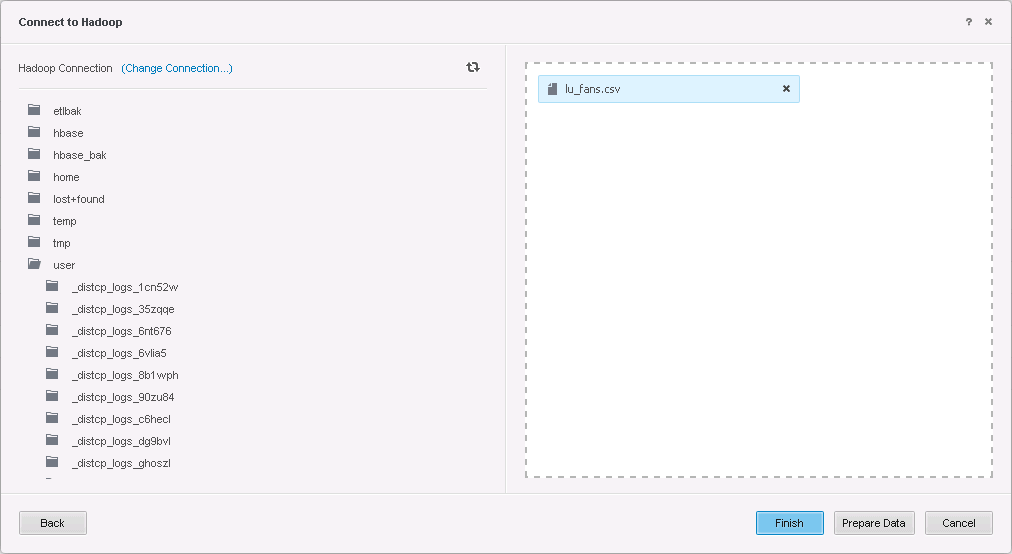
  • Click "OK" and the HDFS files will show in the left panel of the "Connect to Hadoop" window.
  • Select the file/directory to be imported by dragging it to the right side panel.
     
ka04W00000147pSQAQ_0EM4400000025ct.jpeg
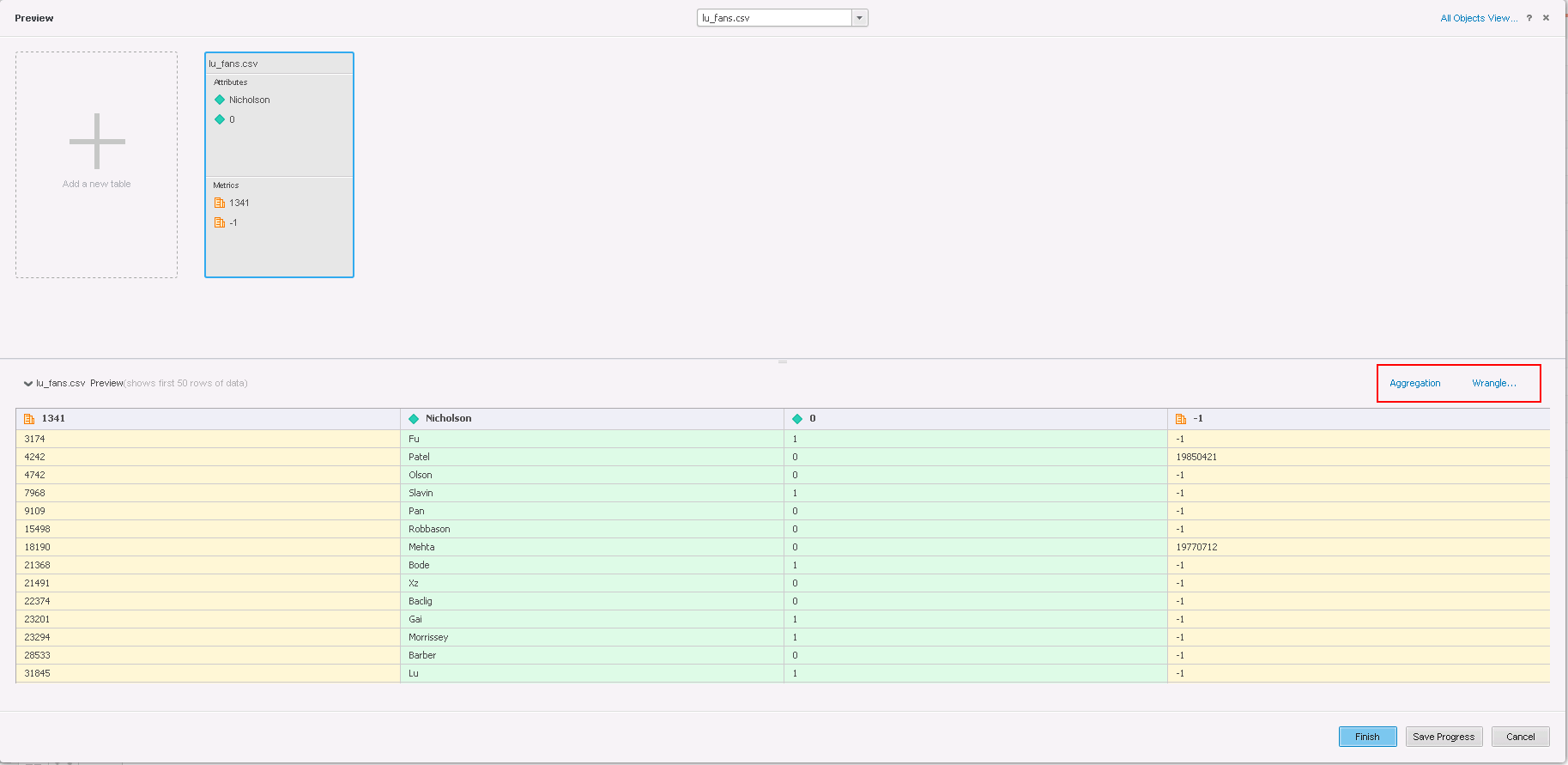
  • Click "Finish" to load the table directly or click "Prepare Data" to see the preview web page. If required, filter/aggregation can be done by using the "Aggregation" link. Data wrangling can also be done, if needed, by using the "Wrangle" link.
     
ka04W00000147pSQAQ_0EM4400000025d5.jpeg
  • Click "Finish". and select the preferred method to access the "Connect Live" or "Import as In Memory Dataset".

10. Name and save the cube so the request can be sent to the BQDE.
11. Once the cube is published, Reports, Dashboards and Document can use it as a dataset.as needed.


Comment

0 comments

Details

Knowledge Article

Published:

March 30, 2017

Last Updated:

March 30, 2017