EducationSoftwareStrategy.com
StrategyCommunity

Knowledge Base

Product

Community

Knowledge Base

TopicsBrowse ArticlesDeveloper Zone

Product

Download SoftwareProduct DocumentationSecurity Hub

Education

Tutorial VideosSolution GalleryEducation courses

Community

GuidelinesGrandmastersEvents
x_social-icon_white.svglinkedin_social-icon_white.svg
Strategy logoCommunity

© Strategy Inc. All Rights Reserved.

LegalTerms of UsePrivacy Policy
  1. Home
  2. Topics

KB250923: Connecting to Databases using JDBC Drivers in MicroStrategy 2021 Developer and Web


Community Admin

• Strategy


In MicroStrategy 2021 Secure Enterprise, users can connect to most databases with both JDBC and ODBC drivers. This document describes how to connect to some databases using JDBC drivers on MicroStrategy Developer and MicroStrategy Web.

Steps

A. Use Strategy Developer to access the database
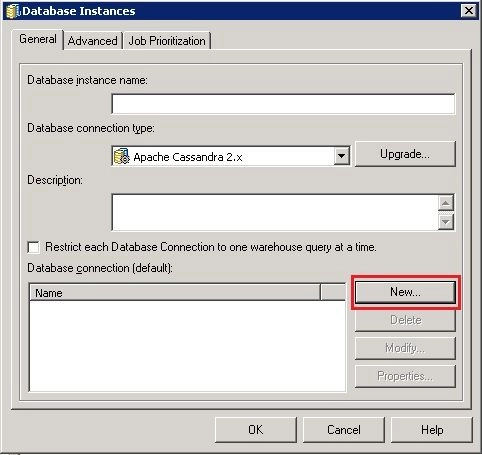
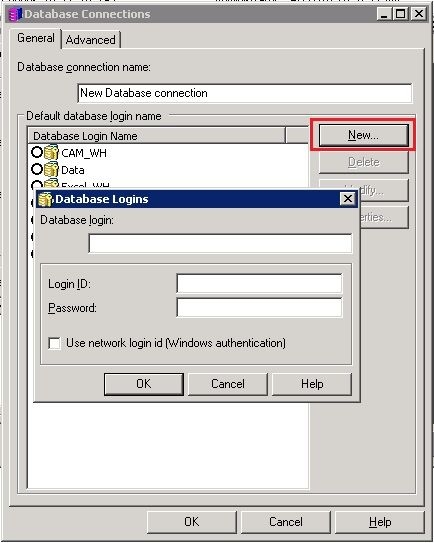
The following example shows how to connect to Cassandra using JDBC:
  • Copy the JDBC driver to a folder on the Strategy Intelligence Server Machine.  E.g. C:\Program Files (x86)\Common Files\Drivers\Cassandra.
    • On Linux, driver files should be copied to  <MSTR_INSTALL_HOME>/JDBC. (eg; /opt/MicroStrategy/JDBC). Permissions on the jar file should be set to at least Read Access.
  • Add a new database instance:
    • Developer -> Administration -> Configuration Managers -> Database Instances
    • Add new Database Instance (If the Database connection type isn't listed, use Generic DBMS)
    • Click 'New" to add a new database connection
ka0PW0000000vhRYAQ_0EM440000002JAI.jpeg
    • Click 'New' again to add a new Database login
ka0PW0000000vhRYAQ_0EM440000002JAM.jpeg
    • Go back to the Database Connections window and click OK to complete the process of creating the new database instance.
  • Users should now be able to connect successfully via JDBC from both the Warehouse Catalog and Data Import.

B. Access Database using Strategy Web Data Import
  • Copy the JDBC driver to a folder on the Intelligence Server machine(E.g. C:\Program Files (x86)\Common Files\Drivers\Presto).
  • Follow the steps below to add the data source:
    • Open Strategy Web and click Add external data.
    • Mouse over Database and choose Presto
    • Select any of the 3 presented options(Build a Query, Type a Query, or Pick Tables).
    • Click "Add.." link in the top right of the Data Sources pane.
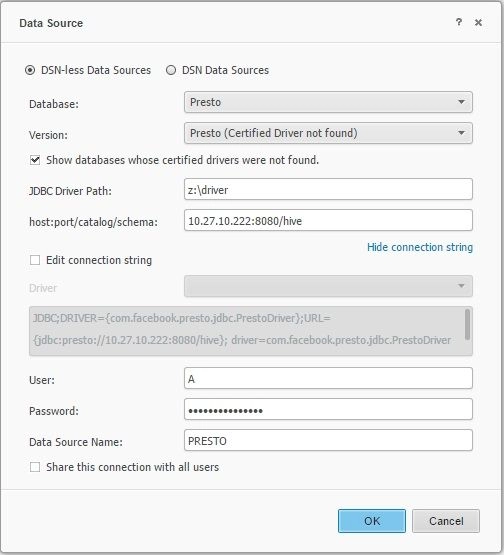
    • Fill out the data source information. Below is an example provided for Presto:
ka0PW0000000vhRYAQ_0EM440000002JAK.jpeg
    • Users may need to manually edit the connection string. The above example is done as shown below:
      
      JDBC;DRIVER={com.facebook.presto.jdbc.PrestoDriver};
      URL={jdbc:presto://<IP/URL>}; 
      driver=com.facebook.presto.jdbc.PrestoDriver 
      driverFile="presto-jdbc-0.86.jar";MSTR_JDBC_JAR_FOLDER=<PATH TO DRIVER>;

    • Click OK to save the changes
  • Users should now be able to use Web Data Import with the newly created JDBC connection.


Comment

0 comments

Details

Knowledge Article

Published:

May 3, 2017

Last Updated:

February 26, 2024