EducationSoftwareStrategy.com
StrategyCommunity

Knowledge Base

Product

Community

Knowledge Base

TopicsBrowse ArticlesDeveloper Zone

Product

Download SoftwareProduct DocumentationSecurity Hub

Education

Tutorial VideosSolution GalleryEducation courses

Community

GuidelinesGrandmastersEvents
x_social-icon_white.svglinkedin_social-icon_white.svg
Strategy logoCommunity

© Strategy Inc. All Rights Reserved.

LegalTerms of UsePrivacy Policy
  1. Home
  2. Topics

KB251027: All data type displays as 'unknown' on the MicroStrategy Warehouse Catalog for Netezza in MicroStrategy 10.0


Community Admin

• Strategy


SUMMARY
This issue has been classified as a defect by Strategy. The impact is limited to Netezza database. A code fix for this issue is available in Strategy 10.0 Hotfix 1. Additional steps are needed to upgrade the database instance to apply the fix.
SYMPTOM
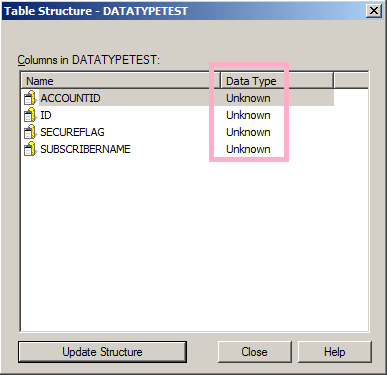
In Strategy 10.0, all data types display as unknown on the Strategy Warehouse Catalog when using Netezza as warehouse.
On the warehouse catalog, when right clicking on the table to check the table structure, users notice that the Data Type = Unknown as shown below:
ka04W000001MKvnQAG_0EM440000002C57.jpeg

 
CAUSE
This is a known issue with Strategy 10.0.
ACTION
This issue has been fixed In Strategy 10.0 Hotfix 1. Upgrade to this version to take advantage of the fix.
NOTE: Database connection type need to be upgraded manually to apply the fix.
Follow steps below to upgrade the database instance:
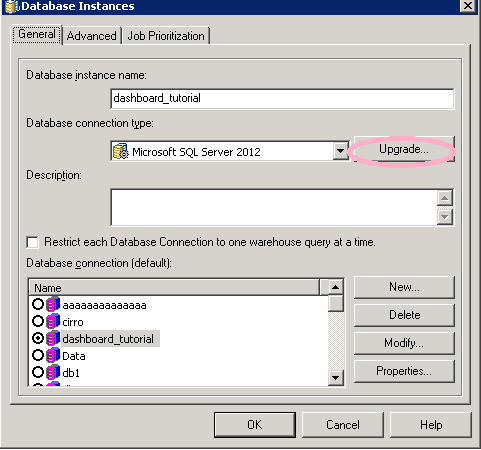
  • On Strategy Developer, connect to the project source as an Administrator user and navigate to: “Administration”-> “Configuration Managers”->”Database Instances”
  • Double click any one of the database instances, and click “Upgrade”
ka04W000001MKvnQAG_0EM440000002C55.jpeg
  • In “DBtypes script file”, user can see the PDS file ”\Common Files\ Strategy\Database.PDS”.
  • Click “Load” to load all database types
  • Choose “IBM Netezza 6.0.x”, “IBM Netezza 7.0.x”, “IBM Netezza 7.1.x” and then click “>” to add it to existing database types.
  • Click “Yes” to replace the existing one.
  • Click “OK” to save the changes.


Comment

0 comments

Details

Knowledge Article

Published:

April 3, 2017

Last Updated:

April 3, 2017