EducationSoftwareStrategy.com
StrategyCommunity

Knowledge Base

Product

Community

Knowledge Base

TopicsBrowse ArticlesDeveloper Zone

Product

Download SoftwareProduct DocumentationSecurity Hub

Education

Tutorial VideosSolution GalleryEducation courses

Community

GuidelinesGrandmastersEvents
x_social-icon_white.svglinkedin_social-icon_white.svg
Strategy logoCommunity

© Strategy Inc. All Rights Reserved.

LegalTerms of UsePrivacy Policy
  1. Home
  2. Topics

KB251800: How to establish connectivity from MicroStrategy Secure Analytics Enterprise 10 to Oracle Database Cloud


Community Admin

• Strategy


How to establish connectivity from MicroStrategy Secure Analytics Enterprise 10 to Oracle Database Cloud

Pre-requisites

Users should update the default configuration settings after deploying the Oracle database cloud in order to successfully connect using ODBC.
 

  • Settings on Oracle Cloud
    • Navigate to Consoles - > Compute Cloud Services option from the Oracle Cloud service interface
ka04W000000Of8eQAC_0EM440000002JAe.jpeg
    • Select the Network tab from the list of configurations and enable the setting for the dbaas/servicename/ora_p2_dblistener.
      Make sure that this is enabled for the correct service name
ka04W000000Of8eQAC_0EM440000002JAn.jpeg
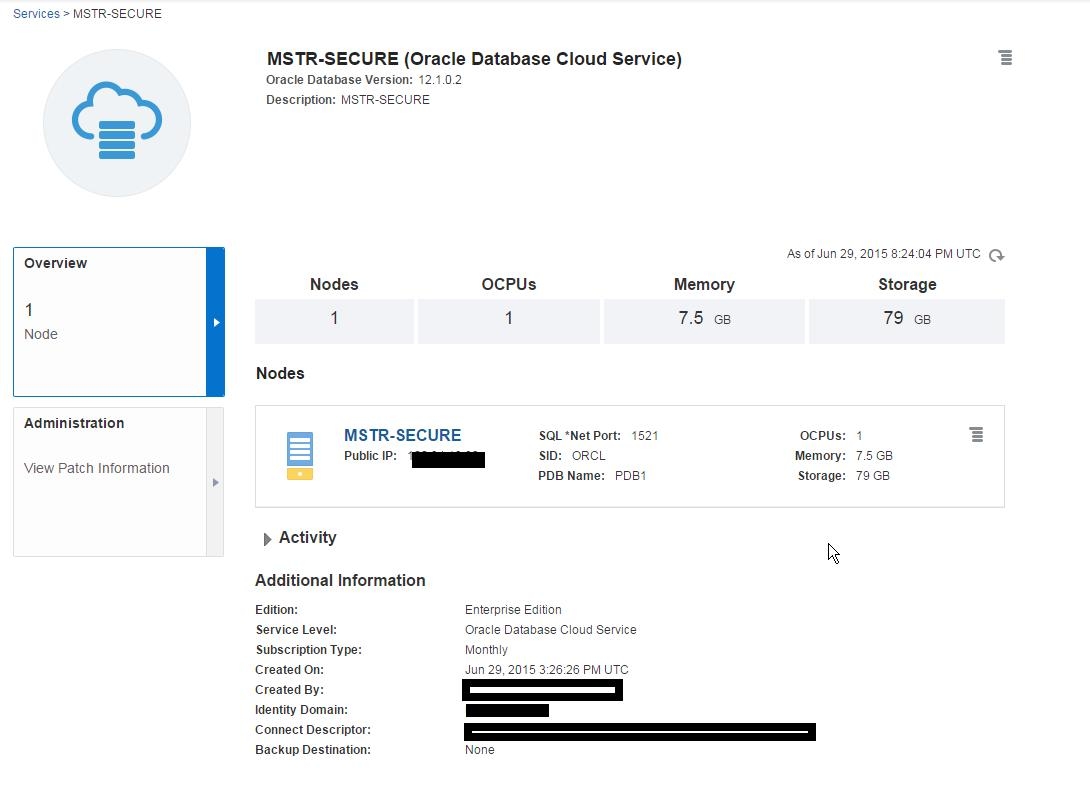
    • Get the connection information (Public IP, SID, and Port) by selecting the required database service from the services dashboard.
ka04W000000Of8eQAC_0EM440000002JAp.jpeg

VPN Connection

Oracle offers a service to setup VPN connection to Oracle Cloud DB. Note that as a result of this, the required information (Public IP, SID, and Port) might change. Work with Oracle and take note of the changed values.
 

Creating a Data Source Name (DSN) 

Windows 

  1. Create an Oracle Wire Protocol Driver DSN using the ODBC administrator
ka04W000000Of8eQAC_0EM440000002JAw.jpeg
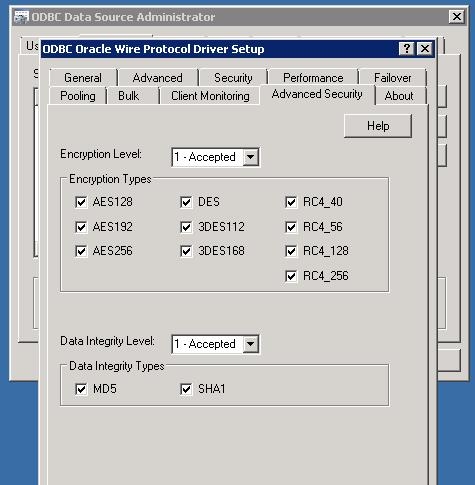
  1. Navigate to the Advance Security tab and set the “Encryption Level = 1 –Accepted” and “Data Integrity Level = 1 –Accepted”
ka04W000000Of8eQAC_0EM440000002JAm.jpeg


Linux 

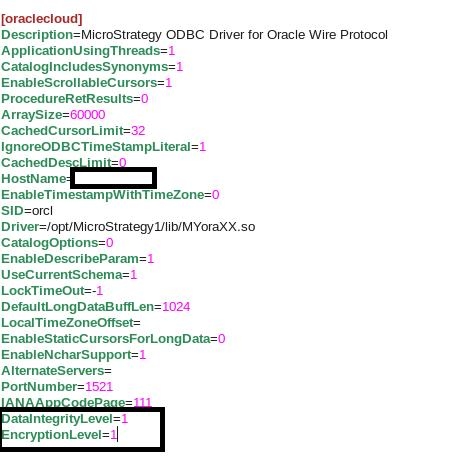
  • Update the odbc.ini file to add the entries for “Encryption Level = 1” and “Data Integrity Level = 1”

ka04W000000Of8eQAC_0EM440000002JAi.jpeg


Configuring connectivity in Strategy 10 

Using a DSN connection

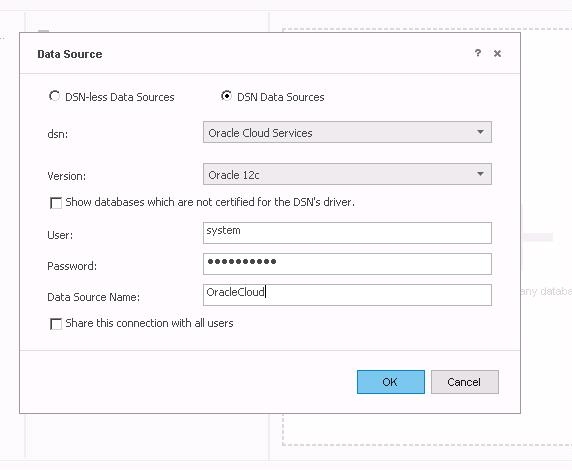
Navigate to the Oracle DB after selecting the Access Data button in Strategy Web. Select the “Pick tables “option and select the DSN Data Sources checkbox
 

ka04W000000Of8eQAC_0EM440000002JAu.jpeg

After creating a Data Source pointing to the DSN created above, users can successfully connect to the database
 

Using DSN-less connection

Navigate to the Oracle DB after selecting the Access Data button in Strategy web. Select the “Pick tables “option and select the DSN-less Data Sources checkbox.  Enter the required values (Hostname, Port, SID etc.) for establishing a connection. Then select the Show Connection String

ka04W000000Of8eQAC_0EM440000002JAr.jpeg

 
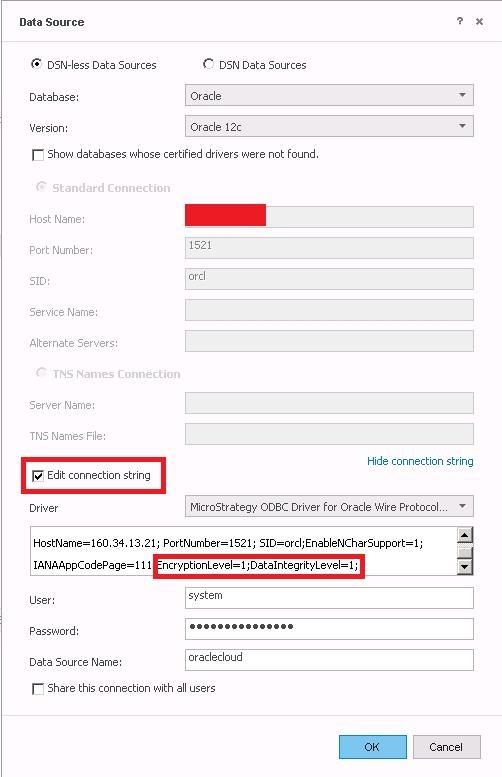
Select the Edit Connection String checkbox and add the following properties
EncryptionLevel=1; DataIntegrityLevel=1;
Note the following properties must be removed if they don’t have any values associated with them Alternateserver= ; Servicename=;
Example:


DRIVER={Strategy ODBC Driver for Oracle Wire Protocol}; HostName=160.34.13.21; PortNumber=1521; SID=orcl; ServiceName=; AlternateServers=; EnableNCharSupport=1; IANAAppCodePage=111; EncryptionLevel=1; DataIntegrityLevel=1;


ka04W000000Of8eQAC_0EM440000002JAk.jpeg

 
Users can now successfully connect to the oracle database using the DSN-less connection created above.


Comment

0 comments

Details

Knowledge Article

Published:

June 2, 2017

Last Updated:

June 2, 2017