EducationSoftwareStrategy.com
StrategyCommunity

Knowledge Base

Product

Community

Knowledge Base

TopicsBrowse ArticlesDeveloper Zone

Product

Download SoftwareProduct DocumentationSecurity Hub

Education

Tutorial VideosSolution GalleryEducation courses

Community

GuidelinesGrandmastersEvents
x_social-icon_white.svglinkedin_social-icon_white.svg
Strategy logoCommunity

© Strategy Inc. All Rights Reserved.

LegalTerms of UsePrivacy Policy
  1. Home
  2. Topics

KB253688: Fields of mobile configuration get empty after upgrading MicroStrategy Mobile from 9.4.1 to 10.0 or 10.1


Community Admin

• Strategy


Fields in the mobile configuration become blank after upgrading MicroStrategy Mobile from 9.4.1 to 10.0 or 10.1.

SYMPTOM:
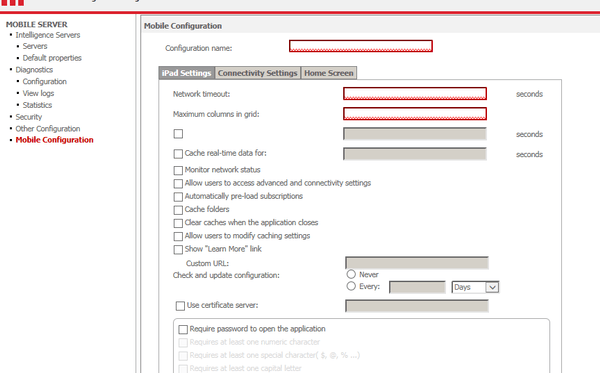
If users create a mobile configuration with a custom home page in Strategy Mobile 9.4.1, fields of the mobile configuration get empty after upgrading to Strategy Mobile 10.0 or 10.1.
 
STEPS TO REPRODUCE:
  • Create a mobile configuration with custom home page in Strategy Mobile 9.4.1.
  • Upgrade Strategy to version 10.0.
  • Edit the mobile configuration and the fields are empty.
     
ka04W000001MKvLQAW_0EM4400000029xn.jpeg

 
CAUSE:
This is an identified defect in Strategy Mobile 10.0 and 10.1.
 
ACTION:
This issue has been fixed in Strategy Mobile 10.2. Upgrade to this version or later to take advantage of the fix.
 
WORKAROUND: 
Users can use either of the following two workarounds to solve the problem.
  • Workaround 1: Create new mobile configurations in Strategy 10.0.
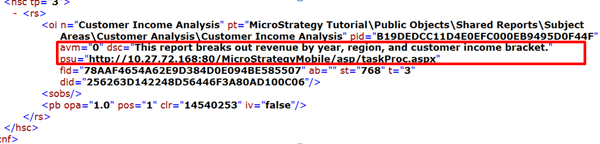
  • Workaround 2: Modify the mobileConfig xml file at “<MSTR installation folder>\Mobile Server ASPx\WEB-INF\xml\mobile” and insert avm="0" to the <oi> tag. Users can find the detailed steps below:
     
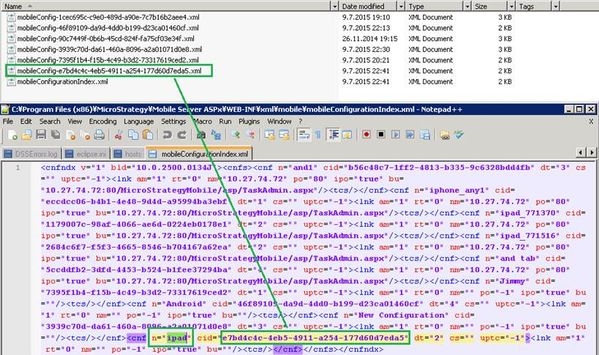
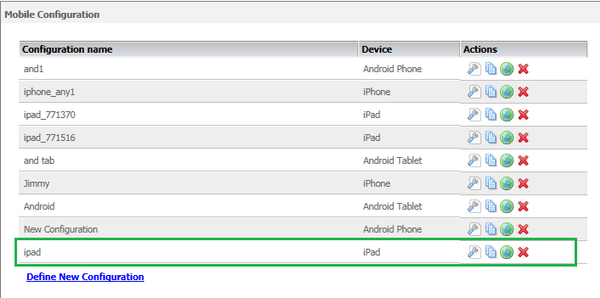
  • Locate the moibileConfig xml file for the problematic mobile configuration: If more than 1 mobile configurations are available, users can first search for the configuration name, for instance “ipad”, in the mobileConfigurationIndex.xml file at “<MSTR installation folder>\Mobile Server ASPx\WEB-INF\xml\mobile”, and then find the corresponding mobileConfig xml file through the ‘cid’ parameter.
ka04W000001MKvLQAW_0EM4400000029xj.jpeg
ka04W000001MKvLQAW_0EM4400000029xl.jpeg
  • Modify the mobileConfig xml file and insert avm="0" to the <oi> tag.
ka04W000001MKvLQAW_0EM4400000029xi.jpeg

The Strategy Internal Reference Number for the issue discussed in this technical note is DE20945.


Comment

0 comments

Details

Knowledge Article

Published:

April 4, 2017

Last Updated:

April 4, 2017