EducationSoftwareStrategy.com
StrategyCommunity

Knowledge Base

Product

Community

Knowledge Base

TopicsBrowse ArticlesDeveloper Zone

Product

Download SoftwareProduct DocumentationSecurity Hub

Education

Tutorial VideosSolution GalleryEducation courses

Community

GuidelinesGrandmastersEvents
x_social-icon_white.svglinkedin_social-icon_white.svg
Strategy logoCommunity

© Strategy Inc. All Rights Reserved.

LegalTerms of UsePrivacy Policy
  1. Home
  2. Topics

KB255970: Error "Unable to connect to the server" error appears when attempting to add web server into environment in MicroStrategy Operations Manager 10


Community Admin

• Strategy


Error "Unable to connect to the server" error appears when attempting to add web server into environment in MicroStrategy Operations Manager 10

SUMMARY:
This document shows one issue that error "Unable to connect to the server" appears when attempting to add JSP web server with SSL configured into environment in Strategy Operations Manager 10. This is because certificate of JSP server is not added into trust host of Health Center. The detail steps outlined in this technote of adding certificate into trust host of Health Center could resolve the issue.
 
SYMPTOM:
Suppose Strategy JSP Web is configured with SSL and HTTPS has to be used to connect to it. When attempting to add this web server into environment in Strategy Operations Manager 10, error "Unable to connect to the server" appears as shown below:
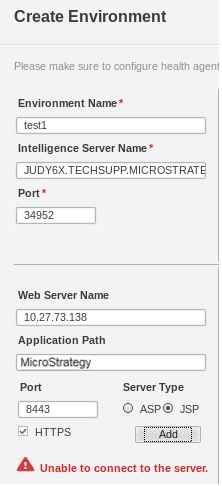
ka04W000000OgseQAC_0EM440000002C4b.jpeg


Unable to connect to the server

 
CAUSE:
One possible cause is that the certificate in JSP server is not added into trust store of Strategy Health Center. 
 
ACTION:
Refer to the detail steps below to add certificate into trust store of Strategy Health Center:

  1. Open command line and navigate to /bin folder under jdk path, for example:
    
    cd “/home/10/Desktop/jre1.7.0_79/bin”

  2. Use keytool to generate keystore file, like command below:
    
    keytool -genkey -v -alias tomcat -keyalg RSA -keysize 2048 -validity 3650 
    -keystore /home/10/Desktop/jre1.7.0_79/bin/tomcat.keystore -dname 
    "CN=judy6x.techsupp.Strategy.com,OU=cn,O=cn,L=cn,ST=cn,c=cn"
     -storepass 123456 -keypass 123456

    The file /home/10/Desktop/jre1.7.0_79/bin/tomcat.keystore should be generated and the password is 123456.
    Note: the full machine name with domain of MHA must be added into keystore file as highlighted above.
  3. Configure Tomcat to use SSL by editing the file <tomcat path>\conf\server.xml. There is a line which looks like below:
    
    <!--
    <Connector port="8443" protocol="HTTP/1.1" SSLEnabled="true"
     maxThreads="150" scheme="https" secure="true" 
     clientAuth="false" sslProtocol="TLS"
    -->

    Uncomment it and add keystore file path as shown below:
     
    
    <Connector port="8443" protocol="HTTP/1.1" SSLEnabled="true"
     maxThreads="150" scheme="https" secure="true" 
     clientAuth="false" sslProtocol="TLS"
     keystoreFile="/home/10/Desktop/jre1.7.0_79/bin/tomcat.keystore" keystorePass="123456" />

    After doing this, restart Tomcat server, and visit URL https://localhost:8443 to see if the server is configured as SSL.
  4. Generate the certification file for this server with command below:
    
    keytool -export -alias tomcat -keystore "/home/10/Desktop/jre1.7.0_79/bin/tomcat.keystore" 
    -file "/home/10/Desktop/jre1.7.0_79/bin/tomcat.cer" 
    -storepass 123456

  5. Add this certificate to trust store of Health Center with command below:
    
    keytool -import -alias tomcat -file "/home/10/Desktop/jre1.7.0_79/bin/tomcat.cer" 
    -keystore "/home/10/MicroStrategy/HealthCenterInstance/_jre/lib/security/cacerts" 
    -storepass changeit

  6. Restart Health Center process by reconfiguring MHA


Comment

0 comments

Details

Knowledge Article

Published:

June 8, 2017

Last Updated:

June 8, 2017