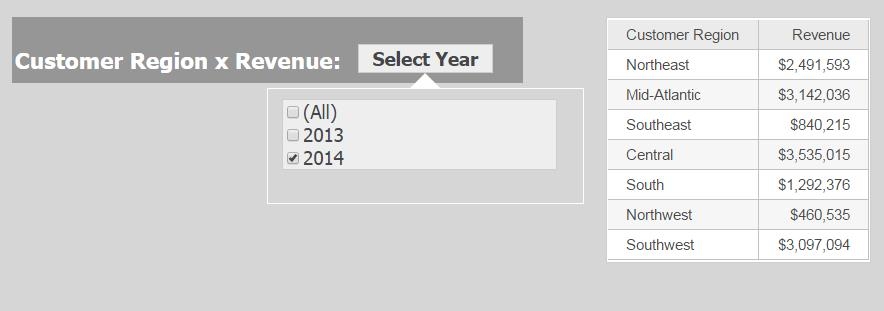
A drop-down selector allows one to make a single selection. In a lot of scenarios, it can be useful to make multiple selections in a Drop-down selector. This can be simulated by using an Information Windows to act as a selector with multiple selections.
STEPS TO REPRODUCE:
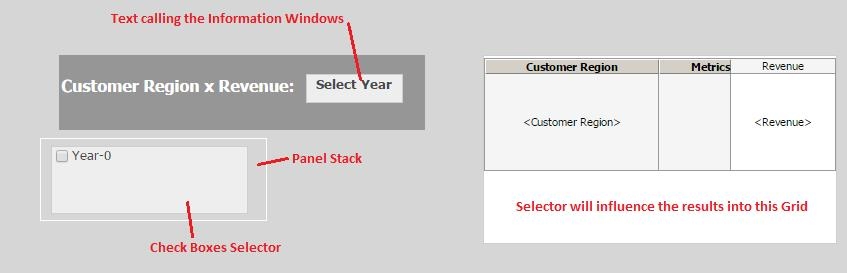
Use a Text or Image into the Document instead of Drop-down selector and then use it to call an Information Windows that will provide the Drop-down selector.
Follow the steps below:
1 – Insert a Text or Image that will call the Information Windows.
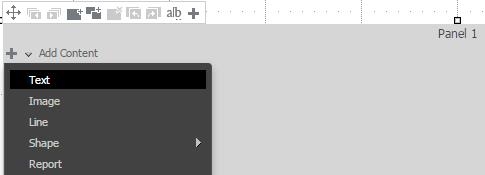
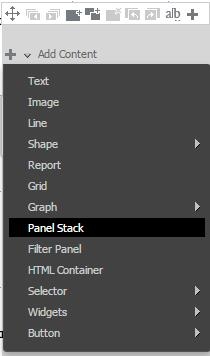
2 – Create a new Panel Stack that will become the Information Windows that hold the Check Box Selectors or any other selector with multiple selections available.
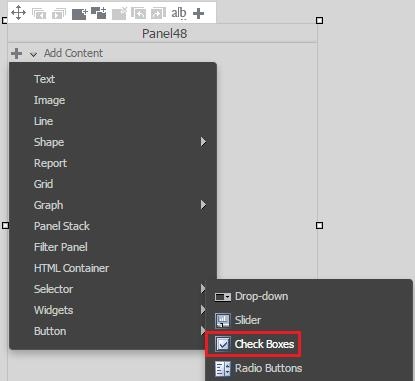
3 – Insert the Selector inside the new Panel Stack.
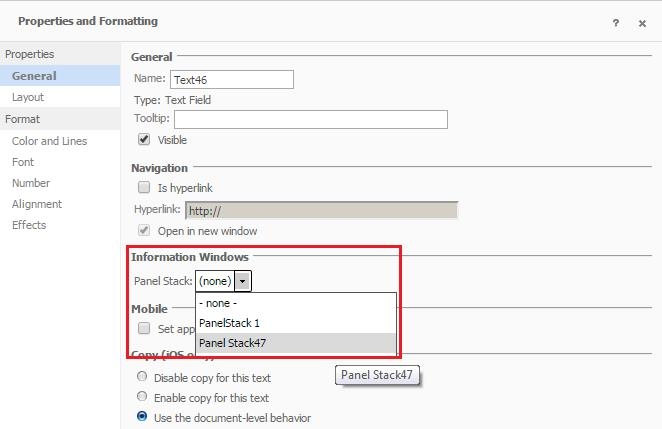
4 – Configure the Text or Image to call the new Information Windows.
5 – Select the Targets from the Check Boxes (or any other Multiple Selections Selector).
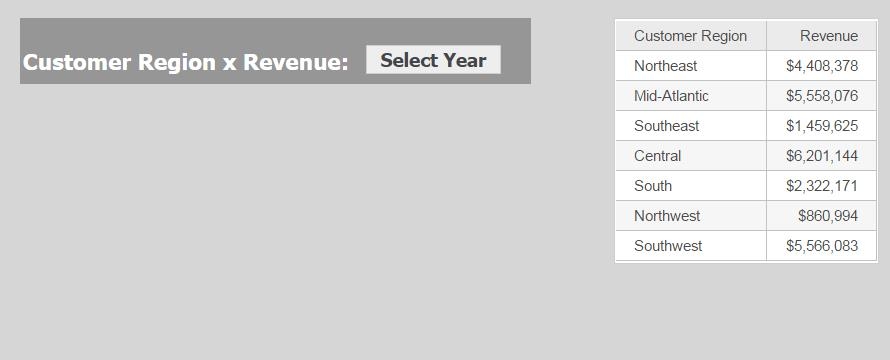
6 – When clicking on the “Select Year” text, the Information Windows appears with the Check Boxes Selector behaving like a Drop-down selector with the ability to make multiple selections
Before clicking on “Select Year”:
After clicking on “Select Year”:
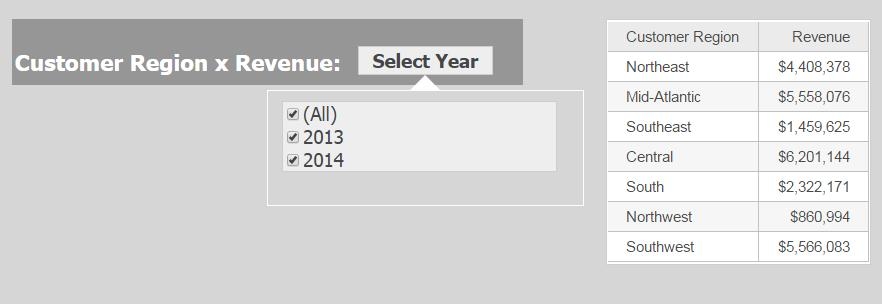
Choosing the options into the Selector to get the results changed.