EducationSoftwareStrategy.com
StrategyCommunity

Knowledge Base

Product

Community

Knowledge Base

TopicsBrowse ArticlesDeveloper Zone

Product

Download SoftwareProduct DocumentationSecurity Hub

Education

Tutorial VideosSolution GalleryEducation courses

Community

GuidelinesGrandmastersEvents
x_social-icon_white.svglinkedin_social-icon_white.svg
Strategy logoCommunity

© Strategy Inc. All Rights Reserved.

LegalTerms of UsePrivacy Policy
  1. Home
  2. Topics

KB263051: In MicroStrategy 10.x Secure Enterprise Platform, when connecting to MongoDB using MicroStrategy MongoDB Wire Protocol driver, the schema does not get updated


Community Admin

• Strategy


In MicroStrategy 10.x Secure Enterprise Platform, when connecting to MongoDB using MicroStrategy MongoDB Wire Protocol driver, the schema does not get updated

SYMPTOM
In Strategy 10 Secure Enterprise Platform, when connecting to MongoDB using Strategy MongoDB Wire Protocol driver it can be observed that the schema is not updated even though it has already been updated on the server side.
STEPS TO REPRODUCE
1. Create a DSN to MongoDB using the Strategy MongoDB Wire Protocol Driver.
2. On Strategy DB Query Tool, connect to the database using the DSN created in step 1.
3. From the Mongo-shell create a new collection. For example:


db.users.insert({ user_id: "abc123",age: 55,status: "A"} )
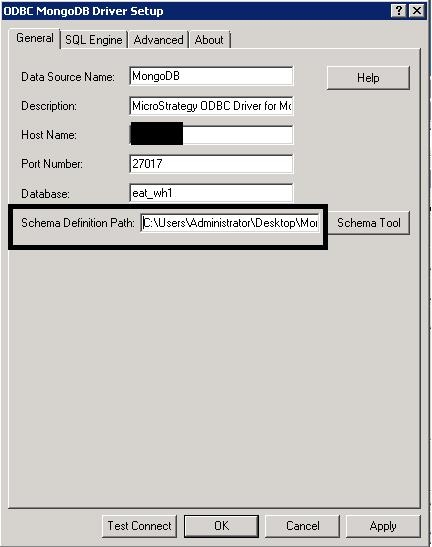
 
4. Re-connect to MongoDB via DB Query Tool using the same DSN as before. It is observed that the collection users is not displayed in the table list.
 
CAUSE
This is a known limitation with the Mongo DB driver that is shipped with Strategy 10.x Secure Enterprise Platform. More information can be found in the following link:
http://knowledgebase.progress.com/articles/Article/add-metadata-refresh-capability-to-the-MongoDB-driver?q=mongodb&am%20p;l=en_US&fs=Search&pn=1
 
WORKAROUND
There are two possible workarounds for this limitation:
Solution 1:
Create a new DSN connection to MongoDB.
Solution 2:
1) Navigate to the “Schema Definition Path folder”

ka04W000000OhZiQAK_0EM440000002JAX.jpeg

 
2) Delete all the files in the folder and reconnect using the same DSN. The updated schema should now be visible.

ka04W000000OhZiQAK_0EM440000002JAV.jpeg

Comment

0 comments

Details

Knowledge Article

Published:

May 12, 2017

Last Updated:

May 12, 2017