SYMPTOM:
When creating a Report Services document, the "Long Names" option of Grid header cannot be disabled in Strategy Developer 9.x and later and Strategy 10.
STEPS TO REPRODUCE:
1. Create a report with Category attribute and Revenue metric in Strategy Tutorial Project.
2. Click “Long Names” in ‘Grid’ menu to display attribute form names.
3. Save and close the report.
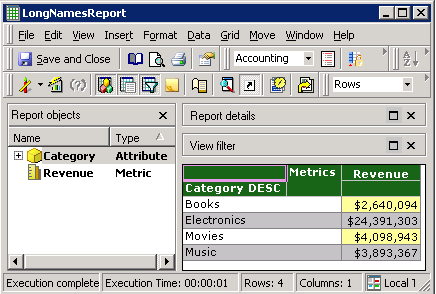
The report image that displays long name “Category DESC” is as below.
4. Right click the report and run ‘Create document….’
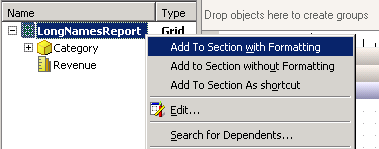
5. In the Document Editor, add the report to section as a shortcut or add to section with formatting.
6. Click the following icon to display Grid option.

7.Click “Long Names” to disable it.
Note that “Long Names” is visible and cannot be disabled.

CAUSE:
This is a known issue in Strategy Developer 9.x and later and Strategy 10.
WORKAROUND:
There are two workarounds.
Workaround (1) Use Strategy Web
1. Execute the Report Services document in editable mode.
2. Select the target grid report and choose 'properties and formatting' from the right mouse click menu.
3. Under Properties > Grid, select off in the Show attribute form names.

Workaround (2) Use Strategy Developer
1. Delete the grid on the document once.
2. Add the dataset to the document again by using 'Add to Section without Formatting'.
The Grid added has no formatting and user can apply the formatting free for long name and others.

ACTION:
Strategy will continue to investigate and post updates as soon as they are available.
