EducationSoftwareStrategy.com
StrategyCommunity

Knowledge Base

Product

Community

Knowledge Base

TopicsBrowse ArticlesDeveloper Zone

Product

Download SoftwareProduct DocumentationSecurity Hub

Education

Tutorial VideosSolution GalleryEducation courses

Community

GuidelinesGrandmastersEvents
x_social-icon_white.svglinkedin_social-icon_white.svg
Strategy logoCommunity

© Strategy Inc. All Rights Reserved.

LegalTerms of UsePrivacy Policy
  1. Home
  2. Topics

KB263507: ESRI maps are zoomed out during runtime in MicroStrategy Web 10.1.


Community Admin

• Strategy


n MicroStrategy Web 10.1, when a drop-down selector targets an ESRI map in a Report Services Document, the zoom on the map will have different first execution default levels depending on the default value of the selector. If the selector defaults to “All” at runtime, the ESRI map will be zoomed to a level that best fits the data

SYMPTOM:
In Strategy Web 10.1, when a drop-down selector targets an ESRI map in a Report Services Document, the zoom on the map will have different first execution default levels depending on the default value of the selector.
If the selector defaults to “All” at runtime, the ESRI map will be zoomed to a level that best fits the data, as shown below.

ka04W000000OaRcQAK_0EM4400000025YZ.jpeg

If the selector defaults to only one element at run time, the ESRI map will be zoomed out, as shown below.
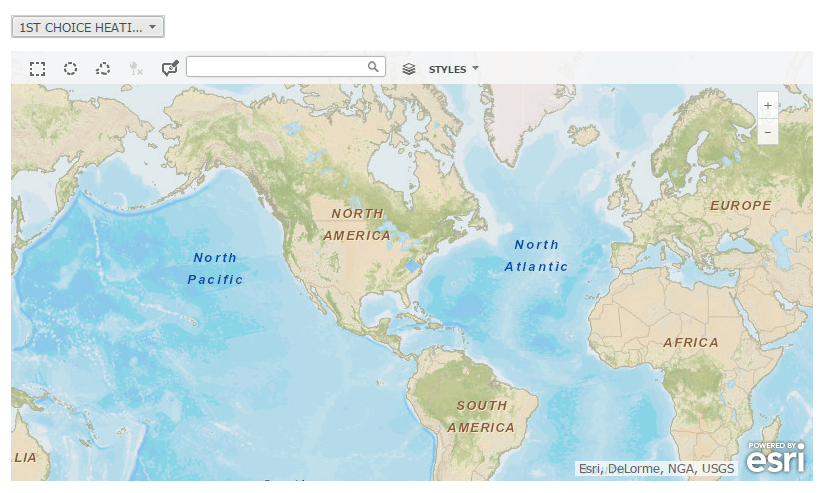
ka04W000000OaRcQAK_0EM4400000025YY.jpeg

  
STEPS TO REPRODUCE:

  1. Create a report with an attribute, a latitude attribute, a longitude attribute, and a metric.
  2. Add the report to a document.
  3. Insert the report into a grid in the document.
  4. Open the Properties and Formatting… for the grid.
  5. Uncheck Merge under Rows in the Grid section of the Properties and Formatting.
  6. Choose the Map widget list under DHTML in the Widget dropdown in the Widget section of the Properties and Formatting.
  7. Open the Widget Properties and set the attribute, latitude, and longitude to show the markers on the map.
  8. Save the changes and close Properties and Formatting.
  9. Insert a drop-down selector in the document.
  10. Right-click on the selector and open Properties and Formatting…
  11. In the selector section, change the Action Type to Select Attribute Element and select the desired attribute to be mapped for Source.
  12. Run the document in Presentation mode. Note that the map is zoomed to best fit the data.
  13. Select an element from the selector.
  14. Save and re-run the document. Note that the map is zoomed all the way out.

CAUSE:
This is an identified defect in Strategy Web 10.1.
ACTION:
This issue has been fixed in Strategy Web 10.3, Please upgrade to take advantage of the fix. 
 
KB263507


Comment

0 comments

Details

Knowledge Article

Published:

April 6, 2017

Last Updated:

November 28, 2018