EducationSoftwareStrategy.com
StrategyCommunity

Knowledge Base

Product

Community

Knowledge Base

TopicsBrowse ArticlesDeveloper Zone

Product

Download SoftwareProduct DocumentationSecurity Hub

Education

Tutorial VideosSolution GalleryEducation courses

Community

GuidelinesGrandmastersEvents
x_social-icon_white.svglinkedin_social-icon_white.svg
Strategy logoCommunity

© Strategy Inc. All Rights Reserved.

LegalTerms of UsePrivacy Policy
  1. Home
  2. Topics

KB272383: How to configure and use the Dropbox Data Import connector in MicroStrategy Web, Workstation, and Desktop


Community Admin

• Strategy


This article provides instructions on how to configure and use the Dropbox Data Import connector in Web, Workstation, and Desktop.

Starting with the release of Strategy ONE (March 2024), dossiers are also known as dashboards.
Strategy Web, Workstation, and Desktop all have the ability to add external data from Dropbox. In Strategy Workstation and Desktop, there is a pre-defined Dropbox application that has Full Dropbox privileges, which provide full access to all files and folders in a user's Dropbox account.
However, Strategy Web does not contain a pre-defined Dropbox application, so users must create a new application before using the connector on Web. Additionally, if you are using Workstation or Desktop and do not want to use the default Dropbox application, you can also create a new application for those products.

How to Configure the Dropbox Application

  • Log in to Dropbox using your Dropbox username and password.
  • At the bottom of the page, click the More button and select Developers.
ka0PW0000001JjAYAU_0EM2R000000lXkC.jpeg
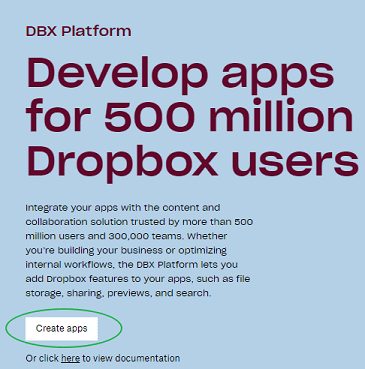
  • Click Create Apps.
ka0PW0000001JjAYAU_0EM2R000000lXkH.jpeg
  • Under Choose an API, select DropBox API App.
  • Under Choose the type of access you need, Strategy recommends selecting Full Dropbox.
    Selecting App folder only allows you access to a single folder created specifically for the application.If your log in account does not have this folder, it will create an empty folder.
  • Click Create app.
ka0PW0000001JjAYAU_0EM2R000000lXkW.jpeg
  • To allow other users to access the app, select Enable additional users.
    If you want to link more than 500 users to the app, select Apply for production.
ka0PW0000001JjAYAU_0EM2R000000lXkl.jpeg
  • If you are creating the app for Strategy Web, you need to enter information in the Redirect URIs section. According to your web type, enter the following URLs and click Add.
    ASP: https://YourWebServerHost:port/MicroStrategy/asp/Main.aspx?evt=3172
    JSP: https://YourWebServerHost:port/MicroStrategy/servlet/mstrWeb?evt=3172
    Strategy Workstation and Desktop do not require Redirect URIs.
  • Record the App key, App secret, and Redirect URIs from this page.
ka0PW0000001JjAYAU_0EM2R000000lXkq.jpeg

How to set Dropbox oAuth Parameters

Strategy Web

  • Open Strategy Web and click Add External Data.
  • On the Connect to Your Data dialog, hover over Dropbox and click Set OAuth Parameters.
  • Enter the Callback URL, Client ID, and Client Secret.
    Callback URL is https://YourWebServerHost:port/MicroStrategy/servlet/mstrWeb?evt=3172
    Client ID is the App key you recorded from the Dropbox app.
    Client Secret is your App secret you recorded from the Dropbox app.
ka0PW0000001JjAYAU_0EM2R000000lXlA.jpeg
  • Click OK.

Strategy Workstation and Desktop

  • In Strategy Workstation or Desktop, create a new dossier.
  • Click New Data. The Data Sources dialog appears.
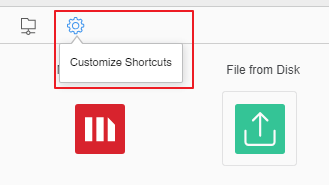
  • Click Customize Shortcuts.
ka0PW0000001JjAYAU_0EM2R000000lXnQ.jpeg
  • Hover over Dropbox and click Set OAuth.
ka0PW0000001JjAYAU_0EM2R000000lXnV.jpeg
  • Enter your Client ID and Client Secret.
    Client ID is the App key you recorded from the Dropbox app.
    Client Secret is your App secret you recorded from the Dropbox app.
  • Click OK.

How to Use the Dropbox Data Connector

Strategy Web

  1. Click the Dropbox icon and enter your credentials. 
  2. Allow the app to access your documents and text files. You can now import data from Dropbox.


Strategy Workstation and Desktop

  • Click the Dropbox icon and enter your credentials.
  • Allow the app to access your documents and text files.
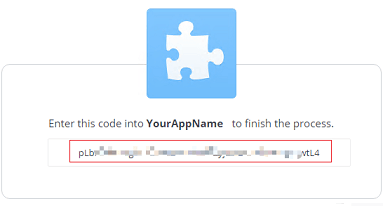
  • Copy the Grant Code and paste it into the Authorization Processing dialog.
    Note: This code expires after five minutes.
ka0PW0000001JjAYAU_0EM2R000000lXo9.jpeg
  • Click Proceed. You can now import data from Dropbox. 

Third Party Software Installation Warning:
The third-party product(s) discussed in this technical note is manufactured by vendors independent of Strategy. Strategy makes no warranty, express, implied or otherwise, regarding this product, including its performance or reliability.


Comment

0 comments

Details

Knowledge Article

Published:

June 27, 2017

Last Updated:

March 21, 2024