EducationSoftwareStrategy.com
StrategyCommunity

Knowledge Base

Product

Community

Knowledge Base

TopicsBrowse ArticlesDeveloper Zone

Product

Download SoftwareProduct DocumentationSecurity Hub

Education

Tutorial VideosSolution GalleryEducation courses

Community

GuidelinesGrandmastersEvents
x_social-icon_white.svglinkedin_social-icon_white.svg
Strategy logoCommunity

© Strategy Inc. All Rights Reserved.

LegalTerms of UsePrivacy Policy
  1. Home
  2. Topics

KB272449: Object Prompts with Filter objects show no available objects when running a prompted report in MicroStrategy Web 10.


Community Admin

• Strategy


In MicroStrategy Web 9.4.1, users could create a report with an object prompt that allowed users to choose from different filter objects. However, in MicroStrategy Web 10, when executing the same prompted report, the prompt displays no filters

SYMPTOM:
In Strategy Web 9.4.1, users could create a report with an object prompt that allowed users to choose from different filter objects. 
However, in Strategy Web 10, when executing the same prompted report, the prompt displays no filters, as shown below:

ka04W000000OfvHQAS_0EM4400000025Vu.jpeg

Furthermore, the Strategy administrator user is able to see all the filter objects in the prompt, as shown below:
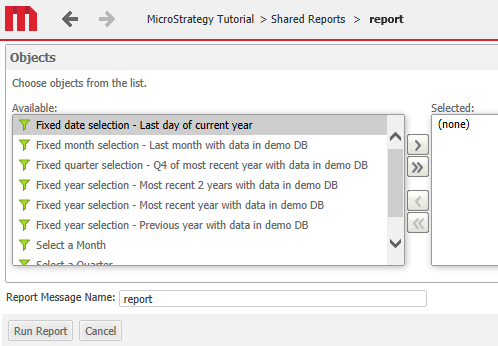
ka04W000000OfvHQAS_0EM4400000025Vx.jpeg

 
STEPS TO REPRODUCE:
 Follow these steps to reproduce the issue in a Strategy Tutorial Project.

  1. Create an object prompt.
  2. In the Definition section, select use a predefined list of objects, and click Add.
  3. Navigate to Public Objects > Shared Filters > Time Selection Filters, and add a few filters.
  4. Hit 'Save' and 'Close'.
  5. Create a new report with a Time attribute and a metric.
  6. Drag the object prompt into the filter section of the report.
  7. Save the report.
  8. Create a new Strategy user and grant them all the privileges from Web Reporter and Web Analyst, except for "Web create new report".
  9. Log into Strategy Web 10 using the newly created user.
  10. Run the report Created in step 5.
  11. Notice the prompt does not display any filters.
  12. Run the same report with the Strategy administrator user. Notice all the filters appear in the prompt.

 
CAUSE:
This is an identified defect in Strategy Web 10. It occurs only when the user running the report does not have the "Web create new report" privilege from the Web Analyst group.
 
ACTION: 
This issue has been addressed in Strategy Web 10.2. Upgrade to this version to take advantage of this fix.
 
WORK AROUND:
Grant the "Web create new report" privilege from the Web Analyst group.
 
The Strategy Internal Reference Number for the issue discussed in this technical note is DE20364.


Comment

0 comments

Details

Knowledge Article

Published:

April 3, 2017

Last Updated:

April 3, 2017