EducationSoftwareStrategy.com
StrategyCommunity

Knowledge Base

Product

Community

Knowledge Base

TopicsBrowse ArticlesDeveloper Zone

Product

Download SoftwareProduct DocumentationSecurity Hub

Education

Tutorial VideosSolution GalleryEducation courses

Community

GuidelinesGrandmastersEvents
x_social-icon_white.svglinkedin_social-icon_white.svg
Strategy logoCommunity

© Strategy Inc. All Rights Reserved.

LegalTerms of UsePrivacy Policy
  1. Home
  2. Topics

KB272948: How to configure Kerberos (Integrated) authentication against Microsoft SQL Server/Hive/Impala for MicroStrategy Secure Enterprise and later on Unix/Linux operating systems


Community Admin

• Strategy


Prior to the release of Strategy Secure Enterprise 10.2, users could only configure Kerberos authentication to databases when the Strategy Intelligence Server was running on Windows operating systems. Starting with Strategy Secure Enterprise 10.2, users will be able to use integrated authentication to access some databases when the Strategy Intelligence Server is running on Linux/Unix operating systems.
 
The following is the list of databases supported for use with Integrated authentication on Unix/Linux in Strategy 10.2:

  • Microsoft SQL Server
  • Cloudera Hive (with Cloudera ODBC Driver for Hive only)
  • Cloudera Impala (with Cloudera ODBC Driver for Impala only)
  • Hortonworks Hive (with Hortonworks ODBC Driver for Hive only)

 
In order to configure Integrated authentication to any of the databases above, follow the high level steps provided below:
 

  • Configure the Strategy Intelligence Server to use Integrated Authentication.
     
    • KB19110 : How to configure Strategy Intelligence Server Universal 9.x for Kerberos (Integrated) authentication on Unix/Linux operating systems
  • Setup the Database server to allow Kerberos authentication.
     
    • This action is a database side configuration that is configured outside of Strategy. Users should work with the database administrators to finish this configuration step.
  • Configure the database instance for Kerberos.
     
    • Create an ODBC DSN with authentication mode setting to Kerberos
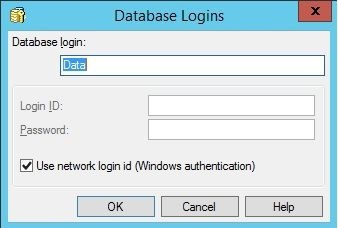
    • Configure the database instance under Project Configuration > Database Instances > SQL Data warehouse and set the database login to "use network login id (Windows Authentication)' as shown below:
ka04W00000148yUQAQ_0EM440000002SYJ.jpeg
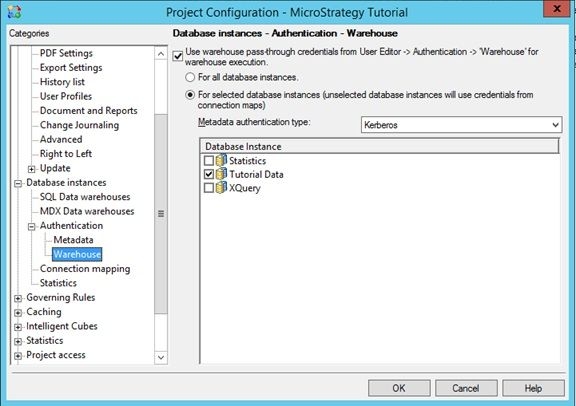
    • Configure Kerberos authentication for the warehouse under Project Configuration > Database instances > Authentication > Warehouse. 
      • Check the checkbox for "Use warehouse pass-through credentials from User Editor -> Authentication -> 'Warehouse' for warehouse execution."
      • Select the radio button for "For selected database instances".  
      • Set Metadata authentication type to "Kerberos" 
      • Check off the database instances that you wish to use Kerberos for.|
ka04W00000148yUQAQ_0EM440000002SYG.jpeg
  • Configure Web-Server (IIS) with Integrated Authentication
     
    • KB19109: How to enable Kerberos (Integrated) authentication through Strategy Web on IIS in Strategy 9.x
    • Enable Integrated authentication in Strategy Web
      • Go to http://hostname:8080/MicroStrategy/asp/Admin.aspx
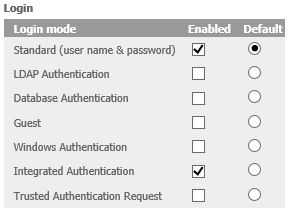
      • Go to Intelligence Server -> Default Properties -> Login
      • Enable Integrated Authentication as shown below:

ka04W00000148yUQAQ_0EM440000002SYE.jpeg
    • Configure Client Browser
      • KB33291: How to configure the Client Browser to work with MicroStrategy Web 9.x for integrated Authentication
         
  • Access Data Source via Integrated Authentication on Strategy Web
    Users should login to Strategy Project through Integrated authentication on Strategy Web. Users can access and import data from existing data sources (Database Instance) created in Strategy Developer, or newly created DSN and DSN-less data sources on Strategy Web.
     
    • Existing data sources created in Strategy Developer
      • On Strategy Web, users can easily see and access the data sources that were created in Strategy Developer as described in step (3).
    • Create DSN/DSN-less data sources on Strategy Web
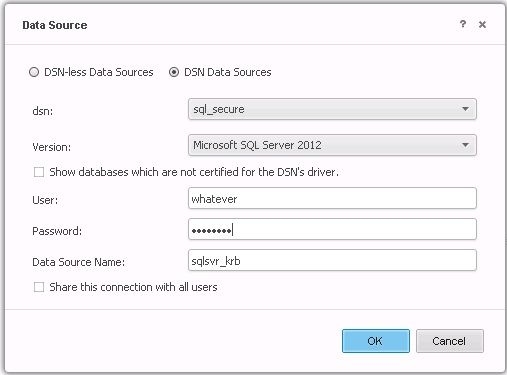
      • To add a DSN based connection:
        • Choose an ODBC DSN with Kerberos authentication; fill User/Password with any characters(Kerberos authentication will not use these) and hit ok as shown below:
ka04W00000148yUQAQ_0EM440000002SYD.jpeg
      • To add a DSN-less connection:
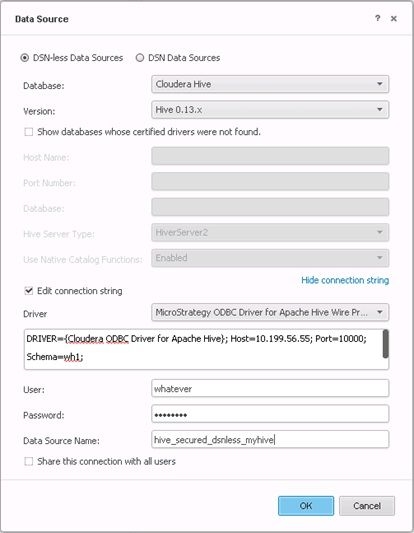
        Users can create DSN-less data sources, by choosing the appropriate drivers and edit the connection string to provide with the required connection parameters to enable Kerberos connection against the database. Users should refer to the specified ODBC drivers’ documents for the connection parameters.  

        An example with Cloudera Hive is shown below while using the 'Strategy ODBC Driver for Apache Hive Wire Protocol'

ka04W00000148yUQAQ_0EM440000002SYF.jpeg
      • Users must make use of the 'Edit connection string' option which in this case is specified as the following:
        
        DRIVER={Strategy ODBC Driver for Apache Hive Wire Protocol};
        HOST=<HOST_IP>;PORT=10000;DATABASE=wh1;WireProtocolVersion=2;
        UseNativeCatalogFunctions=1; 
        ServicePrincipalName=hive/example.com:EXAMPLE.COM;
        AuthenticationMethod=1
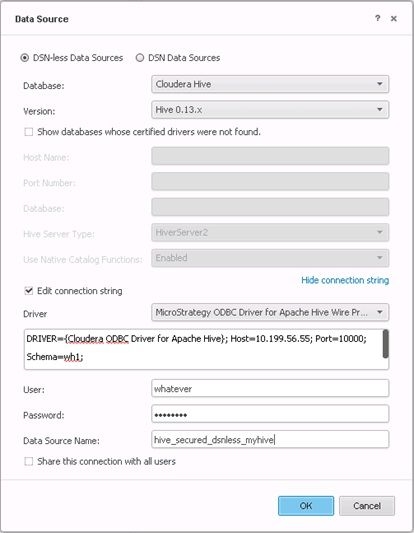
        In which AuthenticationMethod tells the driver to use Kerberos Authentication and the ServicePrincipalName proivdes the Hive service account.

        Another example is below which is setup using the Cloudera ODBC Driver:
ka04W00000148yUQAQ_0EM440000002SYI.jpeg
      • Users must once again make use of the 'Edit connection string' option which in this case is specified as the following:
         
        
        DRIVER={Cloudera ODBC Driver for Apache Hive}; Host=<HOST_IP>;
        Port=10000; Schema=wh1; HiveServerType=2;UseNativeCatalogFunctions=1;
        KrbHostFQDN=example.com;KrbRealm=EXAMPLE.COM;KrbServiceName=hive;
        AuthMech=1

        AuthMech will work exactly like AuthenticationMethod and KrbHostFQDN, KrbRealm, and KrbServiceName will replace ServicePrincipalName.


272948 KB272948


Comment

0 comments

Details

Knowledge Article

Published:

June 26, 2017

Last Updated:

December 29, 2018