EducationSoftwareStrategy.com
StrategyCommunity

Knowledge Base

Product

Community

Knowledge Base

TopicsBrowse ArticlesDeveloper Zone

Product

Download SoftwareProduct DocumentationSecurity Hub

Education

Tutorial VideosSolution GalleryEducation courses

Community

GuidelinesGrandmastersEvents
x_social-icon_white.svglinkedin_social-icon_white.svg
Strategy logoCommunity

© Strategy Inc. All Rights Reserved.

LegalTerms of UsePrivacy Policy
  1. Home
  2. Topics

KB273192: The color of the Heat Map widget cannot be changed in Presentation mode in MicroStrategy Web 10.1


Community Admin

• Strategy


hen using the new, non-deprecated, heat map widget in MicroStrategy Web 10.1 Presentation mode, right clicking on the widget does nothing, thus preventing users from changing the colors of the heat map. This was possible with the deprecated heat map widget that was still able to run in MicroStrategy Web 10.0, Express mode

SYMPTOM:
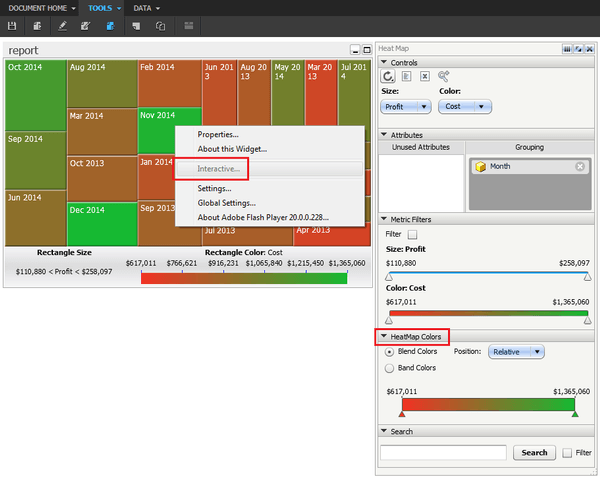
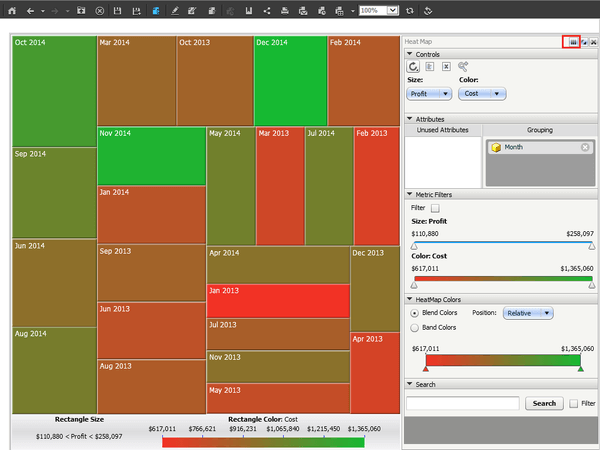
When using the new, non-deprecated, heat map widget in Strategy Web 10.1 Presentation mode, right clicking on the widget does nothing, thus preventing users from changing the colors of the heat map. This was possible with the deprecated heat map widget that was still able to run in Strategy Web 10.0, Express mode, as shown below.
In Flash mode:
ka04W000000OdUJQA0_0EM4400000025W9.jpeg

 
This panel could be docked to display in Express mode:
ka04W000000OdUJQA0_0EM4400000025WA.jpeg

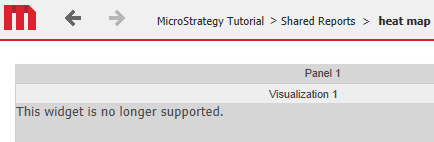
This is no longer possible, as in Strategy Web 10.1, the deprecated heat map no longer works in Presentation mode, as seen below:
ka04W000000OdUJQA0_0EM4400000025W8.jpeg


This widget is no longer supported.

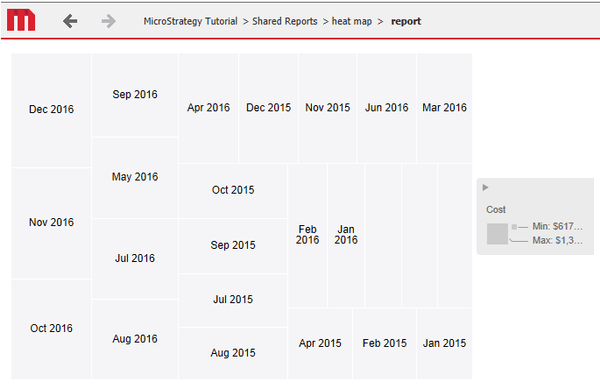
Furthermore, if a user were to apply a threshold to the metrics of the heat map widget in an attempt to change the colors, this will cause the heat map to appear in shades of grey, as shown below.

ka04W000000OdUJQA0_0EM4400000025WG.jpeg

STEPS TO REPRODUCE:

  • Create a report with one attribute and two metrics.
  • Convert into a Report Services Document.
  • Apply the new heat map widget to the grid.
  • Run it in Presentation mode and notice that all the colors are shades of red to green.
  • Right click on the widget to notice nothing happens, there is no way to change the color.
  • Return to editable mode.
  • Right click on the first metric > Thresholds > Advanced.
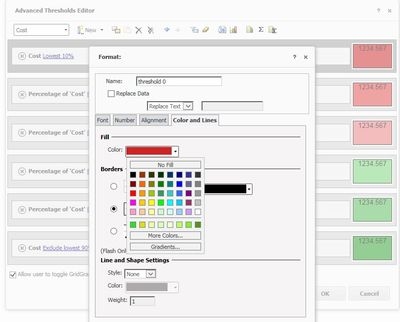
  • Create any threshold condition that changes the fill color of the cells, as shown below:
ka04W000000OdUJQA0_0EM4400000025WH.jpeg
  • Accept the changes and run in Presentation mode.
  • The heat map now displays in shades of gray.

 
CAUSE:
This is an identified defect in Strategy Web 10.0 and 10.1.
 
ACTION:
Currently this issue is still being reviewed for feasibility by our Technology team and it is not scoped for any upcoming scheduled Strategy release.
 
WORKAROUND:
There are two workarounds for this issue.
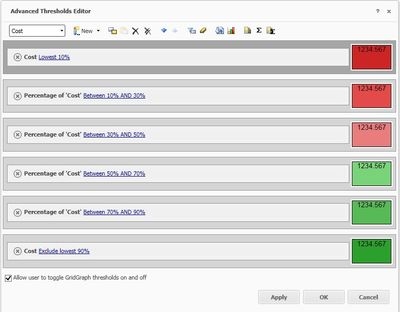
  1. Users can manually define thresholds on the second metric of the heat map widget and the the heat map will obey the color coding of the threshold conditions.
    Note: Applying the thresholds to any metric other than the second metric, results in the gray heat map issue.
  2. Users can take advantage of the Visual Insight heat map widget, to create automatic threshold conditions. Follow the steps below:


  • Create a Visual Insight dashboard with one attribute and two metrics.
  • Change the visualization into a heat map.
    Note: Any properties changed to the heat map at this point, such as Showing Metric values and Labels, will carry over as well.
  • From the File menu, convert the VI dashboard into an RS document.
  • The document will execute in Editable mode and will carry over the thresholds of the heat map automatically. Notice they are set on the first metric.
  • Right click on the first metric > Thresholds > Advanced. Now all the thresholds should be listed with the red to green colors, as shown below.
ka04W000000OdUJQA0_0EM4400000025WE.jpeg
  • Click on one threshold and format to change the fill color, as shown below:
ka04W000000OdUJQA0_0EM4400000025WH.jpeg
  • Run in Presentation Mode. Now the heatmap is set to the specified colors.

 
The Strategy Internal Reference Number for the issue discussed in this technical note is DE20939.


Comment

0 comments

Details

Knowledge Article

Published:

April 12, 2017

Last Updated:

April 12, 2017