SUMMARY
Strategy Web 10.x has the ability to add external data from Google such as Google Analytics, Google Drive and Google BigQuery.
Follow the steps below to configure Google APIs:
1 – Log in to Google Developers at http://console.developers.google.com using an account previously created.
2 – Click on “Create Project”. If already have a Project, click on “Select a project” then choose the Project and goes to Step 4.

3 – Name the project and click on “Create”.

4 – Click on “APIs & auth” and then on “APIs”. Choose whatever desired API to import data and click on it. The example used here is Google Drive.

5 – Click on “Enable API”.
6 – Click on “Credentials” then “Add credentials” and choose “OAuth 2.0 client ID”.
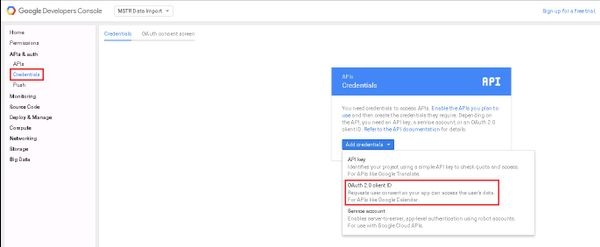
7 – Click on “Configure consent screen”.
8 – Fill out the “Email address” and “Product name” (choose a name as desired), click on “Save”.
9 – On “Application type” choose “Web application”, fill out “Name”, “Authorized JavaScript origins” and “Authorized redirect URIs”. Click on Create.
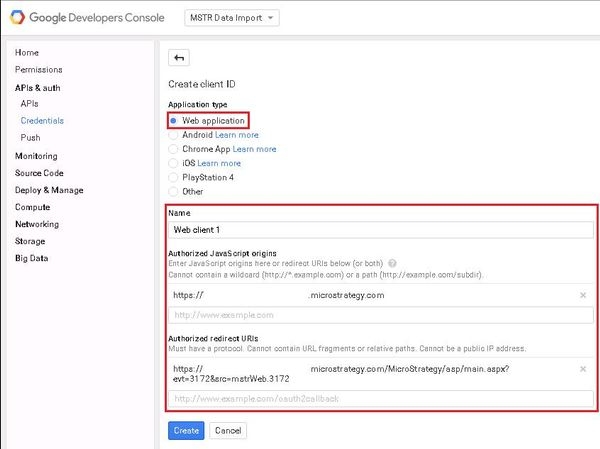
*Authorized redirect URIs:
ASP: https://WebServer/MicroStrategy/asp/Main.aspx?evt=3172&src=mstrWeb.3172
JSP: https://WebServer/MicroStrategy/servlet/mstrWeb?evt=3172&src=mstrWeb.3172
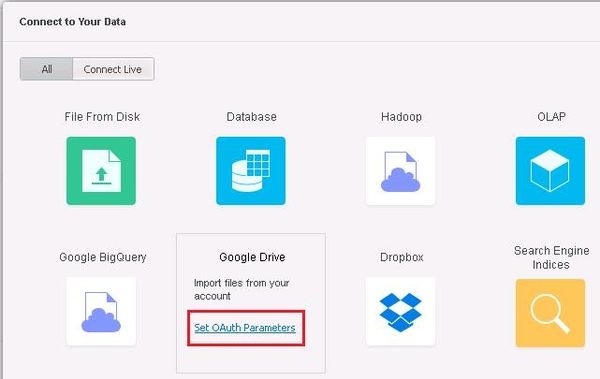
12 – Fill out the “Callback URL” with Authorized redirect URIs created before on step 9 and the “Client ID”, “Client Secret” with the info from step 10. Click ok.
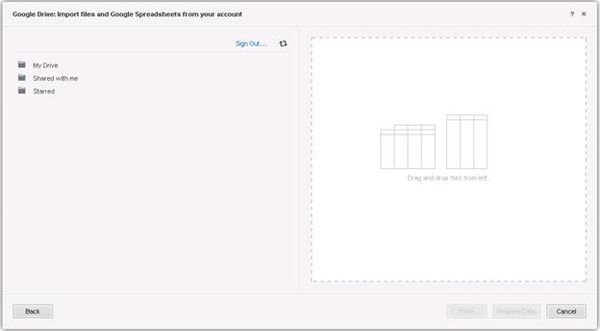
13 – Click on Google Drive (or any other Google API configured previously) and log into Google, then accept Google´s request.
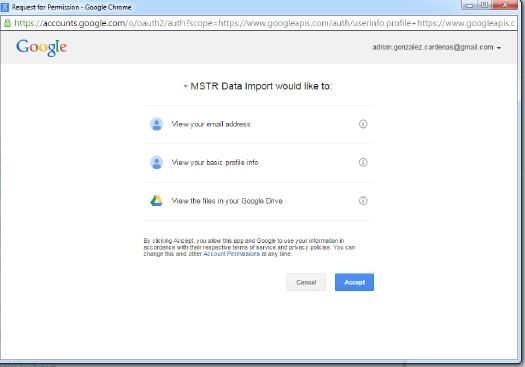
14 - Now it´s able to import data.
Third Party Software Installation Warning:
The third-party product(s) discussed in this technical note is manufactured by vendors independent of Strategy. Strategy makes no warranty, express, implied or otherwise, regarding this product, including its performance or reliability.
KB273451
