EducationSoftwareStrategy.com
StrategyCommunity

Knowledge Base

Product

Community

Knowledge Base

TopicsBrowse ArticlesDeveloper Zone

Product

Download SoftwareProduct DocumentationSecurity Hub

Education

Tutorial VideosSolution GalleryEducation courses

Community

GuidelinesGrandmastersEvents
x_social-icon_white.svglinkedin_social-icon_white.svg
Strategy logoCommunity

© Strategy Inc. All Rights Reserved.

LegalTerms of UsePrivacy Policy
  1. Home
  2. Topics

KB274087: How to apply different aggregations to subtotals and grand total in a SAP BW based report in MicroStrategy?


Community Admin

• Strategy


In some business scenarios, users may wish to apply the maximum to subtotals but let the grand total sum up all the subtotals as shown below. This technical note will describe the steps required to achieve this requirement in a report referring to a SAP BW source.

OVERVIEW 
In some business scenarios, users may wish to apply the maximum to subtotals but let the grand total sum up all the subtotals as shown below. This technical note will describe the steps required to achieve this requirement in a report referring to a SAP BW source.

ka04W000001MKlaQAG_0EM440000002C2v.jpeg


ka04W000001MKlaQAG_0EM440000002C2u.jpeg

 
PREMISE
This is best explained through an example. This technical note will describe the steps based on the following MDX report, which consists of two attributes and one metric.

ka04W000001MKlaQAG_0EM440000002C2m.jpeg

 
STEPS:

  1. Create project attributes to which the MDX cube attributes will be mapped. The object mapping is necessary because a custom subtotal will have to be created later and the custom subtotal can only refer to project objects.
ka04W000001MKlaQAG_0EM440000002C2l.jpeg


  1. Map the MDX cube attributes to the created project attributes.
ka04W000001MKlaQAG_0EM440000002C2s.jpeg


  1. Create a custom subtotal object with the following definition.

Sum(Max(x) {@, [Year_PRJAttrbt]} ) {@}

ka04W000001MKlaQAG_0EM440000002C2Z.jpeg


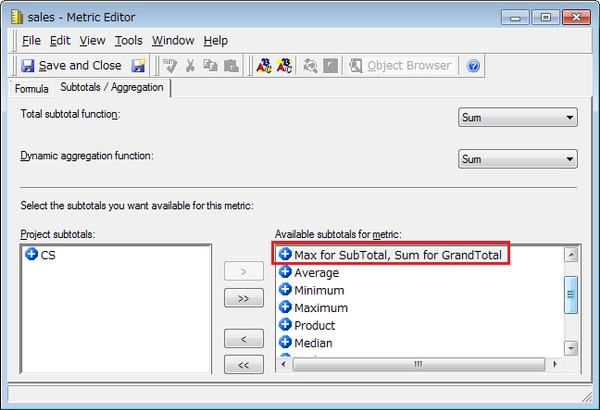
  1. Edit the Sales metric and add the custom subtotal to the “Available subtotals for metric” section.
ka04W000001MKlaQAG_0EM440000002C2t.jpeg


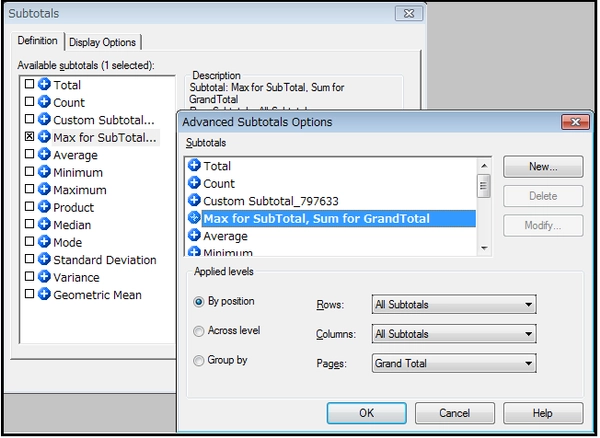
  1. Create a report with the project attributes and Sales metric. Apply the custom subtotal as shown below.
ka04W000001MKlaQAG_0EM440000002C2n.jpeg


  1. The resulting report will look as follows.
ka04W000001MKlaQAG_0EM440000002C2o.jpeg


Comment

0 comments

Details

Knowledge Article

Published:

April 10, 2017

Last Updated:

April 10, 2017