INTRODUCTION
Strategy Secure Enterprise Platform 10.2 has been post-certified to work with Snowflake - a cloud-based Data Warehouse system. Details on how to connect to this data source is found below.
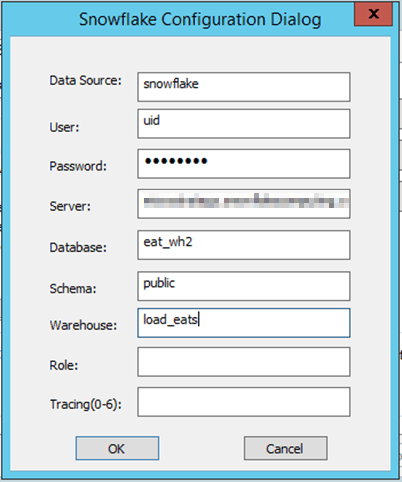
Driver Setup on Windows
Driver Setup on Linux
[ODBC Data Sources]
SnowflakeDSIII=SnowflakeDSIIDriver

[SNowflakeDSII]
Description=Snowflake DSII
Driver=/root/Snowflake/snowflake_odbc/lib/libSnowflake.so
Locale=en-US
Server=<host_name/URL>
schema=public
account=<account_name>
database=<database_name>
port=443
warehouse=<warehouse_name>
SSL=on
#
# ODBC Driver for Snowflake
#
# Please replace <SNOWFLAKE_PATH> with the path to the folder containing
the drivername.so file
# Please replace <SIMBAINI> below to the exact location of the
#unixodbc.snowflake.ini file.
#For example: /path/to/unixodbc.snowflake.ini
# Please note: The unixodbc.snowflake.ini file should include the following:
# [Driver]
# DriverManagerEncoding=UTF-8
# ODBCInstLib=libodbcinst.so
#
SNOWFLAKE_PATH<SNOWFLAKE_PATH>
SIMBAINI=<SIMBAINI>
if [ "${SNOWFLAKE_PATH}" != '<SNOWFLAKE_PATH>' ]; then
 export SNOWFLAKE_PATH

 mstr_append_path LD_LIBRARY_PATH "${SNOWFLAKE_PATH:?}"
 export LD_LIBRARY_PATH

fi

if [ "${SIMBAINI}" != '<SIMBAINI>' ]; then
 export SIMBAINI
if [ ! -f "${SIMBAINI:?}" ]; then
 echo "${0##*/}: WARNING: ${SIMBAINI:?} does not exist" >&2
 fi
fi
SNOWFLAKE_PATH=/root/MicroStrategy/snowflake/snowflake_odbc/lib
SIMBAINI=/root/MicroStrategy/snowflake/snowflake_odbc/conf/unixodbc.snowflake.ini
if [ "${SNOWFLAKE_PATH}" != '<SNOWFLAKE_PATH>' ]; then
 export SNOWFLAKE_PATH

 mstr_append_path LD_LIBRARY_PATH "${SNOWFLAKE_PATH:?}"
 export LD_LIBRARY_PATH

fi

if [ "${SIMBAINI}" != '<SIMBAINI>' ]; then
 export SIMBAINI
if [ ! -f "${SIMBAINI:?}" ]; then
 echo "${0##*/}: WARNING: ${SIMBAINI:?} does not exist" >&2
 fi
fi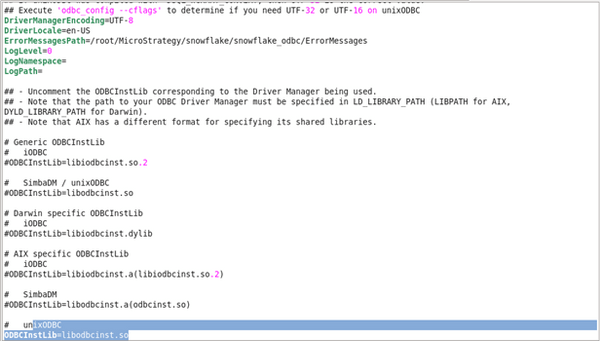
6. Once the above is set, it should be possible to connect
