SUMMARY:
This article discusses a known issue with saving prompted Freeform SQL reports within Strategy Web. After doing so, it leads to issues with saving the same report in Developer due to the way the prompt object has been left in an inconsistent state. This article discusses the issue and a workaround to resolve the issue.
SYMPTOM:
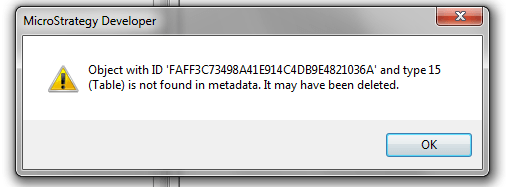
In Strategy 10.1, when trying to save a Freeform SQL report in Strategy Developer after running and saving the same report in Strategy Web, an error message displays, and the report cannot be saved:

Object with ID ‘x’ and type 15 (Table) is not found in metadata. It may have been deleted.

2. Create a new filter definition element prompt with the “Month” attribute

3. Choose Filter definition prompt
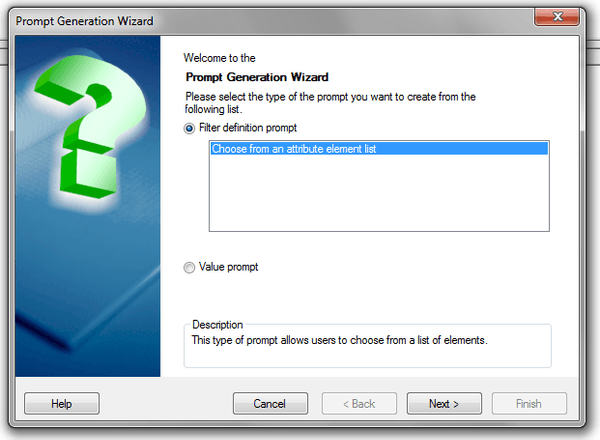
4. Create the SQL statement: select Month_ID from LU_MONTH where Month_ID = [Elements of Month]

5. Log in to Strategy Web, navigate to and run the report, choosing a Month element for the prompt answer

6. Click the Save icon to save the report, and exit out of Strategy Web

7. Back in Strategy Developer, edit the same report, and click the Save and Close option. An error message will display:
CAUSE:
This is a known issue in Strategy Web 10.1.
ACTION:
This issue has been addressed by a code fix in Strategy Web 10.3. Upgrade to that or a newer release to take advantage of the fix.
WORKAROUND:
From Strategy Developer, remove all prompts from the Freeform SQL Definition and Save and Close. Edit the report again and re-add the same prompts that were removed back into the Freeform SQL Definition. The report will now save appropriately.
RELATED ARTICLES:
KB441509: "Object with ID 'xxx' and type 15 (Table) is not found in metadata. It may have been deleted" when previewing data while creating an Incremental Refresh Report based on Xquery Cube in MicroStrategy 10.x
Article Reference Number: KB275614
