SUMMARY:
This article discusses a known issue with exporting smart compound metrics in Strategy Developer and Web 10.1. The steps to reproduce and a potential workaround are discussed below.
SYMPTOM:
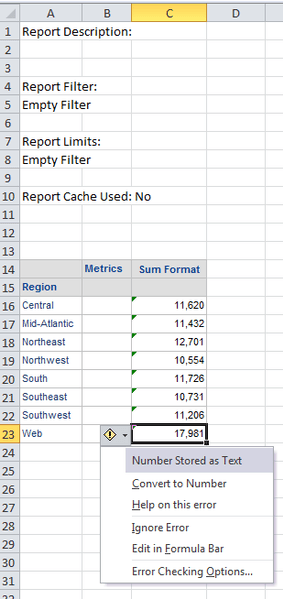
When exporting a compound metric which is set as a smart metric, they are exported as text to Microsoft Excel from Strategy Developer and Web 10.1
STEPS TO REPRODUCE:
1. Create a compound metric with the definition “(Sum([Count of Customers]) {~} + Sum([# of Customers]) {~} )”
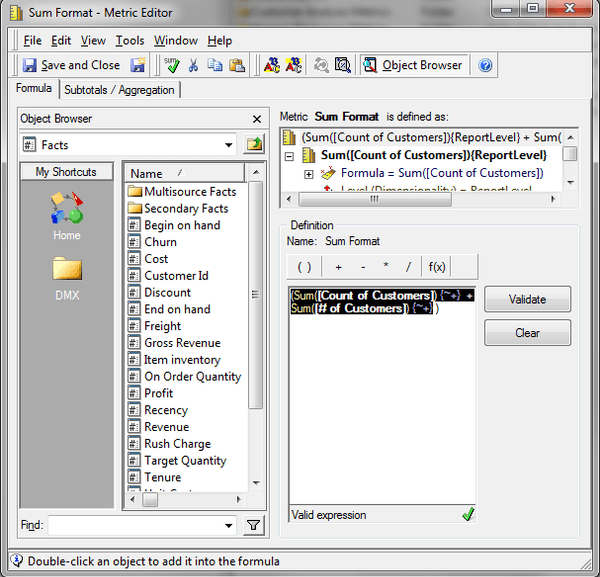
2. Assign the metric to “Allow Smart Metric” in the “Subtotals/Aggregation” tab
3. Create a new report, and add the “Region” attribute and the compound metric created from step 1 to the report grid.
4. Run the report, and export the results to Microsoft Excel
5. Note that the values that were exported are text:
CAUSE:
This is a known issue in Strategy Developer and Web 10.1.
ACTION:
This issue is addressed in Strategy Developer and Web 10.2 and above. Please upgrade to take advantage of the fix.
WORKAROUND:
Change the smart compound metric to be a non-smart metric. Contact Strategy Technical Support for further assistance regarding this scenario as in some instances smart metrics may be required for obtaining desired metric calculations.
The Strategy Internal Reference Number for the issue discussed in this technical note is DE25892.
