EducationSoftwareStrategy.com
StrategyCommunity

Knowledge Base

Product

Community

Knowledge Base

TopicsBrowse ArticlesDeveloper Zone

Product

Download SoftwareProduct DocumentationSecurity Hub

Education

Tutorial VideosSolution GalleryEducation courses

Community

GuidelinesGrandmastersEvents
x_social-icon_white.svglinkedin_social-icon_white.svg
Strategy logoCommunity

© Strategy Inc. All Rights Reserved.

LegalTerms of UsePrivacy Policy
  1. Home
  2. Topics

KB275774: How to connect the MicroStrategy Enterprise Platform to Apache Spark SQL


Community Admin

• Strategy


The MicroStrategy Enterprise Platform is now certified on Apache Spark, the in-memory processing engine that is part of all major Hadoop distributions. Apache Spark is supported as a warehouse only which can be used through Data Import in Web (as a DSN connection or DSN-less connection) and as a warehouse through MicroStrategy Developer.

INTRODUCTION
The Strategy Enterprise Platform 10.x is now certified on Apache Spark, the in-memory processing engine that is part of all major Hadoop distributions. This integration leverages the power of the Strategy Enterprise Platform to run analytics against Hadoop and Big Data stores. Apache Spark is supported as a warehouse only which can be used through Data Import in Web (as a DSN connection or DSN-less connection) and as a warehouse through Strategy Developer.
 
Starting in Strategy 2019, Hive is not available via the Connectivity Wizard. For Strategy versions 2019 and later, you must create a DSN by editing ODBC.ini or use ODBC Data Sources (x64) using the Strategy Spark ODBC Driver that is shipped out-of-the-box. 
PREREQUISITES
1. A supported version of Apache Spark SQL
2. A DSN with the Strategy ODBC driver for Apache Hive Wire Protocol
Note: A DSN is not needed for the DSN-less option in Data Import.
 
STEPS TO CONNECT TO APACHE SPARK
Connecting to Apache Spark as a warehouse

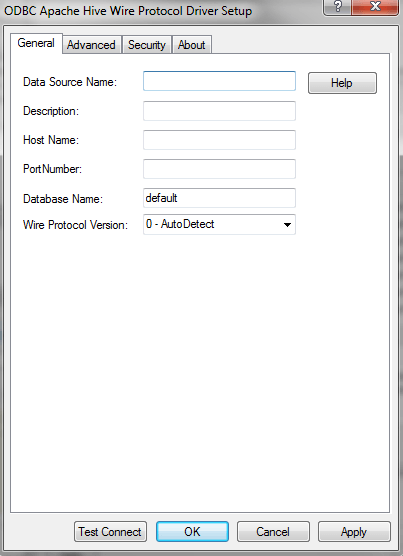
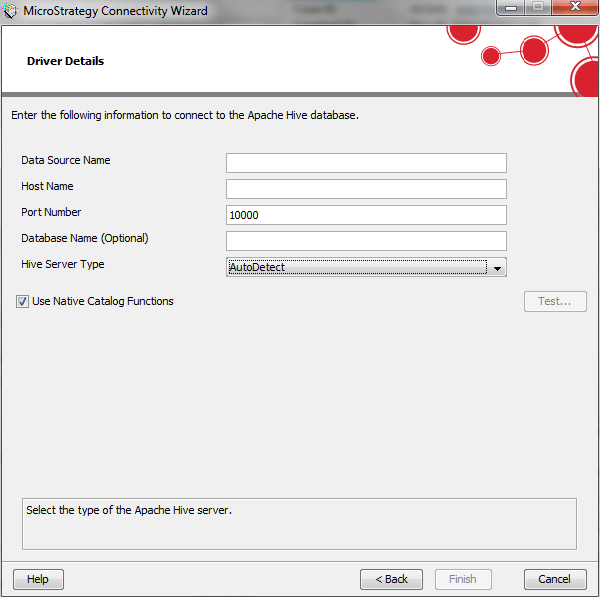
  1. Create a DSN to the Apache Spark SQL database using the driver "Strategy ODBC driver for Apache Hive" with the Host Name (IP of the database server), Port Number, Database Name (optional), Hive Server Type (this can be set to AutoDetect), and the database username and password.

Through the ODBC Administrator:

ka04W00000148BxQAI_0EM440000002JA7.jpeg

Through Connectivity Wizard:

ka04W00000148BxQAI_0EM440000002JAH.jpeg

Note: Test the connectivity to ensure the connection is established.
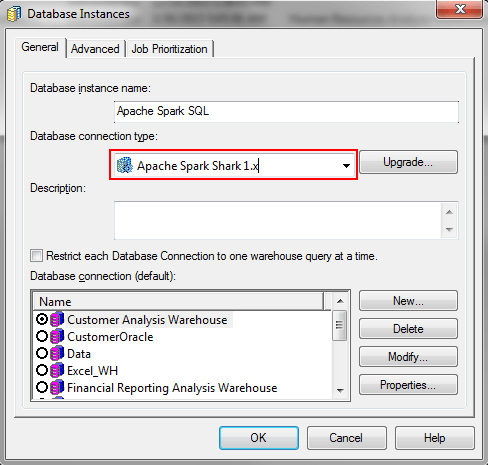
 

  • In Strategy Developer, create a Database Instance to connect to your Apache Spark database under Administration > Configuration Managers > Database Instances.
  • In the Database Instance editor, select “Apache Spark Shark 1.x” as the Database connection type:
ka04W00000148BxQAI_0EM440000002JAB.jpeg
  • Create a new Database connection and select the DSN created in step 1.
  • Create a new database login with the username and password to connect to the Apache Spark database.
  • Click OK to close out of the screen and complete the creation of the Database Instance.

Now users can pull tables into their Projects through Warehouse Catalog or Strategy Architect using this Database Instance.
 
Connecting to Apache Spark through Data Import with a DSN
 

  • Follow steps 1-6 under Connecting to Apache Spark as a warehouse to create a DSN and Database Instance to the Apache Spark database.
  • Log into Strategy Web.
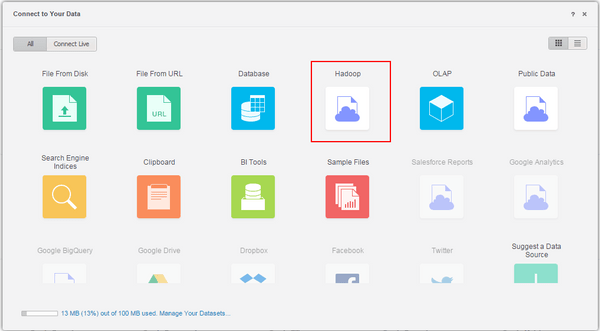
  • Select ‘Add External Data’.
  • From the available sources, select ‘Hadoop’:
ka04W00000148BxQAI_0EM440000002JAJ.jpeg
  1. Choose either Build a Query, Type a Query, or Pick Tables.

Note: ‘Browse Hadoop Files using Strategy Big Data Engine’ is only for connecting to the Hadoop Gateway (Big Data Engine).

  1. Under DATA SOURCES, select the Database Instance created in step 1.

Note: Users can save the Data Import cube as a Live Connection or an In-Memory dataset.
Connecting to Apache Spark through Data Import with a DSN-less connection
 

  • Log into Strategy Web.
  • Select ‘Add External Data’.
  • From the available sources, select ‘Hadoop’.
  • Choose either Build a Query, Type a Query, or Pick Tables.
  • Under DATA SOURCES, select ‘Add’.
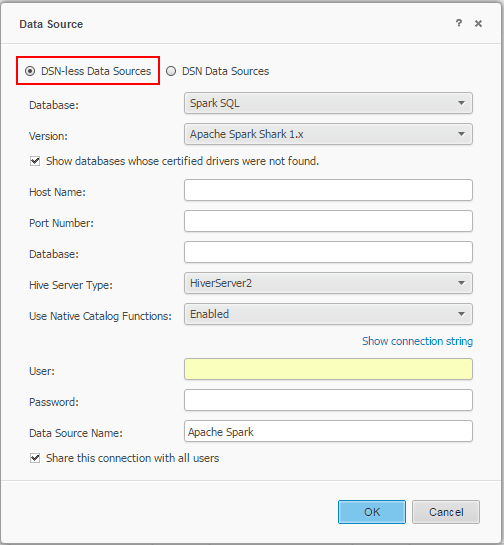
  • Choose ‘DSN-less Data Sources”. Under Database, select Spark SQL. Enter the Host Name, Port Number, Database name, Hive Server Type (this can be set to AutoDetect), username and password:
ka04W00000148BxQAI_0EM440000002JA9.jpeg
  1. Select the newly created Data Source under DATA SOURCES.

Note: Users can save the Data Import cube as a Live Connection or an In-Memory dataset.


Comment

0 comments

Details

Knowledge Article

Published:

April 18, 2017

Last Updated:

April 9, 2020