The Image Layout visualization lets you display an image overlaid with colored areas or bubble markers. For example, you can display the layout of a store, with each aisle displayed as a separate region, then have color each aisle based on the number of visits each aisle receives.
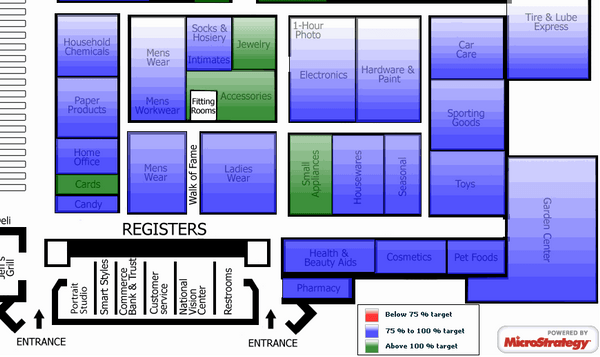
An HTML file, called a shape file, contains the background image, as well as the location of each area or bubble marker you want to display on top of the image. You can also display a geographic map, although the recommended practice is to use the out-of-the-box Strategy map. For example, you can display a map of the United States, with a bubble marker displayed over each state. You can have states with a high number of stores displayed using large bubble markers, and states with a low number of stores displayed using small bubble markers. The Image Layout visualization is a good choice for offline maps and for any abstract shapes.
Note: The out-of-the-box Strategy products contain the code for the Image Layout visualization, but it is not enabled by default. As a result, it does not show up as an option in the visualization gallery or in the drop-down list of visualizations.
Image Layout option after enabling the visualization with the SDK steps below:

To enable the Image Layout visualization in Strategy Web 10.4 the following custom plugin must be created using the Strategy SDK 10.4:
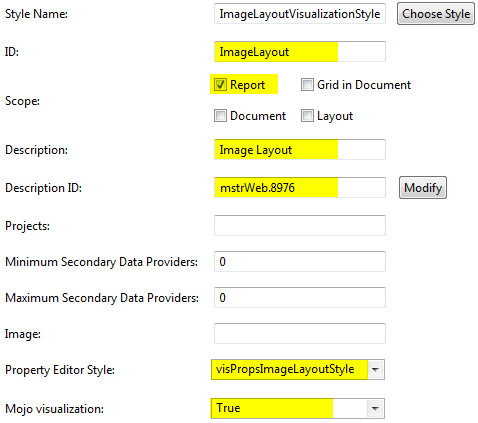
<visualizations>
  <visualization-list name="ajax">
    <visualization desc="Image Layout" desc-id="mstrWeb.8976"
                   id="ImageLayout" is-mojo="true"
                   propsEditor="visPropsImageLayoutStyle"
                   scope="19" style-name="ImageLayoutVisualizationStyle"
                   includeMDProperties="1" widget-type="4"/>
  </visualization-list>
</visualizations>
The example provided in this document is provided “as-is” to the user and assumes that the user:
PREREQUISITES:
For the sample to work, the Strategy Web JAR files must be accessible by the Java Runtime Environment. The Strategy Web JAR files can be found under:
Note: More elaborate programs will require additional library files and are out of the scope of this document.
ADDITIONAL INFORMATION:
The Strategy SDK allows you to customize the standard Strategy Web interface, and extend and integrate the Strategy business intelligence functionality into other applications. However, before changing the way Strategy Web products look or behave, it is helpful to understand how the application is built. For more information regarding the Strategy Web architecture or the process of customizing Strategy Web, please refer to the MicroStrategy Developer Hub.
To access the Strategy Developer Hub, you must have access to the Strategy Knowledge Base, you must have purchased the Strategy SDK, and you must be current on your Strategy maintenance agreement. If you are a US-based business and believe that you satisfy all three of these conditions but you do not have access to the Strategy Developer Hub, please contact Strategy Technical Support at support@microstrategy.com or at (703) 848-8700. If you are an international business, please contact Strategy Technical Support at the appropriate email address or phone number found at https://www.microstrategy.com/en/support/contact-support.
CUSTOMIZATION WARNING:
This customization is provided as a convenience to Strategy users and is only directly applicable to the version stated. While this code may apply to other releases directly, Strategy Technical Support makes no guarantees that the code provided will apply to any future or previous builds. In the event of a code change in future builds, Strategy Technical Support makes no guarantee that an updated version of this particular customization will be provided. In the event of a code change in future builds, Strategy may not be able to provide additional code on this matter even though this customization is provided at this time for this specific build. For enhancements to this customization or to incorporate similar functionality into other versions, contact your Account Executive to inquire about Strategy Consulting assistance.
000020139
