SUMMARY:
This article discusses an issue in Strategy Command Manager 10.x, where adding or removing acl's are not retained. This article discusses the steps to reproduce the defect as well as a potential workaround to use. This issue has been fixed in Strategy 10.3 Hotfix 1.
SYMPTOM:
In Strategy Command Manager 10.x, when using the Command Manger ADD ACE FOR FOLDER or REMOVE ACE FROM FOLDER outlines to affect ACLs in Strategy Developer, the changes are not saved after an I-Server restart or purging object cache.
STEPS TO REPRODUCE:
1.) Log in to Command Manager with an Administrator user, and create a new folder to be shown in the Strategy Developer "Strategy Tutorial" project using the following command: CREATE FOLDER "Sample" IN "\Public Objects\REPORTS" HIDDEN FALSE FOR PROJECT "Strategy Tutorial".
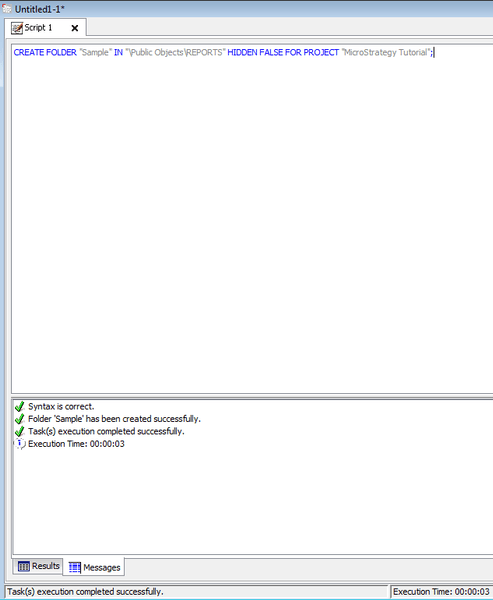
The newly created folder in Strategy Developer:

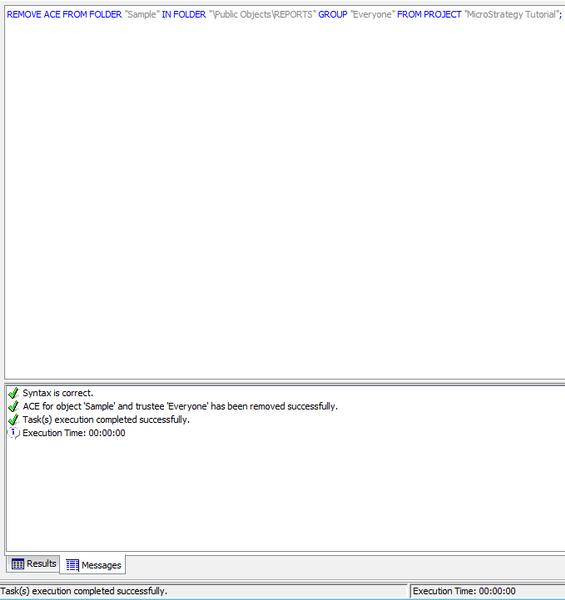
2.) Remove ACEs to the newly created folder for the "Everyone" group using the following command:
REMOVE ACE FROM FOLDER "Sample" IN FOLDER "\Public Objects\REPORTS" GROUP "Everyone" FROM PROJECT "Strategy Tutorial". Note that task execution completes successfully.
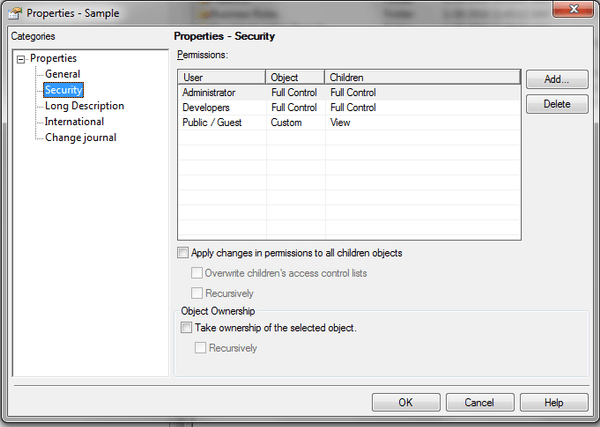
3.) Log in to Strategy Developer as the Administrator user, navigate to the “Sample” folder, right-click it and choose “Properties->Security”, and notice that the “Everyone” group is removed from the folder, however the latest Modification Time of the folder in Developer is not updated.

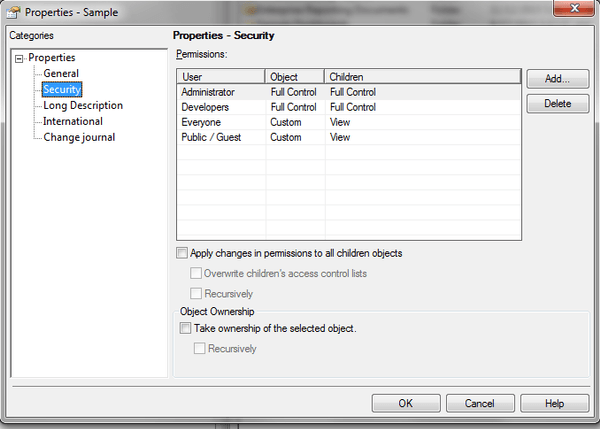
4.) Open Service Manager, and restart the I-Server (alternatively purge object cache for the project). Once the I-Server is up and running, navigate back to Strategy Developer and check the “Sample” folder’s permissions. The "Everyone" group will be present and have their permissions set to their default value when the folder was created.
The same issue can be seen when adding or removing permissions to an object using Strategy Command Manager.
CAUSE:
This issue has been identified as a defect in Strategy 10.x.
ACTION:
This issue has been fixed in Strategy 10.3 Hotfix 1. Upgrade to this version to take advantage of this fix.
WORKAROUND:
From within Strategy Developer, manually assign ACLs and permissions.
