EducationSoftwareStrategy.com
StrategyCommunity

Knowledge Base

Product

Community

Knowledge Base

TopicsBrowse ArticlesDeveloper Zone

Product

Download SoftwareProduct DocumentationSecurity Hub

Education

Tutorial VideosSolution GalleryEducation courses

Community

GuidelinesGrandmastersEvents
x_social-icon_white.svglinkedin_social-icon_white.svg
Strategy logoCommunity

© Strategy Inc. All Rights Reserved.

LegalTerms of UsePrivacy Policy
  1. Home
  2. Topics

KB287053: How to migrate a Color Palette between projects with MicroStrategy Object Manager?


Community Admin

• Strategy


How to migrate a Color Palette between projects with MicroStrategy Object Manager?

Starting in Strategy 10.0, one can create a color palette at the project level and assign it to one or more themes. This color palette can then be used to format a dashbboard.
A color palette applies to the objects, such as graph's bar risers or heat map's rectangles, diplayed in all the visualizations in the dashboard.
Color palettes cannot be migrated as standalone objects, but themes hold a reference to them. Therefore if we migrate a theme, its dependent color palettes will be migrated along to the destination project.
 
STEPS:
These are the steps to follow  in order to migrate a color palette successfully:
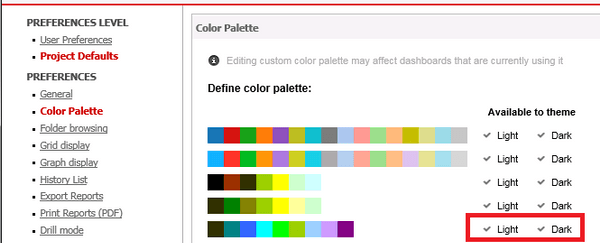
  •  In Strategy Web, take note of the themes linked to the color palette. This can be seen from the Project Defaults Preferences, in the Color Palettes menu:
     
ka04W00000148fMQAQ_0EM440000002C21.jpeg
  • Log into the project source with Strategy Object Manager. Go to Tools menu > Object Manager Preferences and in the Browsing section, check "Display hidden objects".
  • Access the source project and browse to the themes folder, whose path is "Public Objects\Themes". 
  • Select the project that contains the source theme.
  • Select Tools > Create Package > Add and find the theme in the Public Objects theme folder.
  • Drag and drop this theme into your package menu.
    Once added, select "Add all used dependencies" to ensure that the palettes are included in the theme. The action to migrate the themes should be set to "Replace" to ensure that the themes are correctly replaced in the target project.
  • Proceed to create this package and import it into the destination project.

Comment

0 comments

Details

Knowledge Article

Published:

April 13, 2017

Last Updated:

November 14, 2019