EducationSoftwareStrategy.com
StrategyCommunity

Knowledge Base

Product

Community

Knowledge Base

TopicsBrowse ArticlesDeveloper Zone

Product

Download SoftwareProduct DocumentationSecurity Hub

Education

Tutorial VideosSolution GalleryEducation courses

Community

GuidelinesGrandmastersEvents
x_social-icon_white.svglinkedin_social-icon_white.svg
Strategy logoCommunity

© Strategy Inc. All Rights Reserved.

LegalTerms of UsePrivacy Policy
  1. Home
  2. Topics

KB287892: Markers are not plotted on ESRI maps in Interactive mode in MicroStrategy Web 10.2


Community Admin

• Strategy


This technical note describes designed behavior of MicroStrategy Web 10.2 where markers are not plotted on ESRI maps in Interactive mode. Interactive mode was deprecated in MicroStrategy Web 10.1 as outlined in tech note KB257502. Run the document in Presentation to see the markers correctly plotted on the ESRI map.

SYMPTOM:
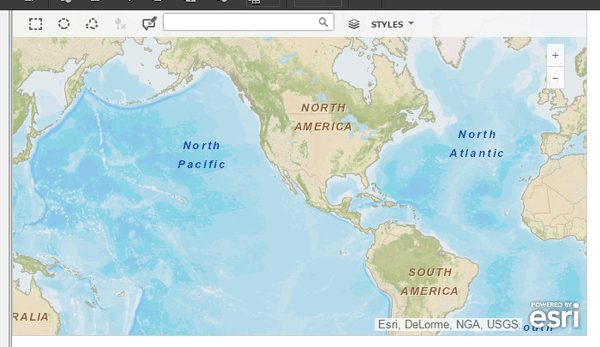
In previous versions of Strategy Web, ESRI maps could be rendered in Interactive mode. Starting in Strategy Web 10.2, metrics set to display as markers are not plotted on ESRI maps. Only a zoomed out ESRI map with no markers appears, as seen below.
ka04W000000OaRqQAK_0EM4400000025UF.jpeg

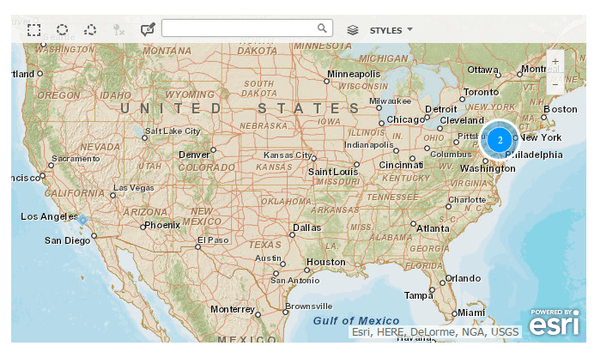
The metrics are correctly plotted in Presentation mode, as seen below.
ka04W000000OaRqQAK_0EM4400000025UG.jpeg

Note that this issue occurs for documents upgraded to Strategy Web 10.2 as well as for new documents created in Strategy Web 10.2.
STEPS TO REPRODUCE:

  • Create an Excel file with the following data.

     Certified
    CityLatitudeLongitudeProfitWashington D.C.38.9047-77.0364819231New York40.7127-74.006912932Los Angeles34.05-118.24459203

     Certified
    CityLatitudeLongitudeProfitWashington D.C.38.9047-77.0364819231New York40.7127-74.006912932Los Angeles34.05-118.24459203

     Certified
    CityLatitudeLongitudeProfitWashington D.C.38.9047-77.0364819231New York40.7127-74.006912932Los Angeles34.05-118.24459203

     Certified
    CityLatitudeLongitudeProfitWashington D.C.38.9047-77.0364819231New York40.7127-74.006912932Los Angeles34.05-118.24459203

     Certified
    CityLatitudeLongitudeProfitWashington D.C.38.9047-77.0364819231New York40.7127-74.006912932Los Angeles34.05-118.24459203

     Certified
    CityLatitudeLongitudeProfitWashington D.C.38.9047-77.0364819231New York40.7127-74.006912932Los Angeles34.05-118.24459203

     Certified
    CityLatitudeLongitudeProfitWashington D.C.38.9047-77.0364819231New York40.7127-74.006912932Los Angeles34.05-118.24459203

     Certified
    CityLatitudeLongitudeProfitWashington D.C.38.9047-77.0364819231New York40.7127-74.006912932Los Angeles34.05-118.24459203

     Certified
    CityLatitudeLongitudeProfitWashington D.C.38.9047-77.0364819231New York40.7127-74.006912932Los Angeles34.05-118.24459203

     Certified
    CityLatitudeLongitudeProfitWashington D.C.38.9047-77.0364819231New York40.7127-74.006912932Los Angeles34.05-118.24459203

     Certified
    CityLatitudeLongitudeProfitWashington D.C.38.9047-77.0364819231New York40.7127-74.006912932Los Angeles34.05-118.24459203

     Certified
    CityLatitudeLongitudeProfitWashington D.C.38.9047-77.0364819231New York40.7127-74.006912932Los Angeles34.05-118.24459203

     Certified
    CityLatitudeLongitudeProfitWashington D.C.38.9047-77.0364819231New York40.7127-74.006912932Los Angeles34.05-118.24459203

     Certified
    CityLatitudeLongitudeProfitWashington D.C.38.9047-77.0364819231New York40.7127-74.006912932Los Angeles34.05-118.24459203

     Certified
    CityLatitudeLongitudeProfitWashington D.C.38.9047-77.0364819231New York40.7127-74.006912932Los Angeles34.05-118.24459203

     Certified
    CityLatitudeLongitudeProfitWashington D.C.38.9047-77.0364819231New York40.7127-74.006912932Los Angeles34.05-118.24459203


  • Import the Excel file from Step 1.
  • Create a document based off of the cube created in Step 2.
  • Insert an ESRI map widget containing the attributes City, Latitude, and Longitude and metric Profit.
  • Right-click on the widget and choose Properties and Formatting.
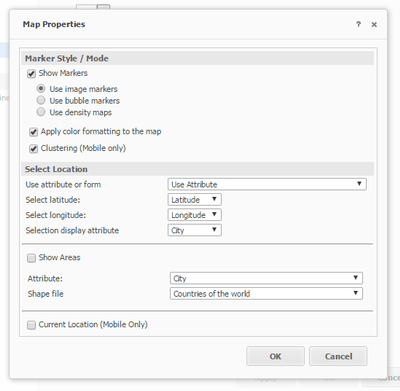
  • Configure the widget to match the image below.
ka04W000000OaRqQAK_0EM4400000025U6.jpeg
  • Save the changes by pressing OK.
  • View the document in Presentation mode.
  • Notice that the markers are correctly plotted on the map.
  • View the document in Interactive mode.
  • Notice that no markers are plotted on the map.

CAUSE:
This is working as designed in Strategy Web 10.2. Interactive mode was deprecated in Strategy Web 10.1 as outlined in tech note KB257502.
ACTION:
Run the document in Presentation to see the markers correctly plotted on the ESRI map.
KB287892


Comment

0 comments

Details

Knowledge Article

Published:

June 8, 2017

Last Updated:

November 28, 2018