EducationSoftwareStrategy.com
StrategyCommunity

Knowledge Base

Product

Community

Knowledge Base

TopicsBrowse ArticlesDeveloper Zone

Product

Download SoftwareProduct DocumentationSecurity Hub

Education

Tutorial VideosSolution GalleryEducation courses

Community

GuidelinesGrandmastersEvents
x_social-icon_white.svglinkedin_social-icon_white.svg
Strategy logoCommunity

© Strategy Inc. All Rights Reserved.

LegalTerms of UsePrivacy Policy
  1. Home
  2. Topics

KB288414: Object descriptions with multiple lines are displayed as one line in the tooltip of the Object Browser in MicroStrategy Web 10.x.


Community Admin

• Strategy


Object descriptions with multiple lines are displayed as one line in the tooltip of the Object Browser in MicroStrategy Web 10.x.

SYMPTOM:
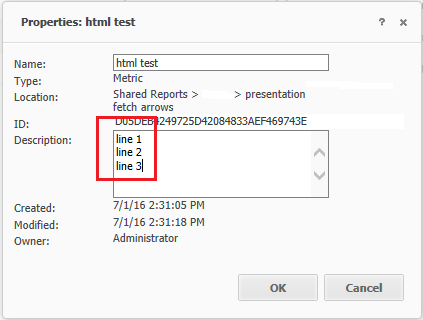
In Strategy Web 10.x, if an object has a description that is multiple lines, the description is displayed as one line in the object's tooltip in the Object Browser window as shown below.
ka04W000000ObwHQAS_0EM4400000025Tv.jpeg
ka04W000000ObwHQAS_0EM4400000025UP.jpeg

 
STEPS TO REPRODUCE:

  1.  Create a new metric.
  2. Add a description to the metric that has multiple lines like the following:
    
    line 1
    line 2
    line 3

  3. In the Strategy Web Admin page > Security > User Input Filtering, enable "Allow HTML output in Object Description."
  4. Create a new report.
  5. In the object browser navigate to the location of the metric whose description was modified.
  6. Hover over the metric.
  7. Notice the description in the tooltip displays as one line
    
    line 1line 2line 3

 
CAUSE:
This is an identified defect in Strategy Web 10.x.
 
ACTION:
Strategy will continue to investigate and post updates as soon as they are available.
 
WORKAROUND:
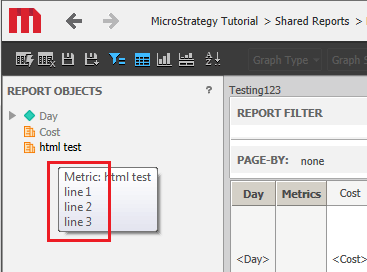
Run the report. Once the report is executed, the tooltip will display correctly, even back in design mode, as shown below.

ka04W000000ObwHQAS_0EM4400000025UO.jpeg

Save the report with the metric in it. Now the tooltip will display correctly even when going to design mode, directly from the folder browsing page, as shown below.
ka04W000000ObwHQAS_0EM4400000025Tx.jpeg


Comment

0 comments

Details

Knowledge Article

Published:

May 31, 2017

Last Updated:

May 31, 2017