SUMMARY:
Starting with Strategy 10.x, administrators can set the default accordion menu in the right side panel when opening a
a) report in design or run mode
b) MDX report in design or run mode
c) document in design or run mode
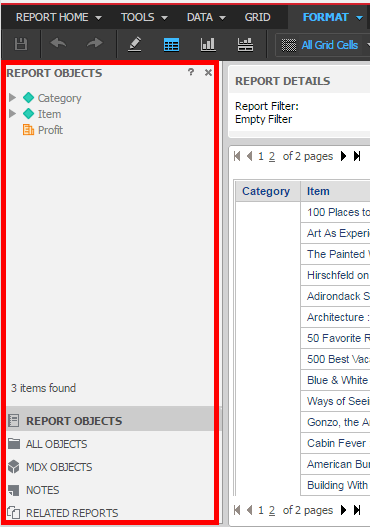
The accordion menu can be set to one of the following:
All Objects - (reports only)
Report Objects - (reports and documents)
Related Reports - (reports and documents)
Notes - (reports and documents)
MDX Objects - (reports only)
ACTION
1. Create a plugin folder under [WEB-DEPLOYMENT-FOLDER]/plugins.
2. Inside the plugin folder create the following folder structure: WEB-INF/xml/
3. Create pageConfig.xml file inside xml folder.
4. Insert the following xml is an example to set documents in run mode and reports in design and run mode to default to "Notes":
<framework>
  <pages>
    <page name="rwd">
      <web-beans>
        <web-bean name="accordion">
          <init-properties>
             <property name="defaultTabNameRWRun" source="const" type="string" value="notes"/>
          </init-properties>
        </web-bean>
      </web-beans>
    </page>
    <page name="report">
      <web-beans>
        <web-bean name="frame">
          <web-beans>
            <web-bean name="accordion">
              <init-properties>
                <property name="defaultTabNameReportRun" source="const" type="string" value="notes"/>
                <property name="defaultTabNameReportDesign" source="const" type="string" value="notes"/>
              </init-properties>
            </web-bean>
          </web-beans>
        </web-bean>
      </web-beans>
    </page>
  </pages>
</framework>
<page name="rwd">
<page name="report">For Reports:
4. Property Values:
