EducationSoftwareStrategy.com
StrategyCommunity

Knowledge Base

Product

Community

Knowledge Base

TopicsBrowse ArticlesDeveloper Zone

Product

Download SoftwareProduct DocumentationSecurity Hub

Education

Tutorial VideosSolution GalleryEducation courses

Community

GuidelinesGrandmastersEvents
x_social-icon_white.svglinkedin_social-icon_white.svg
Strategy logoCommunity

© Strategy Inc. All Rights Reserved.

LegalTerms of UsePrivacy Policy
  1. Home
  2. Topics

KB289342: Connecting to Hive on a Secured Cloudera CDH 5.5 Server


Community Admin

• Strategy


This TN explains in detailed steps how to connect to a Secured Cloudera CDH cluster using Kerberos authentication.

This TN explains in detailed steps how to connect to a Secured Cloudera CDH cluster using Kerberos authentication.  This TN applies to Strategy 10.3 and later versions only.  Due to known issues Strategy Secure Enterprise 10.3 relies on the Cloudera ODBC driver when connecting to Hive on Cloudera CDH from a Linux/UNIX Intelligence Server.  The Strategy ODBC Driver for Hive should not be used to connect to Hive on Cloudera CDH from a Linux/UNIX Intelligence Server.
 

Connecting to Hive on Secured Cloudera CDH cluster when Strategy Intelligence Server is installed on Windows

Creating a DSN


  • Login to Windows as a user who is in your Active Directory and is authorized to use Hive. In this case, the example user is named "krbusera".
  • Make sure that a ticket generated for this user is listed when running "klist" in a command prompt.
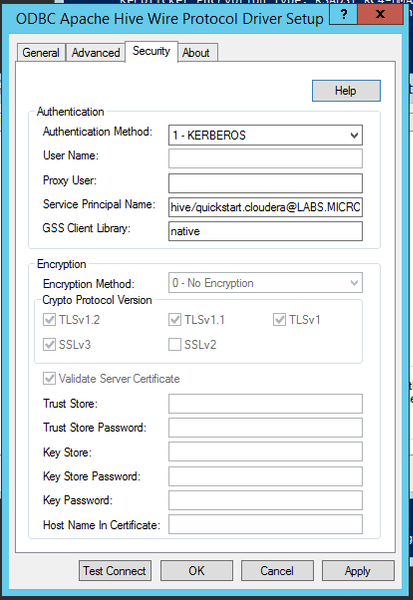
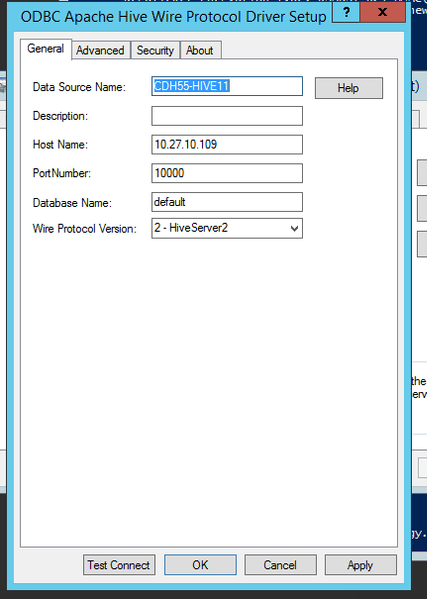
  • Create the DSN through the Windows ODBC Administrator using the Strategy ODBC Driver for Hive.
  • DSN Screenshot:
ka04W000000Oe2mQAC_0EM4400000029CA.jpeg
ka04W000000Oe2mQAC_0EM4400000029CC.jpeg
  • Click the "Test Connect" button to ensure that the test connection is successful.
  • Open a DB Query tool session and you should be able to connect and run queries.


Connecting to Hive in Strategy Web (DSN-less connectivity):


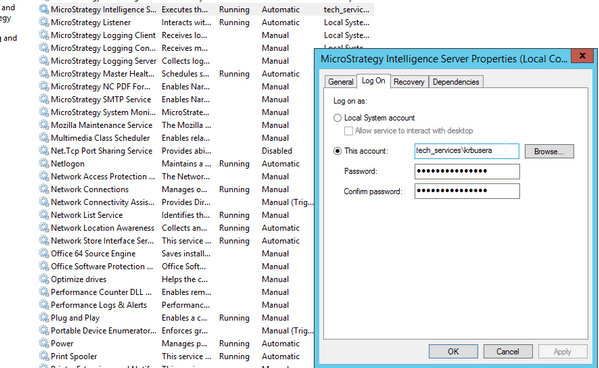
  • Start the Intelligence server as the Active Directory user ("krbusera" in this example) and not the Local System account.
ka04W000000Oe2mQAC_0EM4400000029CD.jpeg
  • Open the MSTR Web Interface and select the desired Project→Add External Data→ Hadoop→ Cloudera Hive
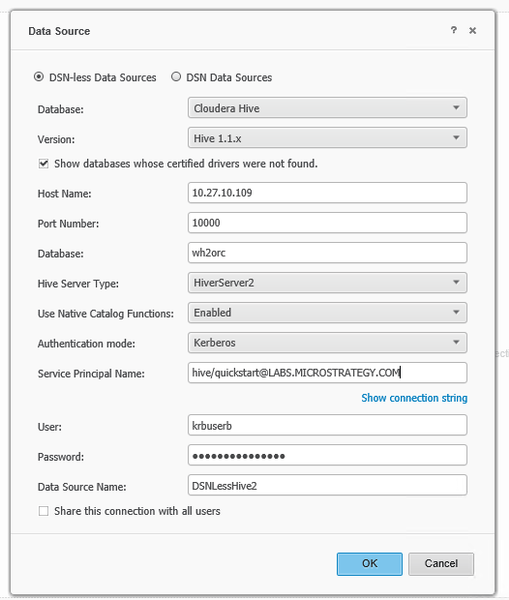
  • Add a new DSN-less Data source
  • DSN-less Screenshot:
ka04W000000Oe2mQAC_0EM4400000029C8.jpeg
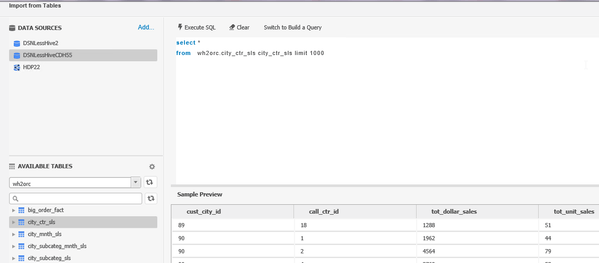
  • Save the connection and click on it to load the tables.
  • Tables should load and you can then create a query, publish a cube, etc.
ka04W000000Oe2mQAC_0EM4400000029CN.jpeg


Connecting to Hive on Secured Cloudera CDH cluster when Strategy Intelligence Server is installed on Linux

Creating a DSN to Hive on Secured Cloudera CDH cluster on Linux

Install the Cloudera Hive ODBC Driver and configure Strategy connectivity settings

  • Consult the system administrator to install the Cloudera Hive ODBC Driver. For example, using yum:


yum --nogpgcheck localinstall ClouderaHiveODBC-2.5.16.1005-1.el6.x86_64.rpm
 

  • Login to the Linux OS as a user who is in your Active Directory and is authorized to use Impala. In this case, the example user is named "krbuserb".  You can use the "sudo su <domain>\\krbuserb" statement to switch to the kerberos user from the terminal.
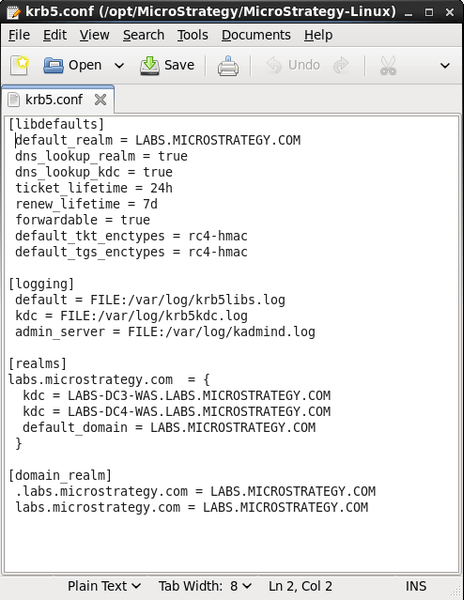
  • Verify the location of the krb5.conf file on the Linux OS or modify the krb5.conf as instructed by your administrator.  Strategy ships an empty krb5.conf file in the installation directory that can also be used.  An example of the contents below:
ka04W000000Oe2mQAC_0EM4400000029C6.jpeg
  • While logged in as the Kerberos user, set the KRB5_CONFIG environment variable to the location of the krb5.conf file.  For example:


export KRB5_CONFIG=/etc/krb5.conf 

 
or
 

export KRB5_CONFIG=/opt/Strategy/Strategy-Linux/krb5.conf


  • Verify that the Kerberos user can successfully create a ticket using the kinit command.  For example:
    
    -sh-4.1$ kinit krbuserb@LABS.Strategy.COM
    Password for krbuserb@LABS.Strategy.COM: 
    -sh-4.1$ klist
    Ticket cache: FILE:/tmp/krb5cc_126431806
    Default principal: krbuserb@LABS.Strategy.COM
    Valid starting Expires Service principal
    03/07/16 07:57:37 03/07/16 17:57:47 krbtgt/LABS.Strategy.COM@LABS.Strategy.COM
    renew until 03/14/16 08:57:37
    -sh-4.1$

  • Edit the Strategy-provided odbc.ini file to add the DSN for Cloudera Hive.  Use the example DSN found in the odbc.ini.example file that is also shipped with Strategy.  The Kerberos-related modifications are highlighted below.
    
    [ODBC Data Sources]
    Cloudera Hive=Cloudera ODBC Driver for Apache Hive 64-bit
    
    [Cloudera Hive]
    Driver=/opt/cloudera/hiveodbc/lib/64/libclouderahiveodbc64.so
    Description=Cloudera ODBC Driver for Apache Hive (64-bit) DSN
    DriverUnicodeEncoding=2
    HOST=quickstart.cloudera
    PORT=10000
    Schema=default
    FastSQLPrepare=0
    UseNativeQuery=0
    HiveServerType=2
    AuthMech=1
    KrbHostFQDN=quickstart.cloudera
    KrbServiceName=hive
    KrbRealm=LABS.Strategy.COM

  • Edit the Strategy-provided odbcinst.ini file to add the location of the Cloudera Hive driver file.  This file is used for DSN-less connections.


[Cloudera ODBC Driver for Apache Hive] 
Driver=/opt/cloudera/hiveodbc/lib/64/libclouderahiveodbc64.so
Description=Hive Driver
Setup=/opt/cloudera/hiveodbc/lib/64/libclouderahiveodbc64.so
APILevel=2
ConnectFunctions=YYY 
DriverODBCVer=1.0
FileUsage=0
SQLLevel=1


  • Edit the Cloudera-provided cloudera.hiveodbc.ini file (typically located in /opt/cloudera/hiveodbc/lib/64) to set the proper driver encoding and driver manager file name.  Those changes are highlighted below.


...

DriverManagerEncoding=UTF-8
ErrorMessagesPath=/opt/cloudera/hiveodbc/ErrorMessages/
LogLevel=0
LogPath=
SwapFilePath=/tmp

...

# SimbaDM / unixODBC
ODBCInstLib=libodbcinst.so


  • Edit the Strategy-provided ODBC.sh file (typically located in /opt/Strategy/Strategy-Linux/env) to add the KRB5_CONFIG environment variable setting at the end of the file


# Environment variable for Kerberos V5 configuration file
KRB5_HOME=/opt/Strategy/Strategy-Linux
export KRB5_HOME

KRB5_CONFIG=${KRB5_HOME:?}/krb5.conf
export KRB5_CONFIG


Verify DSN using the Strategy DB Query tool

  • Follow the steps in the previous section "Creating a DSN to Hive on Secured Cloudera CDH cluster on Linux" to verify the Kerberos user can obtain a ticket and create the DSN.
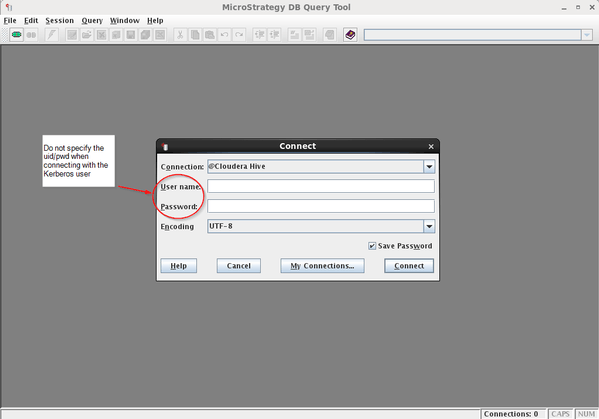
  • As the Kerberos user, verify the Cloudera Hive DSN can be used to connect to CDH/Hive using the Strategy DB Query tool.  When connecting to the DSN do not provide a uid/pwd.


-sh-4.1$ whoami
TECH_SERVICES\krbuserb
-sh-4.1$ cd /opt/Strategy/Strategy-Linux/bin
-sh-4.1$ ./mstrdbquerytool


ka04W000000Oe2mQAC_0EM4400000029CF.jpeg


Configure the Strategy Intelligence Server process to run as the Kerberos user

To make Kerberos secured warehouse connections to CDH/Hive the Strategy Intelligence Server process must run under the Kerberos user's account

  • As the Kerberos user, verify that a Kerberos ticket can be obtained successfully.  See "Creating a DSN to Hive on Secured Cloudera CDH cluster on Linux" for more details.
  • As the Kerberos user, launch the Strategy Configuration Wizard.


-sh-4.1$ whoami
TECH_SERVICES\krbuserb
-sh-4.1$ cd /opt/Strategy/Strategy-Linux/bin
-sh-4.1$ ./mstrcfgwiz


  • Configure the Intelligence Server as detailed in the Strategy documentation.  
  • When the process completes verify that the Strategy Intelligence Server process is running as the Kerberos user.


# ps -ef | grep MSTRSvr
root 6890 6873 0 08:47 pts/4 00:00:00 grep MSTRSvr
krbuserb 21173 19473 0 Mar04 ? 00:02:42 /opt/Strategy/Strategy-Linux/install/IntelligenceServer/bin/MSTRSvr -w /opt/Strategy/Strategy-Linux//IntelligenceServer -t status-iserver.xml /opt/Strategy/Strategy-Linux/install/lib/libMSTRSvr2.so -n CastorServer


Creating a secured DSN-less connection with the Cloudera Hive ODBC Driver in Strategy Web

  • Open a connection to Strategy Web
  • Connect to the Strategy project hosted by the Kerberos-enabled Intelligence Server process
  • Choose to add external data 
  • Choose to add data from Hadoop and Cloudera Hive
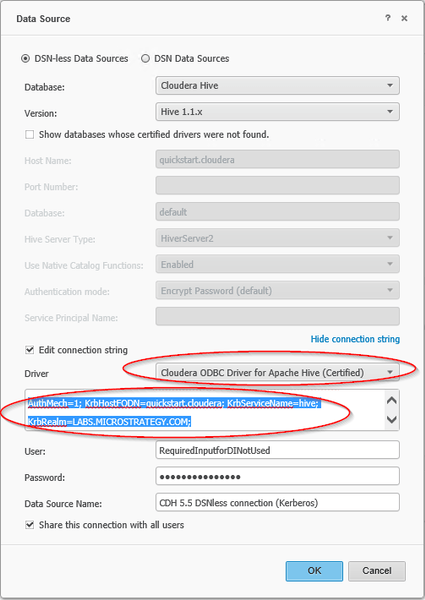
  • Create a DSN-less connection using a modified connection string to enable Kerberos.  The Kerberos-related changes are highlighted below in the sample connection string and the screenshot

Sample DSN-less connection string:  


DRIVER={Cloudera ODBC Driver for Apache Hive}; Host=quickstart.cloudera; Port=10000; Schema=default; HiveServerType=2;UseNativeCatalogFunctions=1; AuthMech=1; KrbHostFQDN=quickstart.cloudera; KrbServiceName=hive; KrbRealm=LABS.Strategy.COM;
 

ka04W000000Oe2mQAC_0EM4400000029CH.jpeg
  • Note that when creating the DSN-less connection in Web the user must provide a user name and password.  This information will not be used in the actual connection to the warehouse.  

Comment

0 comments

Details

Knowledge Article

Published:

April 1, 2017

Last Updated:

April 1, 2017