SYNOPSIS:
This article describes a method to create a refresh button for documents in Strategy Mobile 9.x and 10.x.
DESCRIPTION:
This article describes how to create a Refresh button in Strategy Mobile dashboards and documents using the Edit Links functionality.
STEPS TO REPRODUCE:
1) Open Tutorial Project in Strategy Web.
2) Write "Category Sales and Profitability" in the search bar.
3) Edit the document and insert a text box or an image in the place you want the Refresh button.
4) Right-click on the text box and select Edit Links.
5) In the Edit Links window editor, set the following options as seen below and select the "Category Sales and Profitability" as the target document.
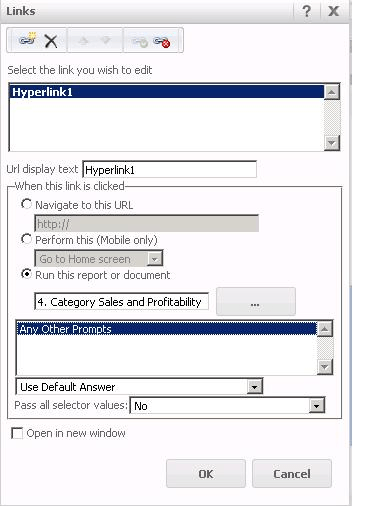
6) Save and close.
7) Open the "Category Sales and Profitability" document, click on the text box you created in step 3, and you will be redirected to the source document simulating the refresh action.
This example is for Strategy Mobile on iPad but can be used on iPhone as well.
