SUMMARY:
This article describes a known issue in Strategy 10 (also reproducible on 9.4.1 and 9.3.1) where reports containing HTML Tags will crash Strategy Mobile Application for Android.
SYMPTOM:
When trying to display a report with an attribute using HTML Tag functionality on Android devices the Strategy Mobile Application for Android will crash with the following error message:
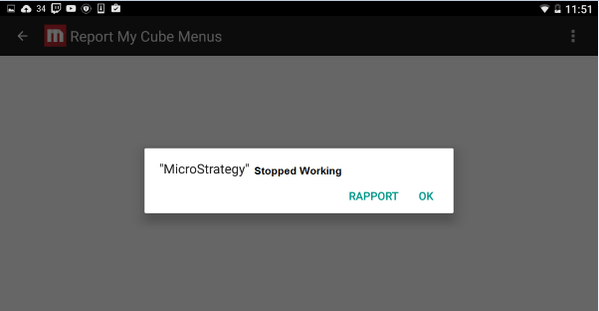
After pressing OK, the app closes and users must then open the app again. If the attribute is not displayed in the report grid then the report can be opened from Android device. The same report can be displayed correctly on iOS devices and also in Strategy Web.
STEPS TO REPRODUCE:
1. Create an Excel file with a single column and a single row, in the Column tittle write "Link" and in the row content write: <A HREF="">Hello World</A> The Excel file must look like this (see image):

2. Open Strategy Web and use the import data functionality to create a cube with the Excel file created in step 1 , define the type of the column “Link” as HTML Tag.
3. Save the cube as “HTML_Tag”.
4. Create a report based on “HTML_Tag” cube, add the Link column to the report.
5. Run the report in Web and see how the document is correctly displayed.
6. Run the report on iOS Device and see how the document is correctly displayed.
7. Run the report on Android and the App Crashes.
CAUSE:
This is a known issue in Strategy Mobile 10.3 and earlier.
ACTION:
This issue has been solved in Strategy 10.3 HF1. Upgrade to this version or later to take advantage of this fix
