The following steps explain how to generate a refresh token to connect to Google Big Query from a Linux environment, with an ODBC connection:


4. Copy the example DSN entries from the odbc.ini.example file into the Strategy odbc.ini file.

5. Update the Strategy Google BigQuery ODBC driver DSN in the odbc.ini file to add the name of the Google BigQuery project in the Catalog entry of the DSN. Be weary, the Catalog parameter is case sensitive. (Note: If needed, also update the ExecCatalog entry to include the name of the project to bill for queries that are run.)
*The following Google documentation explains how to find the Google BigQuery Project ID to use in the Catalog/ExecCatalog entries of the DSN.

6. The Strategy Google BigQuery ODBC driver DSN requires a refresh token prior to connecting. Generate this refresh token to authorize the connection to BigQuery by following the steps below.
a. Open an Internet browser and go to the following URL
b. Type the credentials for accessing your BigQuery data, and then click Sign in.
c. When prompted to allow BigQuery Client Tools to access data in Google BigQuery, click Accept, and then copy the code that Google provides.
d. To generate the refresh token, run the get_refresh_token.sh shell script provided in the first step in this tech note, passing in the code that was copied in step c. For example,
/get_refresh_token.sh YourCodeFromGoogle
YourRefreshTokenWillGoHereAfterYouGenerateItFromGoogle/get_refresh_token.sh
e. Copy the refresh token from the output of the script. The refresh token is the text on the right side of the colon with no leading or trailing spaces.
/get_refresh_token.sh YourRefreshTokenWillGoHereAfterYouGenerateItFromGoogle
refresh_token : YouWillFindTheRefreshTokenHereAndWillCopyThisToTheDSN
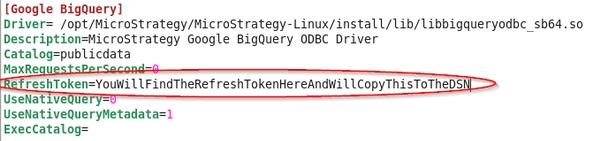
f. In the odbc.ini file, set the RefreshToken value for the Strategy Google BigQuery DSN by pasting in the refresh token that was copied in step e.
7. Save the odbc.ini file and exit.
8. Open the Strategy DB Query tool and test the connection to Google BigQuery with the newly created DSN.

KB299897
