What is Strategy Cube Advisor?
Strategy Cube Advisor is a tool introduced in Strategy 9.x to assist in the use of the Dynamic Sourcing functionality in Strategy OLAP Services 9.x. Dynamic Sourcing examines the structure of a report to see if any existing Intelligent Cube in the system can satisfy the reporting requirements; if so, the report will used previously collected Intelligent Cube data for faster performance.
To maximize the use of Intelligent Cubes for standard Strategy reports, Intelligent Cubes may be designed specifically for reports that are frequently executed. Strategy Cube Advisor examines a set of existing Strategy reports and recommends corresponding Intelligent Cube designs.
For more information on Dynamic Sourcing and Strategy Cube Advisor please refer to “Chapter 8. Dynamic Sourcing” in the Strategy 9 OLAP Services Guide product manual.
Note: Dynamic Sourcing cannot be used for all report or metric designs. Reports using features not compatible with Dynamic Sourcing will continue to use the project’s data warehouse as normal.
Cube Advisor Workflow for Strategy Intelligence Server Universal
When using Strategy Intelligence Server Universal environments, the Strategy Cube Advisor may be used in two different ways:
In general, it is simpler to use the interactive version, which guides the user through the entire process (like a wizard). The command line approach is useful in the following situations:
If the proper conditions are met – the Strategy Cube Advisor client machine can access files on the Strategy Intelligence Server machine, an existing Metric Levels log file will not be used, and it is acceptable to set the analysis timeframe automatically – then it should be possible to perform the full analysis using Strategy Cube Advisor interactively from a remote client machine.
The remainder of this document discusses the three steps required to analyze reports with Strategy Cube Advisor from the command line.
1. Collect logging inputs
Strategy Cube Advisor uses the Metric Levels diagnostic log generated by the Intelligence Server. Optionally, the results of a Strategy Enterprise Manager report may be provided to help the Cube Advisor weigh the importance of the reports based on their frequency of execution and use of system resources. The Strategy 9 OLAP Services Guide product manual describes the specifications for this Enterprise Manager report in detail.
Metric Level logging is obtained by enabling the Metric Levels diagnostic log and then generating SQL for the reports to be analyzed. Logging is enabled in the Strategy Diagnostics and Performance Logging tool, and must be configured on the Intelligence Server machine. It should not be necessary to restart Strategy Intelligence Server for the log to take effect.
It is strongly recommended to log metric levels into a dedicated log file. Do not select DSSErrors.log for the file log.
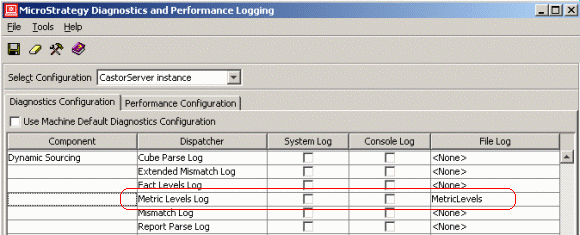
Entries will be written into the Metric Levels log file during normal execution of user reports or subscriptions. Strategy Integrity Manager can also automate the process. It is recommended to test SQL only in Integrity Manager to save time. Strategy Cube Advisor does not need the report results, only the analysis of report requirements that is performed by the SQL Generation Engine. Also, the Integrity Manager option to use cached results should be disabled; otherwise, some reports will skip the SQL generation step and will not be recorded in the Metric Levels log.
Ensure that the Metric Levels log and (if provided) the exported Enterprise Manager report are available on the machine where Strategy Cube Advisor will be executed from the command line.
2. Analyze reports from the command line
Strategy Cube Advisor takes its parameters from a configuration file located on the client machine. By default, this file is C:\Program Files\Common Files\Strategy\CubeAdvisorConfiguration.txt and contains the following entries:
# Strategy Cube Advisor config version 0.1
Projectname"Name of Project"
Logfilename"Location of Metric Levels Log file"
TotalReports"Total of number of reports for which cube recommendations were sought"
EmFileName"Location of the Enterprise Manager File"
Start"yyyy-mm-dd hh:mm:ss.mss"
End"yyyy-mm-dd hh:mm:ss.mss"
IgnoreReportsThatHitCube"Yes"
IgnoreReportsNotInStatisticsLog"Yes"
Substitute the correct values for the environment for each entry.
After preparing the Cube Advisor configuration file, execute the analysis using the following commands:
cd
CubeAdvisor.exe \path\to\CubeAdvisorConfiguration.txt
If the Cube Advisor executable and Cube Advisor configuration file are both located under \Program Files\Common Files\Strategy, the console commands would be:
c:
cd \Program Files\Common Files\Strategy
CubeAdvisor.exe CubeAdvisorConfiguration.txt
Messages will be printed to the console either indicating success or describing issues encountered.
3. Load cube specifications into the interactive Cube Advisor and create Intelligent Cube prototypes
In this stage, analysis results will be loaded into an interactive Cube Advisor session and the basic Intelligent Cube prototypes will be created. When using Strategy Cube Advisor 9.x, this stage must be performed on a Microsoft Windows 32-bit machine.
The commandline analysis results are saved in a file called Project-Name.details.txt, in the current working directory at the time CubeAdvisor.exe was run. This file must be available on the client machine running the Cube Advisor interactively, if it is a different machine.
Once the analysis results are available, perform the following steps.
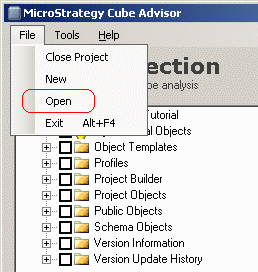
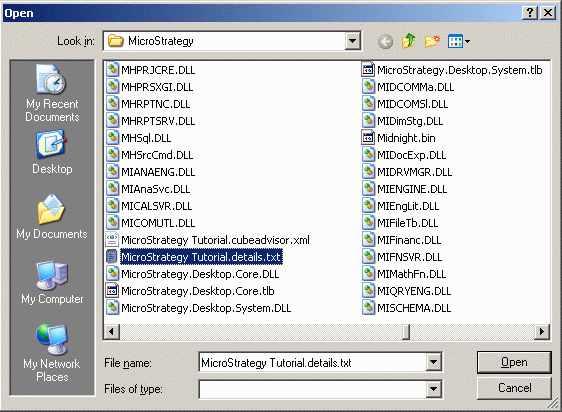
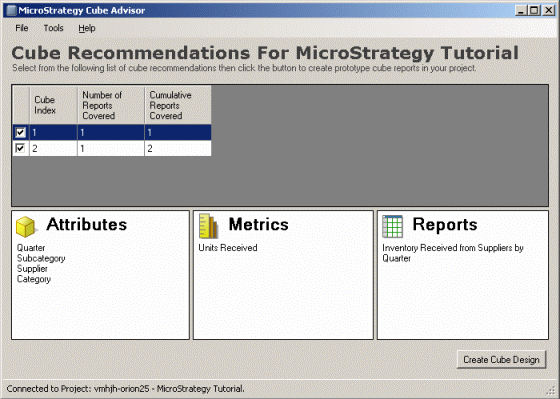
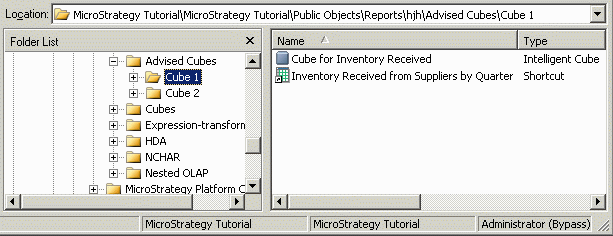
Note: It is not required to create Intelligent Cube objects after loading the Project-Name.details.txt file. Strategy Cube Advisor analysis results may be archived separately as a historical record of previous analyses and cubes that might have been created. An analysis file may be loaded at any time for review without impact to the Strategy metadata.
A record of objects created in the project may be found in the Intelligence Server’s log directory, in the file MstrCubeAdvisor.CubeDesign.log.
