EducationSoftwareStrategy.com
StrategyCommunity

Knowledge Base

Product

Community

Knowledge Base

TopicsBrowse ArticlesDeveloper Zone

Product

Download SoftwareProduct DocumentationSecurity Hub

Education

Tutorial VideosSolution GalleryEducation courses

Community

GuidelinesGrandmastersEvents
x_social-icon_white.svglinkedin_social-icon_white.svg
Strategy logoCommunity

© Strategy Inc. All Rights Reserved.

LegalTerms of UsePrivacy Policy
  1. Home
  2. Topics

KB301051: How to collect netsh log files when troubleshooting network issues for MicroStrategy Technical Support.


Community Admin

• Strategy


SYMPTOM:
The collection of netsh logs may become necessary when troubleshooting network issues when a server does not allow other collection methods to be installed, or a large amount of information is needed from a server or client machine at once. Network related issues are not within the scope of Strategy Technical Support, and the user's network team should always be involved to take advantage of their expertise. However in certain circumstances, it may be necessary to collect some network traces and provide them to Strategy Technical Support. The Netsh logs can prove helpful as they include TCP level captures, as well as firewall information and system specifications.
 
ACTION:
To collect the logs, follow the steps below:
 

  • Open a Command Prompt as an administrator by right clicking on its shortcut and selecting "Run as Administrator".
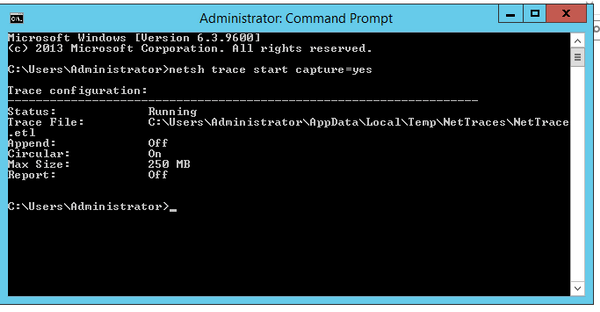
  • Type in the command "netsh trace start capture=yes", as shown below.  The trace will announce when it has started capturing.
ka04W000000OfszQAC_0EM4400000025TN.jpeg
  • Reproduce the issue at hand.
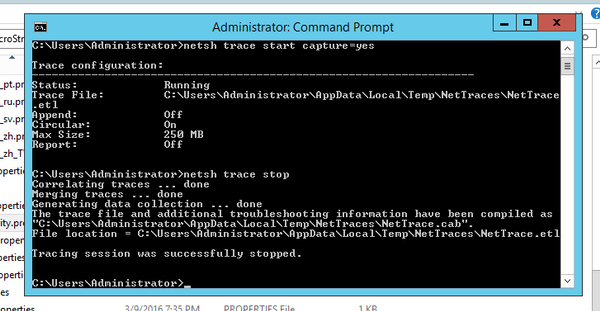
  • Once the issue has been reproduced, stop the trace using "netsh trace stop", as shown below.  
ka04W000000OfszQAC_0EM4400000025TP.jpeg
  • The trace will print out when it has stopped completely and will print out where the log file has been saved.  

The trace will generate two files, "NetTrace.cab" and "NetTrace.etl."  Collect the following information:
 

  1. The IP addresses of both, the machine the trace was taken on, and any clients or other servers involved.
  2. A timestamp of when the issue was reproduced.
  3. The NetTrace.cab
  4. The NetTrace.etl

Send the above information to MicroStategy Technical Support.
 
THIRD PARTY SOFTWARE INSTALLATION WARNING:
The third-party product(s) discussed in this technical note is manufactured by vendors independent of Strategy. Strategy makes no warranty, express, implied or otherwise, regarding this product, including its performance or reliability.


Comment

0 comments

Details

Knowledge Article

Published:

June 12, 2017

Last Updated:

June 12, 2017