EducationSoftwareStrategy.com
StrategyCommunity

Knowledge Base

Product

Community

Knowledge Base

TopicsBrowse ArticlesDeveloper Zone

Product

Download SoftwareProduct DocumentationSecurity Hub

Education

Tutorial VideosSolution GalleryEducation courses

Community

GuidelinesGrandmastersEvents
x_social-icon_white.svglinkedin_social-icon_white.svg
Strategy logoCommunity

© Strategy Inc. All Rights Reserved.

LegalTerms of UsePrivacy Policy
  1. Home
  2. Topics

KB30140: How to enable the minimize and maximize buttons for a grid or graph on a dashboard in MicroStrategy Web 10.x


Community Admin

Placeholder •


This article explains how to enable the minimize and maximize buttons for a grid or graph on a dashboard in MicroStrategy Web 10.x

The following steps explain how to enable the minimize and maximize buttons for a grid or graph on a dashboard in Strategy Web 10.x:
 
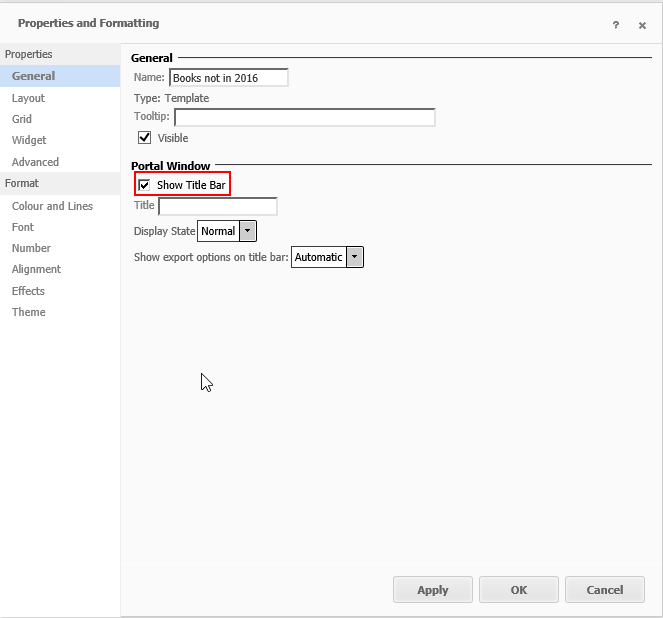
1. Right click on the grid or graph object in the dashboard template and click on Properties.
2. Under Portal Window section on the General tab, select the option to Show Title Bar.
 

ka04W000000OehuQAC_0EM440000002OX8.png

 
3. Hit Apply and then Ok.
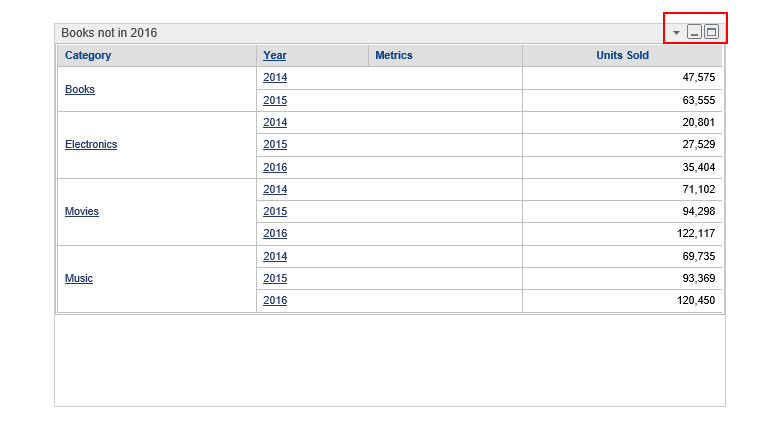
4. The minimize and maximize buttons should now be present:
 

ka04W000000OehuQAC_0EM440000002OXD.png

 
Note: Maximize and Minimize buttons are present on the grid/graph title bar. Disabling the title bar will also disable the maximize/minimize buttons. Currently, there is no way to have maximize and minimize buttons available without enabling the grid title bar.


Comment

0 comments

Details

Knowledge Article

Published:

June 7, 2017

Last Updated:

June 7, 2017