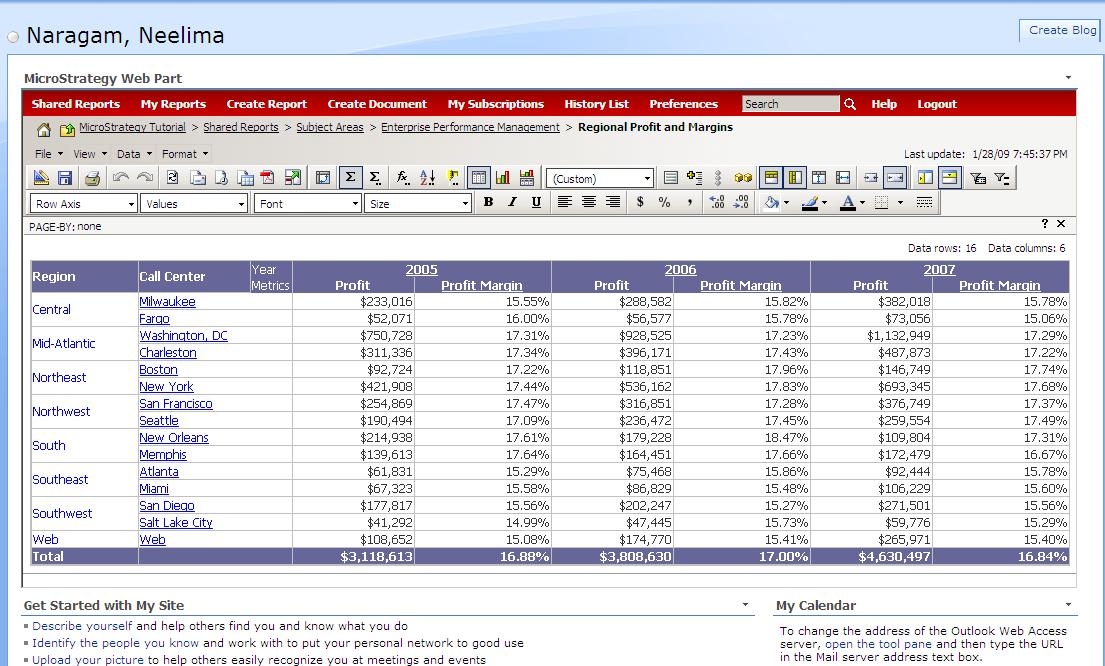
The following steps would help users to display Strategy data in Sharepoint portal server version 2007 when Strategy Web Part has already been installed on the portal server:
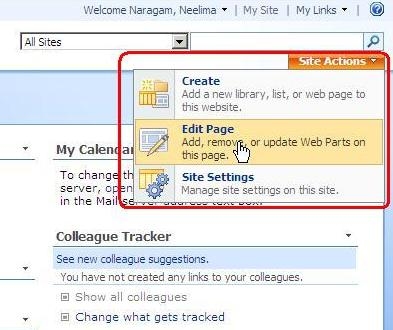
To add Strategy Web Part to an existing page click on Site Actions located on the upper right hand corner of the page and select Edit Page as shown below:
In the editable mode click on the Add Web Part button based in where you would like to insert the Web Part as shown below:

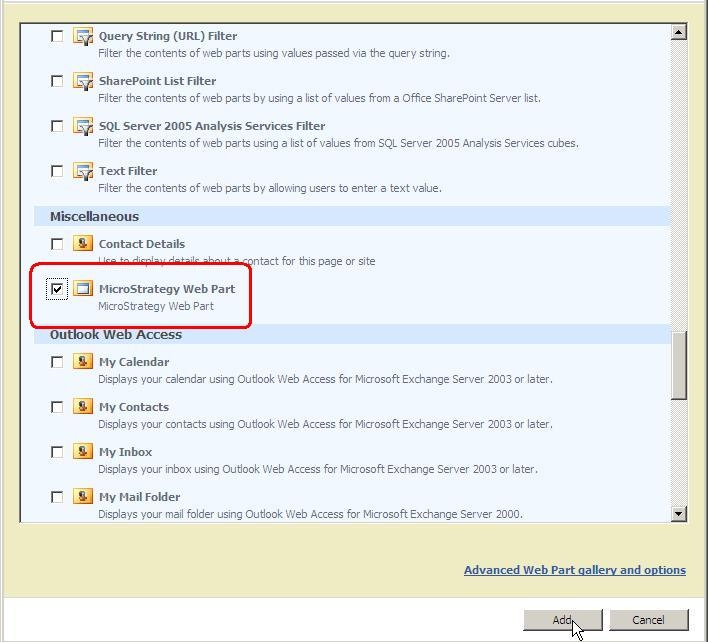
A popup containing the installed Web Parts opens from which you can select the Strategy Web Part and click on the Add button as shown below:
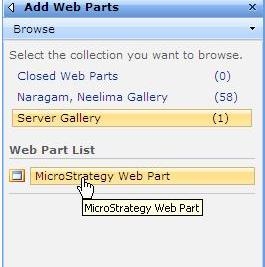
If you do not see the Strategy Web Part in the popup shown above although it has been installed, click on "Server Gallery" located on the right hand side of the page as shown below:
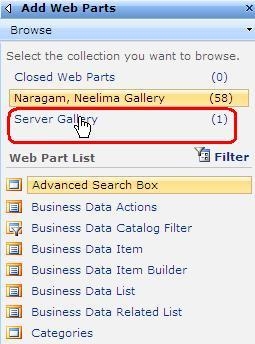
Once you click on the Server Gallery you will see Strategy Web Part being displayed under the Web Part List which you can select as shown below:
Once the Strategy Web Part has been selected configure the properties by clicking on the edit dropdown and selecting "Modify Shared Web Part" option as shown below:

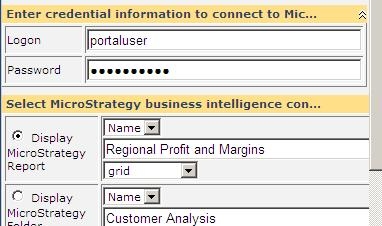
Provide all the Strategy properties required to display the Strategy content. In order to provide the credentials required to login to Strategy as shown below, make sure that Standard authentication has been selected as authentication mode.
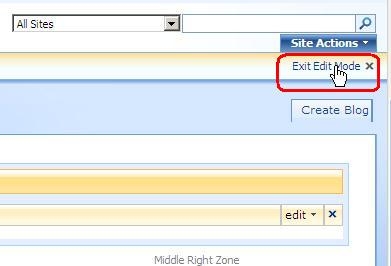
After all the required properties have been provided, click on the "Exit Edit Mode" option located on the upper right hand corner as shown below:
Now you can see that the requested Strategy content displays on the page as shown below: