EducationSoftwareStrategy.com
StrategyCommunity

Knowledge Base

Product

Community

Knowledge Base

TopicsBrowse ArticlesDeveloper Zone

Product

Download SoftwareProduct DocumentationSecurity Hub

Education

Tutorial VideosSolution GalleryEducation courses

Community

GuidelinesGrandmastersEvents
x_social-icon_white.svglinkedin_social-icon_white.svg
Strategy logoCommunity

© Strategy Inc. All Rights Reserved.

LegalTerms of UsePrivacy Policy
  1. Home
  2. Topics

KB30195: Custom Group with elements of attributes in Grouping does not respect the default sort defined in Report Services document for MicroStrategy Desktop 9.x


Community Admin

• Strategy


Custom Group with elements of attributes in Grouping does not respect the default sort defined in Report Services document for MicroStrategy Desktop 9.x

SYMPTOM:
  
When the Custom Group is in the grid as row and is applied advanced sorting, the elements are ordered accord with the definition. When the Report is used as Dataset and the Custom Group is moved to Grouping, the elements does not respect the default attribute order neither the Advanced Sorting definition.
 
STEPS TO REPRODUCE:
Follow the steps below to reproduce this issue in the Strategy Tutorial project:
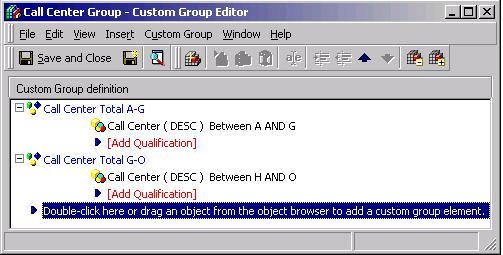
 

  • Edit the attribute Call Center and modify the form DESC to define a default sort ascending.
  • In the tab Display, add the ID form in the report display form.
  • Create a new Custom Group with the attribute Call Center as shown below:
ka04W000000OabMQAS_0EM4400000028KR.jpeg
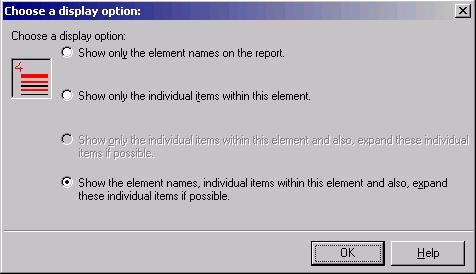
  • Its elements have the following display options:
ka04W000000OabMQAS_0EM4400000028KA.jpeg
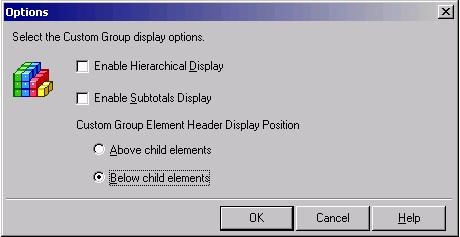
  • The custom group options are set as follows:
ka04W000000OabMQAS_0EM4400000028K6.jpeg
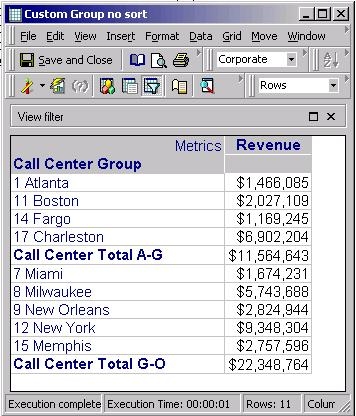
  • Upon running a report with this custom group and the metric, the following data is displayed:
ka04W000000OabMQAS_0EM4400000028KO.jpeg
  •  
    Note that the individual items within each grouping are sorted by their IDs in ascending order.
     
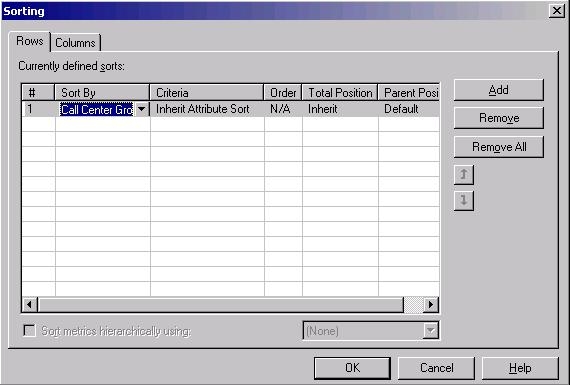
  • To inherit the default sort of the attribute called Call Center, choose the last option (Inherit Attribute Sort) in the advanced sorting dialog as shown below:
ka04W000000OabMQAS_0EM4400000028KF.jpeg
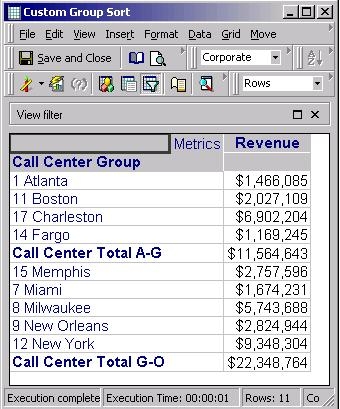
  • Strategy Desktop will then return data ordered by DESC ascending as follows for that report:
ka04W000000OabMQAS_0EM4400000028K7.jpeg
  • From Desktop, create a new document and select the report that you just created as dataset.
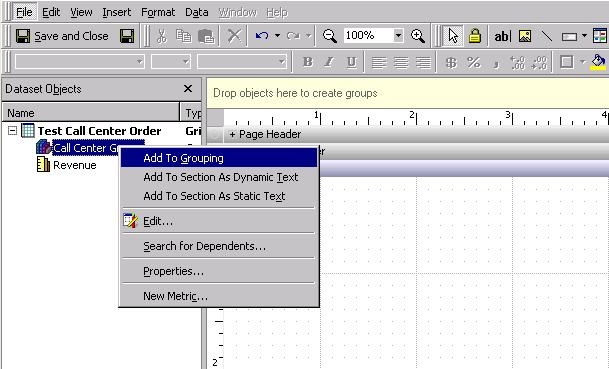
  • Add the Custom Group to Grouping, as shown below:
ka04W000000OabMQAS_0EM4400000028KH.jpeg
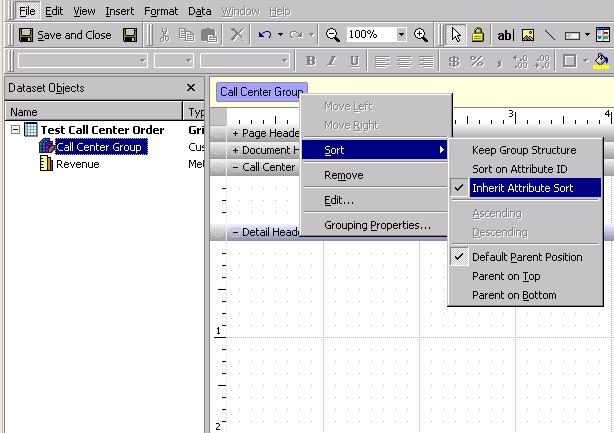
  • On Call Center Group, right click and select Sort – Inherit attribute sort.
ka04W000000OabMQAS_0EM4400000028KI.jpeg
  • Add the metric Revenue to the Call Center Group Header.
  • Execute the document in PDF View, the bookmarks are ordered by ID, ignore the sort defined:
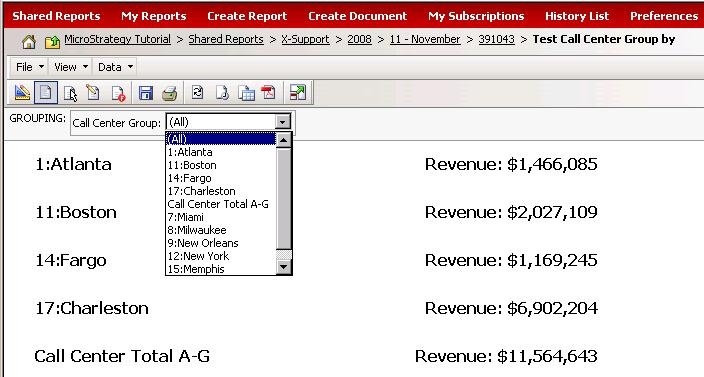
  • In Web, when execute the document in all view modes, the elements in combo box grouping are ordered by ID ascending, ignore the sort defined.
ka04W000000OabMQAS_0EM4400000028K8.jpeg

CAUSE:
This is a known issue in Strategy Desktop 9.x.
 
ACTION:
Strategy will continue to investigate and post updates as soon as they are available
 
 
KB30195


Comment

0 comments

Details

Knowledge Article

Published:

June 16, 2017

Last Updated:

January 8, 2019