EducationSoftwareStrategy.com
StrategyCommunity

Knowledge Base

Product

Community

Knowledge Base

TopicsBrowse ArticlesDeveloper Zone

Product

Download SoftwareProduct DocumentationSecurity Hub

Education

Tutorial VideosSolution GalleryEducation courses

Community

GuidelinesGrandmastersEvents
x_social-icon_white.svglinkedin_social-icon_white.svg
Strategy logoCommunity

© Strategy Inc. All Rights Reserved.

LegalTerms of UsePrivacy Policy
  1. Home
  2. Topics

KB303843: Changing font size for textbox causes text to be rendered with enormous font size using MicroStrategy 10.3.


Community Admin

• Strategy


Changing font size for textbox causes text to be rendered with enormous font size using MicroStrategy 10.3.

SUMMARY
Users with non US English regional settings, editing a Report Services Document using Strategy Web 10.3 encounter an issue leading to gigantic fonts after making a modification of the textbox font property.
 
1. Set Web user preferences > General > Language > Number and Date format to a non English (US) locale, e.g. Spanish (Spain).
2. Create a new report services document and insert a textbox
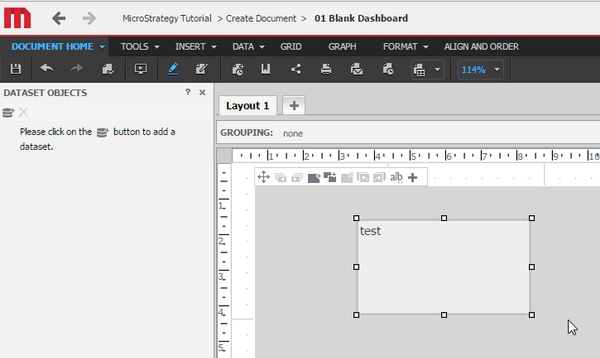
ka04W000000ObzKQAS_0EM4400000025Td.jpeg

3. Right-click the textbox and choose "properties and formatting". Change the font size under Format > Font.

ka04W000000ObzKQAS_0EM4400000025TV.jpeg

4. Execute the document
5. Return to Edit mode and make a modification to the textbox font size again.
6. Run the document again and notice the gigantic textbox and content.

ka04W000000ObzKQAS_0EM4400000025Tj.jpeg

 
CAUSE
This is a known issue with Strategy Web 10.3. 
 
ACTION
This issue has been addressed with Strategy Web 10.4. Upgrade to take advantage of the fix.
 
WORKAROUND
1. Change Number and Date formatting settings to English US and the issue will not occur.

ka04W000000ObzKQAS_0EM4400000025Ti.jpeg

 
 2. Use Strategy Developer to modify the font size.


Comment

0 comments

Details

Knowledge Article

Published:

May 31, 2017

Last Updated:

May 31, 2017